

No, a Samsung account can't be deleted without verifying ownership. Recover access first, then use the account website's deletion controls. Removing it from one Galaxy phone is different: the online account remains available.
Some accounts offer one-time email sign-in, so recovering access doesn't always mean remembering the old password. That sign-in still requires verification, and a later removal or deletion prompt can ask for the password again.
In this guide
Decide whether you mean the phone or the whole account
Signing out on a Galaxy removes that Samsung account from that device. Permanently deleting the account removes the online account and its associated information across connected Samsung services.
For a phone you're selling, start with signing out on the phone. Deleting the entire account would also affect the same account used on other devices, which usually isn't what a seller needs.
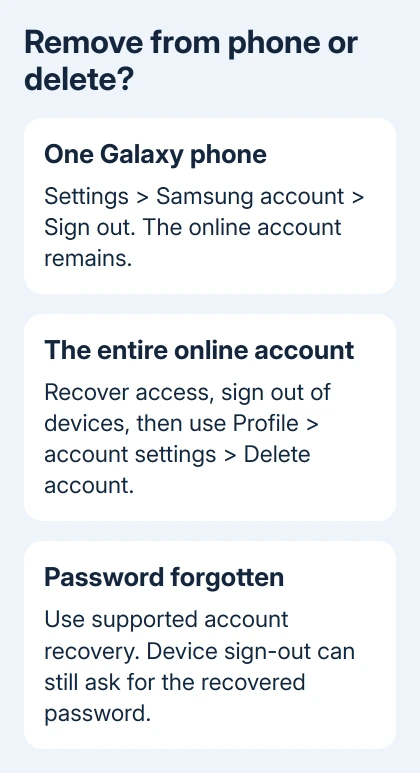
Save the Samsung data you need before either action. Removal stops its syncing on that device. Permanent deletion affects information held by the account itself, including associated service and purchase information.
Check the account email shown in Settings > your Samsung account name. The phone's screen-lock PIN, Google account password, and Samsung account password are different. Entering one in another account's prompt won't solve it.
If you're unsure which email belongs to the account, use Find ID on the account sign-in page. Recover the existing account rather than creating a new one and expecting it to replace the account already attached to the phone.
Recover access without needing the old password
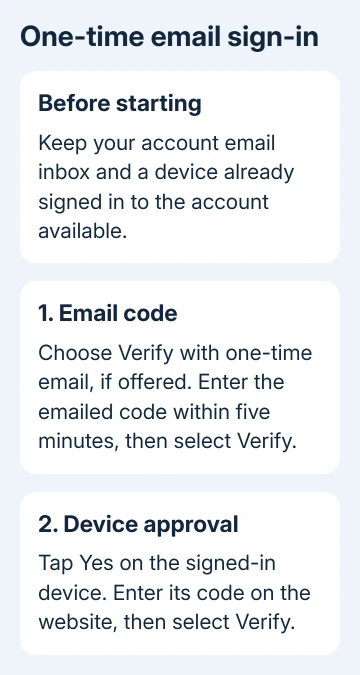
Open account.samsung.com and choose Sign in. Enter the Samsung account email. If Verify with one-time email is offered, it can let you sign in without typing the account password.
Samsung says in its sign-in troubleshooting that this method requires access to the account's email and a device already signed into that Samsung account. Access to the email inbox alone isn't enough.
- Select Verify with one-time email on the sign-in page.
- Open the verification email and enter its code before it expires.
- Approve the two-step verification notification on the already signed-in device.
- Enter the code shown on that device into the website and select Verify.
The email code expires after five minutes. If it has expired, request a fresh one instead of retrying the expired code. Complete the device approval as well as the email check.
Without that option, select Forgot password? and follow the account's recovery choices. Depending on the options shown, you may need the registered phone number, email verification, or a backup method.
The separate Samsung password-reset steps cover that recovery process in more detail. After resetting it, use the new password when signing out or confirming another account change.
Remove the account from one Galaxy phone
On a phone you can unlock, open Settings and tap your Samsung account name at the top. Scroll to Sign out, tap it, then follow the confirmation prompts.
The phone's sign-out steps ask you to tap Sign out again, enter the account password, and select OK. Use the recovered password if the old one was forgotten. You'll still need that password even though the phone is already signed in.
Another route is Settings > Accounts and backup > Manage accounts. Select your Samsung account, tap Remove account, confirm it, then choose Sign out and enter the account password when requested.
Check Settings afterward. The account should no longer appear as the signed-in Samsung account on that phone. The online account still exists, and you can continue using it on another device.
Removing the account can delete its synced data from the phone and stop new syncing. Data that hasn't synced to Samsung Cloud stays on the device, so signing out isn't a complete phone wipe.
If you're giving the phone to someone else, it also needs to be erased. The Android factory-reset preparation covers erasing an unlocked phone after checking accounts and backups.
I'd finish the device sign-out before considering permanent account deletion. You keep access to the account as you confirm the phone has signed out.
Permanently delete the account from the website
Sign out of devices using the account before deleting it. Deleting the account doesn't automatically sign it out of those devices, and a deleted account can't be used to sign back in to handle later reset or erase tasks.
In a browser, sign in to account.samsung.com. Open Profile, then Manage Samsung account or Samsung Account settings, depending on the regional account page. Select Delete account.
Read the warnings on the page and follow the confirmation steps. If the website asks for a password or another verification, use your recovered password or verification method to complete that check.
Signing in with a one-time code doesn't mean you can delete the account without a password.
Account deletion also removes associated personal and service information. Review the account's purchase history, downloaded items, and Samsung service data before confirming that you're ready to lose access to them.
A family organizer must delete child accounts first, according to the account-management instructions. If that message appears, use the account's family controls to delete those accounts before trying to delete your own again.
Wait for the website's completion message. Reaching the Delete account page or signing out of the browser isn't the same as completing deletion. Keep the final confirmation for your records if one is supplied.
When account verification isn't available
Try the other recovery options shown on your sign-in page. If you've lost the registered phone number, check Didn't get the verification code? for available text or backup-code options rather than guessing codes.
If those methods fail, use the support contact on the account troubleshooting page. Ask for Samsung account recovery and explain which verification option you can't use. Have your account email and device details ready.
A used phone signed into someone else's account needs that owner to sign out. Ask the seller to follow the sign-out steps, or arrange a return. Resetting the phone doesn't recover the other person's credentials.
Don't use a factory reset as a password-recovery step. It can erase local files while leaving account verification as another obstacle. Get back into your account before erasing a device that still holds data you need.
The Short Version
Verify and recover access first. Use Galaxy Sign out for one phone, or Profile > account settings > Delete account for permanent deletion. One-time email sign-in still needs verification and may not satisfy a later password prompt.
Checked November 12, 2026.
 If you have any business, I can build it online






