Brother's Status Monitor can be turned off without removing the printer driver. Exit the monitor to stop it for now, then disable its startup entry if you don't want it returning when you sign into Windows.
For pop-ups alone, use the monitor's display setting instead. Those are separate choices: hiding status messages, stopping a background utility, and uninstalling the printer package don't do the same thing.
In this guide
Decide which Brother component you want to stop
Look at the window title or taskbar icon before changing anything. Brother Status Monitor reports printer status and errors. Brother iPrint&Scan, ControlCenter, and Brother Utilities are separate programs with different jobs.
If a status window interrupts you whenever you print, start with its message-display option. If you want the monitor out of your current Windows session, choose its Exit command. If it returns at every sign-in, change startup behavior too.
I'd leave the working print installation in place while making these changes. You're trying to stop an unwanted utility. Removing the whole Brother package gives you extra setup work without helping with that task.
Check whether another person uses the scanner from this PC before turning off other Brother tools. Printing from a document and starting a scan from the printer's panel can depend on different software being available.
If the printer hasn't been installed successfully yet, complete the Brother computer-connection procedure first. Disabling utilities won't correct a cable, network, or model-selection mistake during setup.
Hide Status Monitor pop-ups while keeping it available
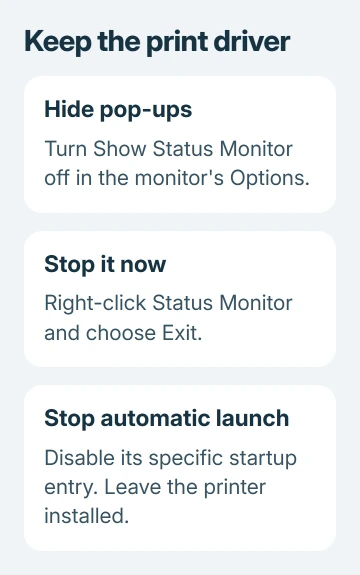
Right-click the Brother Status Monitor icon in the notification area or right-click its window. Open Status Monitor Settings > Options when that menu is available, then look for its status-display setting.
On the MFC-J491DW, MFC-J497DW, MFC-J690DW, and MFC-J895DW family, open the Basic tab and set Show Status Monitor to Off. Confirm with OK.
Other models can use a different layout. Follow your model's monitor instructions if the Basic tab or display option isn't present. This setting controls automatic status windows; it doesn't remove the Windows printer driver.
After the change, print an ordinary document. Check that the page prints without the unwanted window. The printer's own panel can still report errors while the computer's status window stays quiet.
The utility remains available for a manual status check. This option keeps interruptions down while letting you check ink, toner, or an error when something goes wrong.
Exit the monitor for the current session
Right-click the monitor's notification-area icon and select Exit. Confirm with OK if the installed version asks. Look in the taskbar's hidden-icons area if the Brother icon isn't immediately visible.
The monitor window and its tray icon should disappear. Closing an app's visible window and exiting its background utility can behave differently, so choose Exit instead of assuming the window's close button does both jobs.
This stops the status utility, not the printer's power or your Windows print queue. Try a short document from the app you normally print from, choosing the same Brother printer entry as before.
A printed page confirms printing works with the monitor closed. Otherwise, read the queue message and printer's panel before reinstalling software. Changing the monitor settings won't fix a paper or connection problem.
The next Windows sign-in can start the monitor again if its startup option remains enabled. Use the next section when Exit works for today but doesn't survive a restart.
Prevent it from returning at Windows sign-in
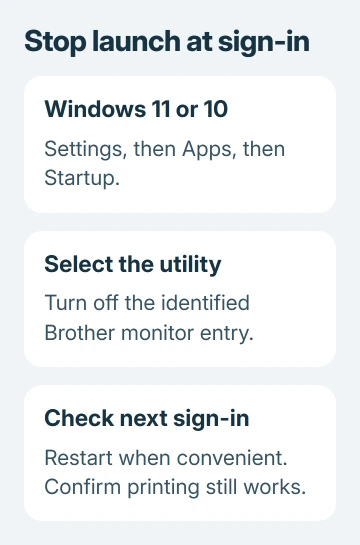
If you can identify the utility in Windows' startup list, open Settings > Apps > Startup. Windows 10 uses this path too, so the steps match Windows 11. Find the specific Brother utility you want to stop and turn its switch off.
Microsoft's startup application controls also provide a Task Manager route. Open Task Manager, choose Startup apps on Windows 11, select the utility, and choose Disable.
Windows 10 uses Task Manager's Startup tab for that list. Disabling an entry stops it opening automatically at sign-in; it doesn't uninstall the application or remove its files.
Use the utility's exact name. Don't disable every item containing Brother, and don't turn off the Windows Print Spooler service. The spooler handles queued print work and isn't the status pop-up you're trying to quiet.
Restart Windows when convenient, then check whether the utility returns. A startup switch controls the next sign-in, so changing it doesn't necessarily close a copy that's already running.
Keep the driver and scanner functions you still need
Leave the Brother printer listed in Printers & scanners. On Windows 11, that page is under Settings > Bluetooth & devices; Windows 10 places it under Settings > Devices.
Avoid Brother Utilities > Tools > Uninstall for this task. Brother describes that route as uninstalling its software and drivers, rather than simply hiding a notification or stopping an automatic launch.
The broader Windows printer-driver guide explains the driver side of the installation. A driver lets the system print through the selected device; a separate status window isn't the same component.
After a change, check the functions you use: print from your normal app, open the scanner program if needed, and try a panel-started scan if that's part of your routine. Printing successfully doesn't tell you whether scanning still works.
If a scan stops after disabling a scanning utility's startup entry, re-enable that entry and sign in again. That's a different setting from Status Monitor's display option. Brother's apps don't all do the same job.
When the unwanted window keeps returning
Note the returning window's exact title and when it appears: Windows sign-in, a print job, opening an app, or pressing Scan on the printer. When it opens helps you work out which setting to change.
Give Brother support the model, Windows version, window title, and changed startup setting. Ask which component opens that window and how to stop it while retaining printing and the scanner features you need.
The Short Version
Hide status pop-ups in the monitor's Options, or use Exit to stop it now. Disable its specific startup entry to stop automatic launch. Keep the printer driver installed and check scanning separately if you disable other utilities.
Checked November 12, 2026.