

One registry value, DisableHyperlinkWarning, switches off the "Hyperlinks can be harmful to your computer and data" prompt in PowerPoint and the rest of Office. Set it to 1, and links to files open without stopping to ask.
Steps written for Office 2007 do nothing on Office 2010, because each version reads that value from its own numbered key: 14.0 for Office 2010, 15.0 for Office 2013, and 16.0 for Office 2016 through Microsoft 365.
Check which prompt you've got first. A file path in quotation marks means Office's own warning, which this value stops. No quotation marks and the words "Some files can contain viruses" mean a Windows prompt that needs fix 2.
In this guide
Which warning is on your screen
Both prompts appear when you click a link to a file, such as a video, a sound or a PDF, during a slide show or while you edit. They look alike at a glance, so read the first two lines.
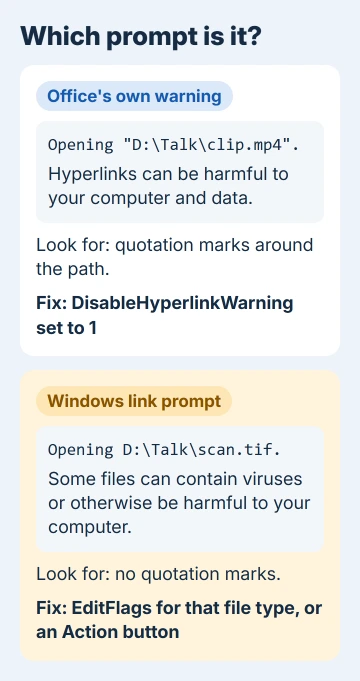
Office's own warning names the file in quotation marks, then says "Hyperlinks can be harmful to your computer and data." The registry value in fix 1 turns this one off in every Office version since 2007.
The second prompt comes from HLINK.dll, the Windows file that opens links for Office. It shows the path without quotation marks and says "Some files can contain viruses or otherwise be harmful to your computer." That value doesn't touch it.
It turns up for TIFF images and other files too. One owner kept getting it on a link from Word to an MP3 file even after setting the registry value, which makes sense, since the value can't reach this prompt.
1. Set DisableHyperlinkWarning under your version's key
This fixes the quoted warning in about two minutes. Close PowerPoint and your other Office apps first, so they pick up the new value when they start. Registry Editor saves each change instantly, so change only the key named here.
Office 2010 keeps the setting in this key. On Office 2013, change 14.0 to 15.0. On Office 2016, 2019, 2021, 2024 and Microsoft 365, change it to 16.0.
HKEY_CURRENT_USER\Software\Microsoft\Office\14.0\Common\Security- Press Windows key+R, type regedit and press Enter.
- Open the key for your version in the left pane. If Common has no Security key, right-click Common, choose New > Key and name it Security.
- Right-click Security, choose New > DWORD (32-bit) Value and name it DisableHyperlinkWarning.
- Double-click the new value, select Decimal, type 1 and click OK. Setting it to 0 later turns the warning back on.
- Close Registry Editor, open your presentation and click the link again.

These are the same registry steps Microsoft gives for Office 2016 and later; older versions just use a different number.
Not sure which one you have? File > Account shows it in Office 2013 and later, and Office 2010 shows it under File > Help.
If the prompt is gone, you're done. If it still shows up with quotation marks, check the number in the path again. A value under 12.0, where the 2007 steps put it, does nothing for Office 2010.
One owner on Office 2010 lost the first warning as soon as they added the value under 14.0, though links to PDF files still brought up a second prompt. That's the kind fix 2 deals with.
The value only changes the PC you set it on, so set it on the laptop you'll present from. Copy the deck to a venue's computer and the prompts come back there.
2. Mark the file type as safe for the Windows prompt
The Windows prompt ignores DisableHyperlinkWarning. Microsoft's fix for it goes file type by file type, through a registry value called EditFlags that marks that kind of file as safe to open.
- In Registry Editor, open HKEY_CLASSES_ROOT and find the file type's key. For .wmv files it's WMVFile. For other types, click the extension key, such as .mp3; its (Default) value tells you which key to open.
- If that key has an EditFlags entry, right-click it, choose Rename and call it OldEditFlags.
- In the right pane, right-click some empty space, choose New > DWORD (32-bit) Value and name it EditFlags.
- Double-click it, select Hexadecimal, type 10000, click OK and close Registry Editor.
Files that open in Protected View, Office's read-only mode for downloads and email attachments, still show the prompt after this change. To undo it, delete the new EditFlags and rename OldEditFlags back to EditFlags.
This one changes how Windows treats that file type everywhere, not only in PowerPoint. I'd do it only for the one or two kinds of file you really link to in your talks.
3. Launch the file from an Action button instead
When the registry is off-limits, on a work laptop for example, open the file through a program instead of a plain hyperlink. One owner on PowerPoint 2010 and Windows 7 said this took care of the security warnings.
- Select the text or picture that should open the file.
- On the Insert tab, click Action.
- On the Mouse Click tab, select Run program.
- Type the program's full path, a space, then the file's full path, and click OK. A path with a space in it needs quotation marks around it, as in this example for a sound file:
"C:\Program Files\Windows Media Player\wmplayer.exe" "D:\Talk\intro.mp3"The same owner found relative paths work as well (paths that start from the deck's folder, not a drive letter), which helps when the files travel in a folder next to the deck. Test the button in Slide Show well before your talk.
For a video or a sound clip, the simpler way is to skip the link: add it with Insert > Video or Insert > Audio and it plays inside the slide.
If an inserted clip won't start, PowerPoint can't play media walks you through checking the file and its codec (the way its sound and video are compressed).
A trusted location won't stop it
Making the folder a trusted location, under File > Options and then Trust Center, is the advice you'll see most often for this prompt. It's meant for something else, though.
Files in a trusted location skip Office's checks on macros, data connections and ActiveX controls (small programs built into a document), and they stay out of Protected View.
One owner added their folder and still got the prompt on every link to a PDF, so skip it unless the file has macros that need it.
The Ctrl+Click tip in Word is a different setting
In Word, a link that only opens while you hold Ctrl isn't a security warning at all. Clear Use CTRL + Click to follow hyperlink in the Editing options part of File > Options > Advanced, and a plain click opens links again.
When the prompt still comes back
On a PC your company or college runs, ask IT before you edit the registry. They often manage Office's security settings for all their PCs from one place, and they can set the value for your account so it sticks.
Check the version number one more time if nothing changed; it's the usual slip. After that, Microsoft's support team can look at the exact prompt with you: in PowerPoint for Microsoft 365, go to Help > Contact Support.
The Short Version
Add a DWORD named DisableHyperlinkWarning, set to 1, under Common\Security in your Office version's key: 14.0 for Office 2010, 15.0 for 2013, 16.0 for 2016 through Microsoft 365.
A prompt without quotation marks needs EditFlags for that file type, or an Action button that runs the program.
Checked November 20, 2026.
 If you have any business, I can build it online






