The Division 2 camera can snap skyward because of how the game receives your controller's input. Try disabling Steam Input for this game first. That stopped the jerks for one owner, though later replies show it doesn't fix every controller.
A sudden snap in this game differs from slow drift across several games. Check which you have before changing deadzones or replacing the pad. PlayStation pads need a fallback if disabling Steam Input stops them responding.
In this guide
1. Disable Steam Input for The Division 2
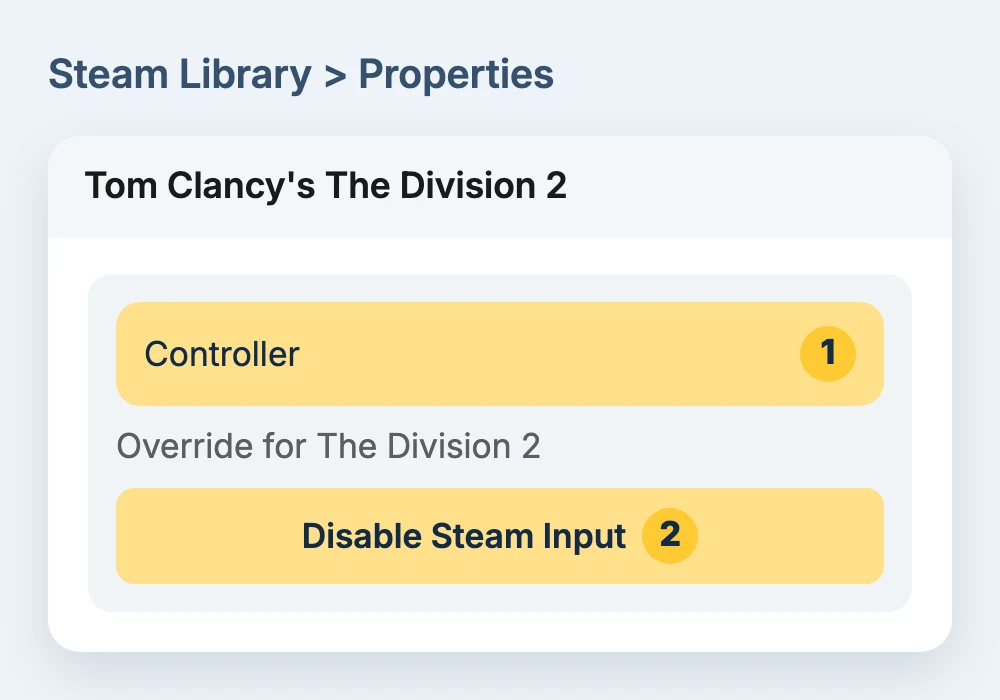
Exit the game completely. In Steam's Library, right-click Tom Clancy's The Division 2 and choose Properties > Controller. Change the game's controller override to Disable Steam Input, then launch the game again.
Steam Input translates your controller's actions for the game. Disabling it lets The Division 2 try using the controller directly. Change this game's setting and leave your other games' setups alone.
Test walking, standing still and aiming in a safe area. Watch for the same sudden upward movement that brought you here. Being able to move through menus doesn't tell you whether the camera has stopped jumping during play.
An owner stopped the jerks by disabling Steam Input. Later replies describe an unsuccessful attempt and continuing trouble with a DualSense.
Let the result decide your next move. If the camera behaves and all buttons work, keep the game-specific setting. If the controller stops responding or the jerks remain, continue with the connection comparison.
2. Compare a data cable with the wireless connection
For a pad supporting wired PC input, use a compatible data cable between the pad and PC. Keep Steam Input disabled for this comparison. A cable that only charges the controller won't carry the input connection you need.
Repeat the walking and aiming actions. If your pad works over a cable but not wirelessly, focus on how it's connected. That difference doesn't call for a new right stick or mean every Bluetooth controller has this fault.
Be ready to reverse the change with a PlayStation pad. The report warned that disabling Steam Input could stop Bluetooth-connected PlayStation input. If a cable doesn't restore control, return the override to its previous setting.
Use the recurring controller connection checks if the pad actually disappears or disconnects. Losing the connection and keeping a connection with the wrong camera movement are different problems.
For Bluetooth pairing trouble, the Windows Bluetooth connection steps cover battery, range and PC connection repairs. They won't directly repair a game-specific camera command.
I'd compare a cable before buying another controller. You can undo this test, and it shows whether the pad works differently through another supported connection. Keep the game and its Steam Input setting the same.
3. Check for two controller mapping programs running together
Look at the software you normally use for the controller. DS4Windows, InputMapper and similar tools can present a virtual Xbox controller to games. That's a controller created by software, separate from the physical pad in your hands.
Steam's controller setup documentation explains that it can see the emulated Xbox controller produced by a PlayStation mapping tool instead of the physical PlayStation controller.
Exit the game before changing that setup. If a separate mapper is running, close it for a comparison with the game's direct controller support. Write down which profile you're using so it's easy to restore afterward.
Change one part of the controller setup at a time. If removing the separate mapper leaves no controller input, restore it before trying another arrangement. You're looking for a setup where movement, aiming and menus all work.
Check whether the controller layout is set to map a stick, touchpad or motion input to mouse movement. A custom layout needs its own review; don't assume a Windows driver replacement will remove an action saved inside that layout.
An Xbox-style pad working in another game makes a dead controller less likely. You still need to check how this game handles the pad and your mapping software's setup. Keep the physical pad the same while comparing individual settings.
4. Separate a camera snap from actual stick drift
Open another game that uses the right stick for camera movement. Leave the stick centered and watch the view. Then move it through its normal range and let go. Compare a steady unwanted movement with The Division 2's abrupt skyward jump.
Use the Windows game controller panel to inspect inputs outside the game too. If unwanted movement appears there and across other games, take those results to the controller maker for its calibration or repair advice.
A deadzone ignores small movements near the stick's center. Increasing it can help small unwanted inputs, but isn't a confirmed fix for this camera snap. Avoid sacrificing much of your aiming range to hide an unexplained jump.
If the pad is steady elsewhere, check The Division 2 and its controller software again. Don't open the controller or order replacement sticks solely because this one game moves the camera. The comparison should guide the repair decision.
5. Send a useful report when the workaround fails
Report the problem through The Division 2's Ubisoft support route. Include the controller model, USB or wireless connection, launcher, Windows version and Steam Input result. State whether the view snaps instantly or drifts continuously.
For a Ubisoft Connect launch without Steam, skip Steam's override unless you added the game there yourself. Report your actual launch route. A Steam-specific setting can't change an installation that isn't using that input layer.
Include whether the pad is steady in another game and whether keyboard-and-mouse play is affected. If the jump is repeatable, describe its trigger. Ask support to check the game's controller handling for your setup.
Use a working cable setup, or play with keyboard and mouse, while the game problem remains. Unwanted input across several games needs the controller maker's service team. Give them your results before agreeing to hardware replacement.
The Short Version
Disable Steam Input for The Division 2, then compare a direct cable and competing mapping layers one at a time. Restore input if the pad stops working. A camera that still snaps only here needs a game-specific support report.
Checked November 27, 2026.
 If you have any business, I can build it online