

Edge only clears the data you picked under Clear browsing data on close when the browser really exits. Startup boost keeps parts of Edge running after the last window closes, so history and cookies can survive until the next restart.
Owners who ran into this saw everything clear as soon as they ended Edge in Task Manager or restarted the PC. So turn off Startup boost first, then check that Edge really disappears from Task Manager when you close it.
In this guide
Closing the window isn't closing Edge
The clear-on-close switches run when Edge shuts down. If a background copy of Edge is still running, then as far as Edge is concerned it never shut down, and the next window you open picks up the same history and signed-in sites.
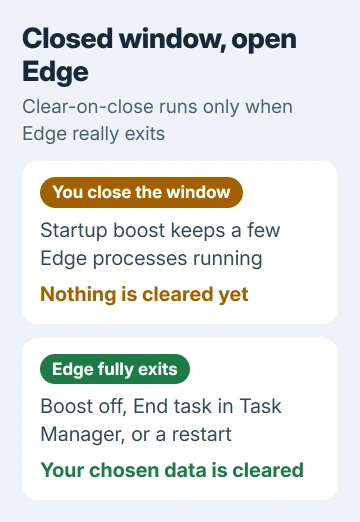
Microsoft's startup boost page says the feature leaves a few Edge processes going in the background after you close the browser, so it opens faster next time.
Edge switches it on by itself on Windows PCs with more than 4GB of memory when you use Edge every few days. Plenty of people have it on without ever choosing it.
1. Turn off Startup boost and background running
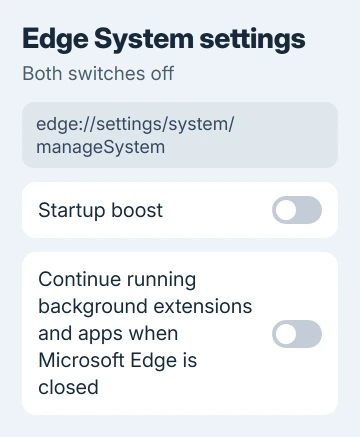
- Open edge://settings/system/manageSystem.
- Turn off Startup boost.
- Turn off Continue running background extensions and apps when Microsoft Edge is closed.
- Close every Edge window and wait a few seconds. Then press Ctrl+Shift+Esc and look for Microsoft Edge under Processes.
If Edge is gone from the list, open it again and press Ctrl+H. Your history should be empty if you set it to clear. One owner found the background switch alone made no difference, which is why Startup boost comes first.
I'd leave Startup boost off for good if you rely on clear-on-close. Edge takes a moment longer to open, and that's the main cost.
A Mac has no Startup boost, but closing the last window doesn't quit Edge either. Press Command+Q so Edge really exits and your clear-on-close choices run.
If Edge is still listed after every window has closed, something is holding it open. The next step forces it shut and shows whether that's the whole problem.
2. End Edge in Task Manager when it lingers
- Press Ctrl+Shift+Esc to open Task Manager.
- Under Processes, right-click Microsoft Edge and choose End task.
- Open Edge and check your history and a site you're normally signed in to.
Ending Edge this way, or restarting the PC, cleared history and cookies properly for several owners. One ran taskkill /IM msedge.exe /F from a command prompt instead, which ends every Edge process at once.
That cleared history and cookies too, though another owner found download history survived it.
Forcing Edge shut only works around the problem, but it shows your clear-on-close choices are fine and the real trouble is Edge staying open.
If Edge lingers even with both switches off, something else is keeping it open. Steps 3 and 4 cover the two causes owners found.
3. Turn off your antivirus browser protection
Some security suites add their own protection layer for Edge, such as a secure or banking browser mode. One owner fixed this by removing ESET's Secure Browser feature while keeping the antivirus itself.
After that, their history cleared every time Edge closed. Open your antivirus settings and look for a browser protection, secure browser or banking protection option.
Turn it off, restart the PC and test Edge again. If that fixes it, leave the feature off, or check for an update to your security software before turning it back on.
4. Check the switches and try a fresh profile
Open Settings > Privacy, search, and services and scroll to Clear browsing data. Open the second link there, the one about closing the browser.
Make sure the switches you care about are on: browsing history, cookies and other site data, and cached images and files.
On a PC your workplace or school manages, IT can set those switches with a policy. The clear-on-exit policy deletes data when Edge closes, and IT can keep cookies for chosen sites even with clearing turned on.
Everything looks right and Edge still keeps your data? Create a new profile in Settings > Profiles > Add profile and set the clear-on-close switches there.
One owner solved it this way; another found the fix lasted a while before the problem came back.
Clear it by hand until it's fixed
Clear browsing data now still works when clear-on-close doesn't, and one owner found it deleted everything. Press Ctrl+Shift+Delete, set Time range to All time, tick what you want gone and click Clear now.
An InPrivate window (Ctrl+Shift+N) is the other stopgap. Edge throws away the history, cookies and site data from InPrivate browsing when the last InPrivate window closes.
If you only clear cookies to stay private, the cookie clearing guide covers which sign-ins you'll lose each time.
If nothing works, press Alt+Shift+I in Edge and send feedback with your Edge version from Settings > About Microsoft Edge.
And if Edge keeps launching at sign-in with Startup boost off, the Edge opens at startup page covers the other settings that start it.
The Short Version
Edge clears data on close only when it fully exits. Turn off Startup boost and the background apps switch, then check Task Manager after closing. If Edge lingers, end it there, turn off antivirus browser protection, or try a new profile.
Checked November 19, 2026.
 If you have any business, I can build it online






