Missing Edge favorites can be a hidden favorites bar, a different browser profile or bookmarks that weren't imported into the new installation. Open edge://favorites first: an empty toolbar doesn't mean the saved list has been deleted.
If the full list is empty too, check the account and any working copy before changing browser files. Old instructions for moving from Edge Legacy don't apply to today's Edge installation.
In this guide
1. Open the full favorites list, not just the bar
Type edge://favorites in the address bar, then press Enter. This opens the full favorites page, where you can inspect folders even when the toolbar doesn't show any saved websites.
Look in Favorites bar, Other favorites and any Imported folders. Expand folders and use the page's search box for a website you remember saving. An imported folder can be inside another folder rather than directly on the bar.
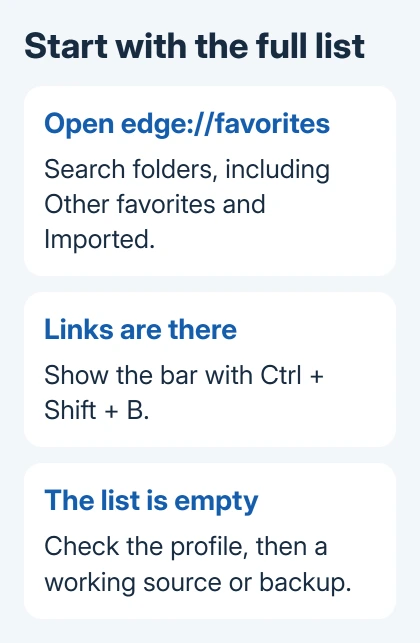
If the links are there, click one to confirm it opens the expected website. Then press Ctrl + Shift + B to show the favorites bar. Pressing that shortcut again hides the bar without deleting its contents.
For a permanent choice, open Settings > Appearance > Toolbar, under Other appearance settings, and set Favorites to Always. Older layouts call it Show favorites bar, which Settings search can find.
The bar doesn't show every folder in the full list. A link inside Other favorites may remain in that folder even when the bar is visible. Move it into Favorites bar if that's where you want to reach it.
If the full favorites page is empty, don't spend time changing toolbar visibility. Continue with the profile check, because the bar can't show links that aren't present in the active profile.
2. Check which account and profile Edge opened
Use the profile picture to inspect the account currently selected. Compare it with the account used before the update or on another device where the favorites still appear.
Switch to an existing profile that uses the correct account, then revisit edge://favorites. Personal, work/school and unsigned profiles can each hold different favorites.
If the favorites were synced, use the account associated with your saved favorites and check Settings > Profiles > Sync. Turn on sync and Favorites where individual data types are listed. Wait while Edge syncs the favorites.
One owner in the missing-favorites discussion could see their favorites after signing in and enabling sync. You don't need an account just to keep favorites on one PC.
If another PC still has the list, keep it intact while you check the affected device. Exporting that working list gives you a usable recovery copy without depending entirely on whether sync finishes correctly.
If passwords disappeared at the same time and they came from Authenticator, the Authenticator-to-Edge guide explains that separate change. A missing favorites bar doesn't tell you whether saved passwords have moved.
3. Import the bookmarks from a browser that still has them
Open the previous browser and confirm the bookmarks actually exist there. Importing from an empty browser won't bring them back, even if Edge says the import finished.
In Edge, open Settings > Profiles > Import browser data. Depending on the version, you'll see choices for specific browsers and an Import browser data now control under Other import locations.
Choose the browser that still holds the bookmarks. Under Choose what to import, select Favorites or bookmarks, then Import. When the completion notice appears, select Done and check the favorites page.
Microsoft's favorites-import instructions describe both browser and file imports. Imported bookmarks can appear in a folder on the favorites bar named Imported.
Don't import every available data category just to recover bookmarks. Keeping the selection to favorites makes it easier to check what was added without bringing over unrelated history or other saved information.
Open several recovered links and inspect the folders you use most. The completion notice tells you the import ran. Check that the websites you expected are now in the profile you're using.
4. Use an HTML backup when the old browser isn't available
If another computer has the favorites, open its full Edge favorites page. Use that page's More options menu and choose Export favorites. Save the HTML file somewhere you can transfer to the affected PC.
An HTML favorites export keeps your website links and their folders. It isn't an export of saved passwords, and you don't need a password CSV file to bring back the bookmarks.
On the affected PC, open Settings > Profiles > Import browser data. Under Other import locations, select Import beside Import browser data now.
Choose Favorites or bookmarks HTML file in Import from, then select Choose file. Pick the exported HTML file, select Open and finish with Done when the import completes.
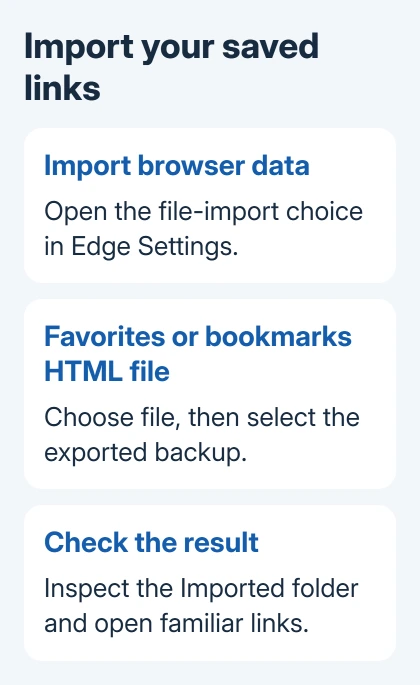
Return to edge://favorites and inspect the imported folder. Keep the backup file until you've checked the links and folder structure. Importing the same file repeatedly can create duplicate entries that need sorting.
After recovery, the multiple-favorites cleanup guide explains selecting unwanted entries in groups. Recover the useful list before starting a large cleanup.
5. Leave the old Edge Legacy recovery commands alone
The original discussion dates from the 2020 move to Chromium-based Edge.
Chromium is the browser engine Edge now uses. Its accepted answer describes importing from Microsoft Edge Legacy, enabling an old experiment and deleting the browser's User Data folder.
Later replies explain that the Legacy browser had already been removed from most computers. That old source might no longer exist, so a missing Legacy option today isn't a reason to force the old experiment on again.
Don't delete the current User Data folder to try to make Edge import again. It holds the profiles you're trying to recover. The old procedure was written for a specific migration, with limits that don't fit a routine modern update.
Uninstalling today's Edge also won't bring Edge Legacy back. If the only remaining copy was in that retired browser and there is no usable backup, the historical migration steps can't promise recovery now.
When the favorites still aren't in any copy
Use Settings and more > Help and feedback > Send feedback and give the Edge version, update date and affected profile. Explain whether the list is empty on all synced devices or just this installation.
For a work or school profile, ask IT whether the browser profile or account changed and whether they have a backup. If no browser, synced device or export has the list, support may be unable to recover the old links.
Browser history and emails containing important addresses can help rebuild part of the list manually. Save those links into the correct profile, then export a fresh copy once the useful folders are back.
The Short Version
Look through the complete favorites page, then the profile and sync account. Import from a browser or HTML backup that still holds the links. Avoid the old Edge Legacy folder-deletion instructions.
Checked November 23, 2026.
 If you have any business, I can build it online