

Error 224003 means the website's player couldn't play the video it tried to load. Try a second video on that site and the failed clip in another browser. The site needs to fix a broken video; an Edge-only failure needs browser checks.
Start with that comparison before installing codecs or resetting anything. The number appears inside a website's player, so it doesn't automatically mean Windows, your graphics card or Edge itself is damaged.
In this guide
1. Find out whether one video or every video fails
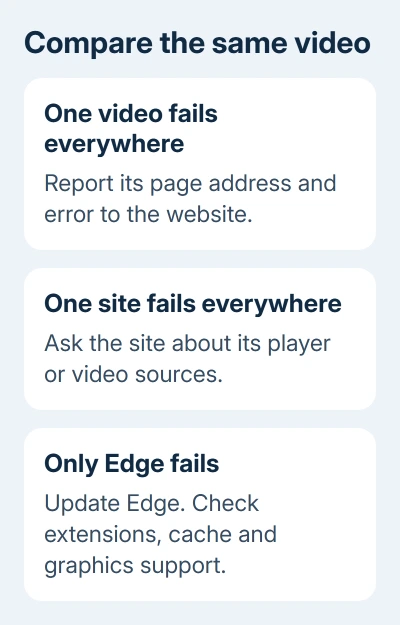
Reload the failing page once, then try a different video on the same site. Use a video you can normally access with your account. If the second plays, keep the first video's full page address for a support report.
Next, open the original video in another installed browser. Use the same account wherever a login is required. A free preview in one browser and a subscriber-only full video in another aren't the same thing, so compare the same clip.
If only that video fails across browsers, report its title, address and 224003 to the site. Clearing your browser history won't repair a missing source or replace an unsupported uploaded file.
If all videos on that site fail while other sites play normally, check the site's service notices or ask its support about playback. If only Edge fails on the same video, go on to the browser-specific checks.
JW Player's error reference says 224003 means the browser doesn't support the resource the player tried to load.
The error tells you playback failed. It doesn't identify an ad blocker or slow connection as the cause, so use the video and browser comparisons to decide what to try next.
2. Update Edge and retry the exact playback action
Enter edge://settings/help in the address bar. Let Edge check for updates, install the update if offered, then finish it by restarting Edge. The menu route is Settings and more > Help and feedback > About Microsoft Edge.
Replay the video through the point that failed. If it stopped after an advertisement, let that part run again. A poster image or the first second playing doesn't confirm that the original failure is gone.
Updates can improve media support and fix bugs, but Edge still can't play every format. If section 1 showed failure across browsers, give the site those playback results instead of repeating the browser update check.
For a page that freezes and displays RESULT_CODE_HUNG, use the hung-page checks. That means the page stopped responding. With 224003, a failed player can sit on an otherwise working page.
3. Check whether an extension blocks the player
Open a new InPrivate window with Ctrl + Shift + N on Windows, or File > New InPrivate Window on Mac. Load the same video address. Sign in if the video requires your subscription or account.
InPrivate normally needs separate permission to run an extension. If the video works, check your regular profile's add-ons and site data. Since the session is separate too, success alone won't tell you which extension to change.
In a regular window, enter edge://extensions and turn extensions off. Reload and test playback. If it works, enable one add-on, retest, and repeat to find what brings the failure back. Keep that extension off for the test.
Privacy or ad-blocking extensions can interfere with video resources. Make a site-specific change to the relevant add-on when you trust the site. Don't disable all browser security or antivirus protection to make an unknown video site work.
Turn the extensions back on if playback hasn't improved, then continue. People in the original discussion suggested ad blockers, but the person asking for help didn't confirm that turning one off worked. Treat this as a check.
4. Refresh Edge's cached copies of the page
Press Ctrl + Shift + Delete in Edge on Windows. On Mac, open Edge settings and search for Delete browsing data. Choose All time for the range, select Cached images and files, and clear those files.
Leave saved passwords and other unrelated categories unchecked. The Edge cache controls let you remove cached files without deleting everything the browser remembers. Reload the page after the clear finishes.
Cached files are copies your browser keeps to help sites load quickly. Clearing them can help if the player is using an old or broken copy. If the same video still fails, move on to the remaining playback checks.
Only remove the site's cookies when you're prepared to sign in again. Cookies hold website sessions, so deleting them can interrupt a subscription login. I'd try cached files first because that leaves those sessions alone.
The accepted reply suggested clearing the cache and changing browsers, but didn't say the person asking for help got it working. Repeated clearing has no confirmed success in that discussion. After one unsuccessful attempt, continue.
5. Check graphics support when playback is wider than one site
For an Edge-only problem affecting several videos, open edge://settings/system. Check Use graphics acceleration when available. Microsoft's video playback guidance includes enabling it and updating the graphics driver.
Graphics acceleration lets the graphics chip handle supported video tasks. After changing it, restart Edge and retry. If it was already on, the guidance also suggests turning it off and back on, then restarting the browser.
For Windows drivers, use your PC manufacturer's supported driver tool or the graphics vendor's official updater. On Mac, use System Settings > General > Software Update for system updates. If the setting is managed, ask IT to check it.
Don't buy a codec pack solely because the player reports 224003. A codec is the software used to decode a particular video format. Ask the site's support which format is failing before treating an optional codec as the answer.
When the video still won't play
Send the site the video address, error number, Edge version and the playback result from your other browser. Ask whether the video works with current Edge or is available from another source. Mention whether other videos on that site play.
For Edge-only failures across unrelated sites, use Settings and more > Help and feedback > Send feedback with those comparisons. Ask IT to check managed graphics or browser policies. Report a single-site fault to its operator first.
If entire browser windows stop responding too, use the Edge recovery checks. They cover stuck browser processes and installation repair, rather than a single player's media error.
The Short Version
Compare a second video and browser. For Edge-only failures, update, test extensions and clear cached files. Check graphics support when several sites fail. The comparison helps separate browser trouble from a failed source video.
Checked November 23, 2026.
 If you have any business, I can build it online






