

Excel's Cannot open the specified file message often follows a workbook move that breaks relative links. First, repair one link with the full path to its file. If it opens, fix the remaining addresses without rebuilding the spreadsheet.
A missing file, an unavailable shared drive, and a relative link can produce similar trouble. Check whether the destination opens outside Excel and whether the links failed immediately after a move.
In this guide
1. Replace one broken destination with its complete path
Right-click a failing linked cell and select Edit Hyperlink. Read the Address box, which holds the destination. The visible text in the worksheet can look correct while this address points somewhere else.
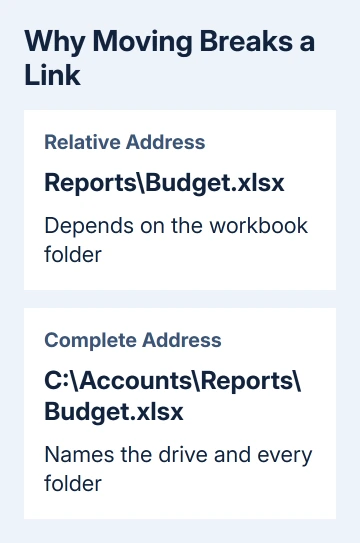
A relative address such as Reports\Budget.xlsx starts from a folder associated with the workbook. A full address such as C:\Accounts\Reports\Budget.xlsx names the drive and folders as well as the file.
Find the file you want to open in File Explorer. In the link dialog, browse to that file or enter its complete address, then confirm with OK. Click the repaired link and check that it opens the right document and version.
If the cell contains a HYPERLINK formula, edit its address in the formula bar instead. Edit Hyperlink won't change an address supplied by that function.
Microsoft's link instructions explain both cases. A path that doesn't include the full location is normally relative to the active workbook, so the workbook's location matters even when the destination hasn't moved.
I'd repair one of the broken links before changing a whole column. If it opens, you know you can reach the file and have a working address to compare with the other broken links.
2. Confirm the destination is still reachable
In File Explorer, paste the destination folder into the address bar, then press Enter. Open the target file from that folder. This checks the location and your access without relying on the spreadsheet's hyperlink.
If Explorer can't reach the folder either, reconnect the required company network or VPN and check with the folder owner. Editing Excel's link won't bring back an unavailable server or grant access to a restricted folder.
If an intranet page also blocks the same file, check Edge's file-link policy after confirming the share opens in Explorer.
A drive letter such as S: points to a shared folder set up on that computer. A colleague might use a different letter for that share, or have no drive mapped to it. Ask IT for the shared folder's proper server address.
A Windows network address normally begins with two backslashes, for example \\Server\Share\Reports\Budget.xlsx. Use the real server and share names. A local C: address on your PC won't automatically refer to a colleague's copy.
If Explorer finds the file but Excel still won't open it, use the checks for Excel being unable to access a file. Those checks address opening and permission failures once the destination is correct.
If the destination opens directly but the spreadsheet link still fails, return to the address rather than repairing Office. Compare spelling, the extension, and every folder in the working path.
3. Restore the folder relationship or set a real link base
When all links broke immediately after moving the workbook, put a separate copy back in its original folder and try a link there. Working links in the old location point to a folder relationship that the move changed.
There are two sensible arrangements. Keep the workbook and its linked files in the same relative folder structure when they travel together. Use complete addresses when you move the workbook but leave its linked files in a fixed location.
For desktop Excel on Windows with the File tab, choose File > Info > Properties > Advanced Properties. Open Summary and inspect Hyperlink base. This is the starting folder Excel can use for file links without complete addresses.
If the links are meant to use one fixed shared folder, enter that real folder as the base. Record the existing value before changing it, then save and test a link. A wrong base can affect several addresses at once.
A complete address overrides the base. Setting a base doesn't move files, restore permissions, or rewrite every existing formula, so inspect the stored address when a particular link still points elsewhere.
The nonexistent-server workaround succeeded in some Excel 2007 reports but failed in another. A real base or a formula containing the full address is easier to check against the files you actually use.
4. Remove a number sign from a failing filename
A target filename containing # can cause this error even when Explorer opens the file normally. Check the name if the destination is reachable but its Excel hyperlink still fails.
Try a separate copy with a simple name that contains no #. Edit one hyperlink to point to that copy and check whether it opens. If it does, coordinate a permanent rename with the file's owner before changing other people's destinations.
Keep this check separate from relocating the workbook. It addresses a troublesome filename even when both files have stayed in their original folders.
5. Use HYPERLINK formulas for addresses that must stay explicit
If you have a manageable number of links, put the complete address directly in a formula. For example, a Windows desktop workbook can use:
=HYPERLINK("C:\Accounts\Reports\Budget.xlsx","Open budget")Replace the example path with your own file. The first argument is the destination; the second is the text shown in the cell. Moving the workbook doesn't change the address you've written inside this formula.
One owner in the original discussion confirmed that the HYPERLINK function kept the address absolute when moving their workbook between drives.
For many files in one folder, keep the folder path in a separate cell. If A1 contains \\Server\Share\Reports\ and B2 contains Budget.xlsx, this formula combines them:
=HYPERLINK($A$1&B2,"Open file")Using dollar signs makes A1 stay fixed as the formula is copied. Each row can use a different filename, while one folder cell controls the shared destination. Include the final backslash in the folder cell.
Test the first result, then copy the formula only to the rows that need it. These formulas don't convert existing inserted links by themselves; keep the old cells until their replacements open the correct files.
6. Check the handoff from the reader's computer
Save the repaired workbook in its intended final folder, close it, and reopen it. Try links to each folder used by the sheet. This catches a repair that worked only while the workbook sat in its old location.
For a shared workbook, ask a colleague to open one link from their own computer. A working server address on your machine still needs the other reader to have network access and permission for that file.
The Windows file-path examples aren't a repair for Excel in a browser. Its HYPERLINK function supports web addresses, so a path on your own drive doesn't make that file accessible to browser readers.
Also distinguish clickable links from formulas that import values. A HYPERLINK opens a file or page; an external workbook reference pulls data into cells. The Excel link-removal guide covers that second kind.
If valid addresses still fail, give your IT team the workbook's location, one failing address, the destination's real location, and whether Explorer opens it. Ask them to check share access and drive mappings before replacing the workbook.
The Short Version
Repair a hyperlink with its complete address. Check for # in the filename, then correct relative paths or use HYPERLINK formulas. Check shared destinations from the computer that needs them.
Checked November 17, 2026.
 If you have any business, I can build it online






