
The Cannot use object linking and embedding alert can appear even in a blank Excel workbook on a Mac. Start with OS X and Office updates. Owners also fixed the Office 2016 alert by rebuilding preferences or reinstalling Office.
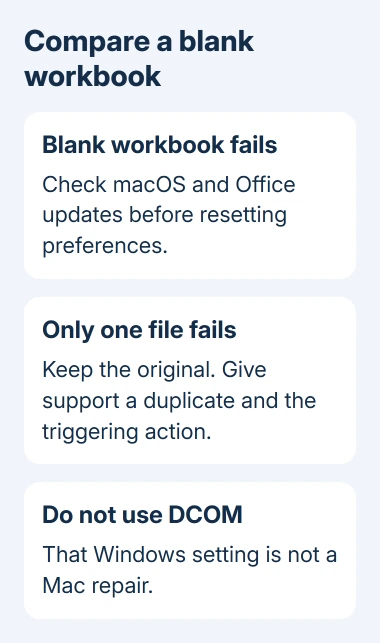
The Windows DCOM advice doesn't apply to this Mac error. If the alert appears across Excel, changing a setting in one workbook is unlikely to fix it everywhere.
In this guide
1. Check whether a blank workbook triggers the alert
Save any work you can, quit Excel with Command+Q, and reopen it from Finder > Applications. Create a blank workbook. Enter a harmless number and move to another cell, watching for the same alert.
The original asker saw the message while opening a blank workbook and repeatedly while using spreadsheets. Excel complained even though they hadn't inserted an object into that blank workbook.
If a blank workbook works, duplicate the affected workbook and open that duplicate. Note the precise action that triggers the message, such as opening it, switching sheets, or editing a cell. Keep the original file untouched for comparison.
For a file that won't open at all, the Excel opening guide covers that separate symptom. The checks here apply to the linking-and-embedding alert in Excel for Mac.
Write down the full version numbers from Excel > About Microsoft Excel and Apple menu > About This Mac. A repair for Office 2016 on El Capitan won't necessarily suit Microsoft 365 on a newer Mac.
2. Install offered system and Office updates
A reply from an owner reported that updating OS X El Capitan to its latest available version solved the problem immediately. Another owner needed a different repair, so an update isn't the only confirmed route.
On an El Capitan-era Mac, check App Store > Updates for the updates offered to that system. On a current Mac, use System Settings > General > Software Update. Complete an offered restart before returning to Excel.
For Office installed directly from Microsoft, use Help > Check for Updates inside an Office app. Microsoft describes that route in its Mac Office update instructions.
Update an App Store edition by opening Updates in that store. Allow the update to finish, reopen Excel, and repeat the blank-workbook check before trying an important workbook.
Mac Office 2016 stopped receiving updates when its support period ended on October 13, 2020. Even if AutoUpdate finishes checking, Office 2016 won't receive a new fix today.
For a Mac too old for supported Office, ask IT to arrange workbook editing on a supported system. The Office for Mac guide explains the system and licensing choices before changing installations.
I'd finish this check before touching preferences. It's simpler than rebuilding your Office setup and keeps the settings you depend on. If the alert survives, keep the version numbers for the next step.
3. Treat the preference repair as a targeted job
One owner fixed the alert by renaming com.microsoft.Office365.plist so Office created a replacement. They kept the old file under a different name rather than deleting it, and the alert disappeared for them.
That reply doesn't say exactly where the file was stored. Don't search the whole Mac and rename every file with Office in its name. Similar filenames can belong to different Office installations, user accounts, or shared Office parts.
A .plist file stores preferences, the app's saved settings. Rebuilding one can remove a damaged setting, but it can also reset choices you want to keep. Quit all Office apps before a support-guided preference reset.
Send IT the exact alert, Excel version, and the reported preference filename. Ask them to identify the preference location for your installed edition and preserve a copy before moving it.
The original asker also reported that deleting a preference file hadn't worked, while removing the whole related folder did. The saved reply doesn't identify that folder clearly enough to turn it into a safe delete command.
These reports give you a reason to move on if resetting one preference file hasn't helped. If resetting the right file doesn't help, follow support's advice to restore your saved settings and consider a complete reinstall.
4. Use a complete Office reinstall only after preparing it
Another owner confirmed a fix after following complete removal instructions for both Office 2011 and Office 2016, then reinstalling Office 2016. Removing only the application icon wasn't the repair they described.
Before removing Office, check that you can reinstall and activate the edition you plan to use. Keep workbook backups, account details, custom templates, and needed add-ins. A legacy license doesn't automatically include current Office.
Follow the Office for Mac removal procedure for the installed suite. It covers applications and supporting files in the user Library, not just moving Excel out of Applications.
That procedure can remove Outlook data when shared Office folders are removed. Back up affected Outlook data before proceeding, even when the problem appears confined to Excel. At work, have IT handle this step.
Don't substitute a Windows Online Repair or DCOM change. macOS doesn't provide those Windows controls, and they aren't the actions that solved the Mac reports.
After installing and activating the supported replacement, create a blank workbook before restoring optional add-ins or opening the old problem file. A working fresh workbook lets you compare against the file that triggered the alert.
Then reopen a duplicate of your real workbook and check formulas, charts, and any linked material you use. A successful launch is useful, but your usual workbook needs its own check before you return to daily work.
5. Escalate with the blank-workbook result
If supported Excel still shows the alert, open its Help menu for support, or ask the administrator who manages Microsoft 365 at work to take the case. Include the exact message, versions, and the action that reproduces it.
Say whether a blank workbook fails and whether updates, a targeted preference reset, or reinstalling changed anything. If only one workbook fails, send a copy with private information removed and ask about its links and embedded objects.
For a legacy Mac that must retain old software, ask IT for a supported editing or migration plan. Ask which preference file applies to your installation instead of trying to guess which folder an old reply meant.
The Short Version
First test an empty workbook and update supported software. Owners also fixed this by rebuilding preferences or reinstalling Office. Ask support to target the reset; the old thread doesn't identify a universal folder to delete.
Checked November 16, 2026.






