

Excel's Save As export can enlarge pictures while leaving cells correctly sized. Try File > Print with an installed PDF printer instead of moving the pictures to compensate. Compare the resulting PDF with Print Preview.
An old Excel 2007 Service Pack 2 fault had this exact pattern and an owner-confirmed hotfix. Current Excel also needs matching page settings, but that old patch isn't a fix for Microsoft 365 or Excel 2024.
In this guide
1. Keep the worksheet intact and compare the two outputs
Save a backup of this workbook before adjusting its layout. Open File > Print in current Windows Excel and inspect the preview. Check a chart's position against a nearby cell label so you can recognize the same position in the PDF.
In Excel 2007, open the round Office button > Print > Print Preview. That version uses the Office button instead of the modern File tab. Follow that path in Excel 2007; it has no File tab.
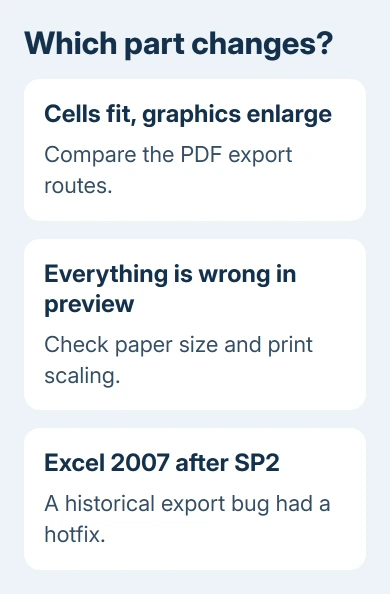
Export under a new PDF filename, open it, and compare the same chart or picture. If the cells fit correctly but the graphic spills off the page, try another way of creating the PDF before resizing the worksheet again.
If the entire sheet is too small, too large, or split across pages in preview, start with page setup in the next section. A PDF can't repair an already incorrect print layout.
I'd keep one untouched workbook and one comparison PDF until this is sorted. Moving a logo into the middle of your data to make one export look right leaves the workbook wrong for the next person who opens it.
2. Match the paper size and scaling before exporting again
In current Windows Excel, choose Page Layout and open the Page Setup dialog launcher. On the Page tab, check Orientation, Paper size, and Scaling. Excel 2007 also has Page Layout and the Page Setup group.
Choose the paper size your report needs, such as Letter or A4. If you're using a PDF printer, check its paper choice too. Different paper sizes in the worksheet and printer settings can produce output that differs from preview.
For a report that must occupy one page, select Fit to: 1 page wide by 1 tall. For a long report, fitting the width without forcing all rows onto one page usually preserves readable text. Check the preview after either change.
The worksheet scaling controls explain these choices. Fitting a report onto one page shrinks its content; it won't fix graphics enlarging independently of the cells.
Select relevant cells and choose Page Layout > Print Area > Set Print Area to exclude unrelated rows or columns. The Excel PDF layout guide covers that separate issue.
On Mac, open Page Layout > Page Setup and review the page size and scaling there. Excel in your browser doesn't have this desktop Fit to control. Check it by opening the workbook in desktop Excel.
3. Compare Save As PDF with a PDF printer
In Windows Excel, open File and choose Save As (some editions use Save a Copy). Select a destination and the PDF file type. Use Standard (publishing online and printing) for print quality.
Open Options and check that you've chosen the sheets, selection, or entire workbook you want to export. Give the exported PDF a fresh filename. Check its first page and another page that contains a chart.
Then compare a second route: File > Print, choose Microsoft Print to PDF if it's installed, and print to another new filename. You'll have two separate PDFs to compare, without changing the chart in your workbook.
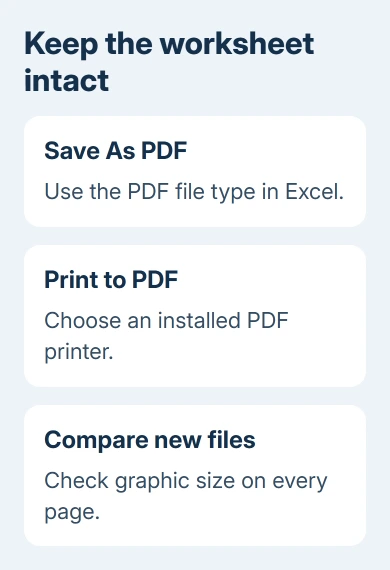
An owner in Microsoft's forum reported that printing through Adobe PDF kept the graphics in position when Save As did not. You need a suitable Acrobat installation for that option; it isn't supplied by free Acrobat Reader.
On current Windows, you can try Microsoft Print to PDF for the comparison. That owner used Adobe PDF. If it produces the correct report, check every page before sending it. Use the working export while you address the failing route.
On Mac, compare File > Save As > PDF with File > Print, then PDF > Save as PDF in the system dialog. For a report split into files, use the separate PDF checks.
4. Recognize the Excel 2007 Service Pack 2 fault
After Excel 2007 Service Pack 2, some exports kept text correct but made images too large. The accepted reply identified KB973402, an Excel 2007 hotfix package dated August 25, 2009.
The owner said PDF and XPS exports returned to their correct appearance after installing it. An October 2011 reply confirmed the hotfix worked too. This was a successful repair for that old fault.
The same thread also contains later unresolved reports and other printing problems. Those successful fixes don't mean the Service Pack 2 bug causes every misplaced chart in other Excel versions.
Office 2007 support ended October 10, 2017, and its download is no longer provided. Don't get a hotfix from an unfamiliar site. Ask IT about its approved legacy updates or export a copy with supported Excel.
Before opening the old workbook in newer Excel, save a separate copy. Check formulas, charts, fonts, and page breaks in the resulting PDF. Check the actual report, not just whether Excel displays an error.
5. Update current Excel when only its export is wrong
In Microsoft 365 or a current Click-to-Run installation on Windows, open File > Account > Update Options > Update Now. Save your work when prompted to close Office applications, then export a fresh comparison file.
For Mac Excel installed from Microsoft, use Help > Check for Updates. An App Store installation updates through App Store > Updates. Choose Update beside Excel there.
On a work computer, IT may control Office updates. Give them the version from About Excel and the before-and-after PDFs rather than searching for the 2007 package.
Let Office support compare a copy of the failing report with a small workbook that exports correctly. Remove private data first. Ask them to compare chart scaling in Print Preview, Save As PDF, and the PDF printer.
If both simple and complex workbooks fail, include the selected printer and paper size. This helps support check whether the problem comes from Excel's export, an object in that workbook, or a printer setting.
The Short Version
Correct the preview first, then compare Save As PDF with a PDF printer without moving the graphics. Keep the confirmed Excel 2007 hotfix history separate from current Excel updates and settings.
Checked November 17, 2026.
 If you have any business, I can build it online






