

Excel's right-click menu can fail because of an add-in or a changed cell menu. Try Safe Mode, then disable the add-in that makes the problem return. Owners confirmed that removing COM add-ins restored their cell menus.
If the menu flashes and disappears, an Excel repair can help. Try the Windows desktop once. If its menu works but Excel's doesn't, follow the Excel steps here.
In this guide
1. Keep working while checking the affected cells
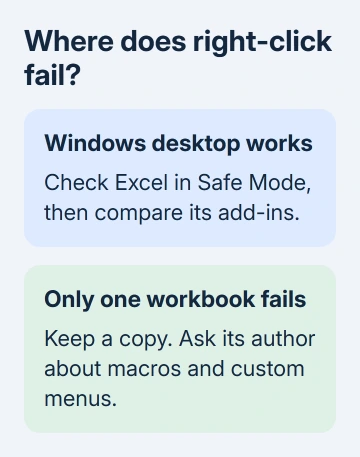
Press Esc to leave cell editing, select an ordinary worksheet cell, and right-click again. Try a second cell and a new blank workbook. This shows whether just one workbook fails or Excel has lost the menu everywhere.
Use Ctrl + 1 to open Format Cells when the missing menu stops you from changing number formats or alignment. The Home tab also gives you the usual font, fill and alignment controls during the menu checks.
Check the cell itself rather than a chart, picture or sheet tab. Those objects have their own menus. A chart's working menu doesn't confirm that cell commands have recovered.
Save your open work before closing Excel. A menu failure isn't a reason to move the spreadsheet's data into a different file, particularly when every workbook behaves the same way.
For a new list, the Excel table creation steps use the ribbon, so a missing cell menu doesn't prevent you organizing the records. If only one workbook triggers the fault, keep a separate copy for the later checks.
2. Start a restricted Excel session
Close all Excel windows. Press Windows + R, type excel /safe, and press Enter. Look for Safe Mode in the application title, then try the menu on an empty cell in a fresh workbook.
This is Office Safe Mode, not a Windows restart mode. It starts Excel with limits on add-ins, startup files and custom settings. Microsoft's Safe Mode instructions give the same Run command.
If the cell menu stays open there, check add-ins next. Safe Mode suggests an add-in could be responsible, but you'll need to check each one. Keep the same simple cell check when returning to normal Excel.
If Safe Mode still loses the menu in a blank workbook, move to the cell-menu reset. A problem confined to one original file should go to its author too, especially if it uses macros or a custom interface.
These are Windows desktop commands. Browser Excel has neither excel /safe nor the COM Add-ins dialog. For another edition, give IT your platform and Excel version so they can use the right controls.
3. Disable the add-in that brings the menu problem back
Quit the restricted session and launch Excel normally. Choose File > Options > Add-ins. At Manage, select COM Add-ins, then Go. Note which entries are checked, clear their checkboxes and select OK.
Restart Excel and right-click a cell in a blank workbook. If the menu returns, re-enable one entry, restart again and repeat. Keep the add-in that breaks the menu disabled until its supplier provides a fix.
An owner in the original discussion confirmed that disabling COM add-ins restored the right-click menu in Excel 2013. Other replies reported that their checkboxes were already clear.
Ask IT before disabling an add-in required for work. Record its full name and version if it causes the failure, so the administrator can update that component instead of replacing Office without a clear reason.
If no COM entries explain it, return to Manage and inspect Excel Add-ins as well. Note the enabled items, then check each separately. If none of them changes the result, stop removing extras and check the menu itself.
4. Reset the built-in Cell menu
The Visual Basic editor can reset Excel's built-in cell menu. This removes its custom controls, so check with the workbook author first if the menu normally has commands added for your business.
In desktop Excel for Windows, press Alt + F11, then Ctrl + G to open the Immediate window. That window runs a command directly; you don't need to create or save a macro module.
Enter this single line and press Enter:
Application.CommandBars("Cell").Reset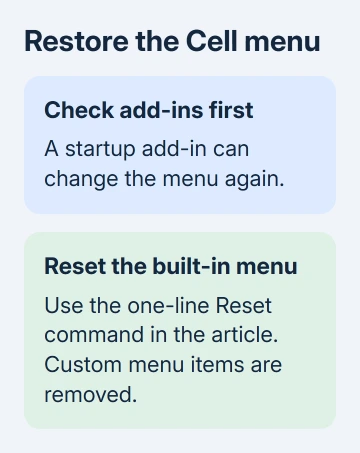
Press Alt + Q to return to the worksheet, then right-click a plain cell. If changes to the built-in menu caused the problem, its standard commands should now return.
The Reset method reference explains that resetting a built-in menu removes custom controls and restores its original controls. The command restores menu controls; it doesn't repair the data in your workbook.
I'd try it after the add-in comparison, because an active add-in can change the menu again. If it works only until Excel restarts, tell support that exact behavior rather than repeatedly resetting it during every session.
If your organization blocks the Visual Basic editor, ask IT to perform the menu check. Don't change macro security settings just to make this command available.
5. Repair Office when the menu still won't stay open
Save and close the Office applications. Press Windows + R, enter appwiz.cpl, find your installed Office product and select Change. Follow the repair choices offered for that installation.
For a Click-to-Run copy of Office, select Quick Repair first. If that fails, try Online Repair, which is more extensive and needs an internet connection. An MSI installation offers Repair instead.
Some owners restored the menu after repair, while repair and reinstall attempts failed for others. Check a blank workbook after repair before opening your usual files and extras.
A separate Excel clipboard warning needs its own checks if copying also fails. Getting the right-click menu back doesn't fix a separate Windows clipboard error.
If the menu still disappears, use Help > Contact Support, or have your administrator request assistance. Include your Excel build, blank-workbook results and Safe Mode results. Explain whether a Cell reset survives reopening Excel.
The Short Version
Compare a plain cell in Safe Mode, then disable and recheck add-ins. Reset the built-in Cell menu if needed. A menu that breaks again at startup needs its add-in or customization checked before another Office reinstall.
Checked November 17, 2026.
 If you have any business, I can build it online






