Excel safe mode doesn't normally need an administrator password. Use Windows + R, type excel /safe, and press Enter. If Windows still requests admin credentials, check Excel's launch permissions and whether Office is repairing itself.
A Windows permission prompt is different from an Excel request to start in Safe Mode, a workbook password, or a Microsoft 365 sign-in. Read the words and app name on that prompt to work out what needs changing.
In this guide
1. Launch safe mode without requesting admin rights
Save open work and close Excel. Press Windows + R, type excel /safe with a space before the slash, and press Enter normally. Don't use a shortcut marked Run as administrator for this attempt.
Microsoft says to use the ordinary Run dialog in its Office safe mode instructions. You can also hold Ctrl while opening Excel and accept the prompt asking whether to start in Safe Mode.
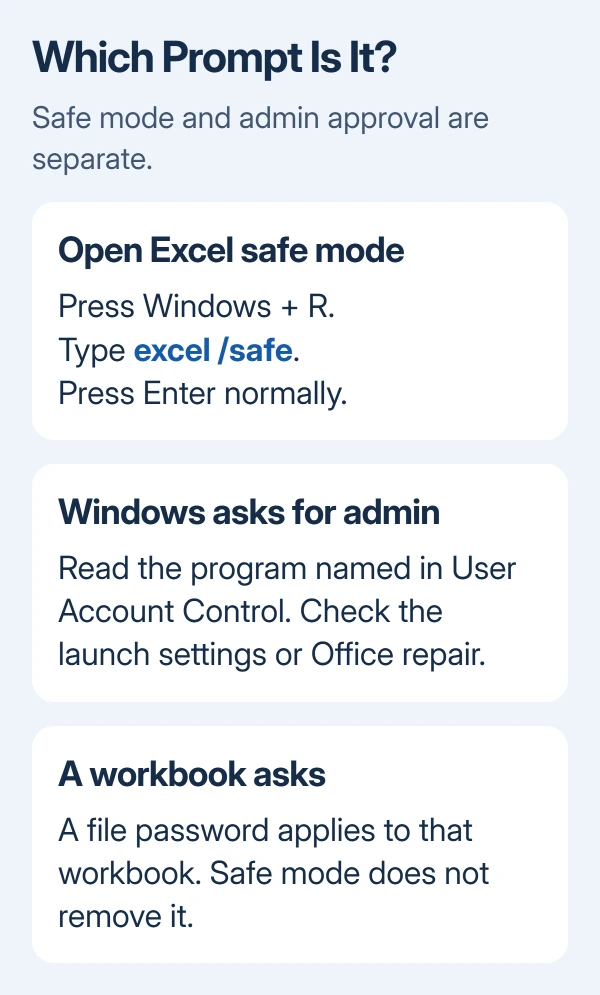
Look for Safe Mode in Excel's title bar. If a blank workbook opens without the password request, your usual launch method needs checking. Close Excel, then try the shortcut you normally use.
If Windows dims the desktop and displays User Account Control, that prompt is asking to authorize a Windows change. Read which program wants permission. Excel, an Office setup program, and an add-in installer aren't the same request.
If Run says this task will receive administrative privileges, ask the PC administrator why it's running with admin rights. Commands started there will also have admin rights, so this won't test an ordinary Excel launch.
2. Remove an unwanted Run as administrator setting
Find Excel through Start. Right-click the result and choose Open file location if offered. In the folder that opens, right-click the Excel shortcut, choose Properties, then inspect Shortcut > Advanced.
If Run as administrator is checked and you didn't intend it, clear it and select OK, then Apply. Try the shortcut again. Opening a workbook should no longer ask for admin permission because of that shortcut setting.
If the prompt remains, right-click the shortcut and open its file location to find EXCEL.EXE. In EXCEL.EXE Properties > Compatibility, check the administrator option too. Clear an unwanted check and apply the change.
Some installations don't show those shortcut menus or the Compatibility tab. Don't change a different program's settings instead. An administrator can check your Excel installation and settings that apply to all users.
If a setting is locked on a work-managed PC, ask its administrator to change it. Ask them to check why Excel requires elevation for the affected Windows account, rather than giving your everyday account more permissions.
User Account Control protects changes that require administrator permission. Turning that protection off hides the prompt without repairing why Excel or its installer requested permission.
3. Separate the other password requests
A small password box that appears when you open one particular workbook is asking for access to that file. Cancel it and try a new blank workbook. If only that file requests a password, safe mode won't remove its encryption.
The Excel file-opening checks help when a workbook fails after Excel has already launched. Ask the file's owner for the correct password rather than changing Windows accounts.
A Microsoft 365 sign-in window asks for your licensed work, school, or personal account. Your Windows administrator credentials won't replace the licensed account's sign-in. Note the account shown before trying another password.
If the request happens only when saving, try File > Save As > Browse and save a new copy to a folder in your user account. A protected installation folder or restricted shared folder can require permissions your account doesn't have.
The workbook-saving troubleshooting describes folder permission failures. A successful local save points toward the original destination; changing the workbook's opening password won't help.
4. Repair Office when setup keeps returning
If the prompt names Office setup, or a configuration window appears alongside it, ask the administrator to repair Office. Entering the password again won't fix the installation problem.
Save your work and close every Office app. On Windows 11, open Settings > Apps > Installed apps, find Microsoft 365 or Office, open its three-dot menu, and select Modify.
On Windows 10, use Settings > Apps > Apps & features, select Microsoft 365 or Office, and choose Modify. Repair applies to the suite even if Excel is the only app causing trouble.
For a Click-to-Run installation, Quick Repair checks and replaces damaged files. If that doesn't work, use Online Repair > Repair with an internet connection. An older MSI installation offers Repair > Continue instead.
The Office repair procedure may need administrator approval. That approval is for repairing Office, rather than opening an ordinary spreadsheet. Afterward, restart if requested, then try opening Excel normally and in safe mode.
5. Fix repeated safe-mode starts after the password issue
Once Excel opens, close safe mode and start it normally. Safe mode skips several startup components, including add-ins, which are extra tools loaded into the app. It isn't meant for everyday use.
If Excel works only in safe mode, open File > Options > Add-ins. Note the enabled items. Choose COM Add-ins under Manage, select Go, and clear the enabled boxes so you can try starting Excel normally without those add-ins.
Reopen Excel normally. If it now works, enable each add-in separately, restarting after each change, until the failure returns. Try the same steps with Excel Add-ins if the COM list wasn't responsible.
If an extra window appears after you open files, the second blank Excel window checks cover startup workbook behavior. Don't treat every blank window as a password or permissions fault.
I'd send IT a picture of the permission prompt before another reinstall. Include its program name, the version in File > Account > About Excel, and whether excel /safe prompts too. That helps them check the request you're seeing.
The Short Version
Try a normal excel /safe launch. Check Excel's admin settings and whether the password belongs to Windows, a file, or Microsoft 365. Repair recurring Office setup, then check add-ins if normal startup still fails.
Checked November 13, 2026.