

A black FaceTime picture can come from video being turned off, a connection that can't carry the call, or a camera that also fails outside FaceTime. Turn your video on first, then compare the Camera app before changing account settings.
The next check depends on whose picture is missing. If your own preview works but the other person sees black, check the connection. If the preview is black in Camera too, check the iPhone's cameras.
In this guide
1. Turn video on and identify whose picture is missing
During the FaceTime call, tap once on the screen for its controls. If your camera is turned off, tap the camera control to enable it. Watch for your own live preview and ask the caller to confirm that your video arrives.
If the call is FaceTime Audio, start a video call instead. A voice-only call doesn't show your camera preview. Keep the call type separate from a camera that opens but shows black.
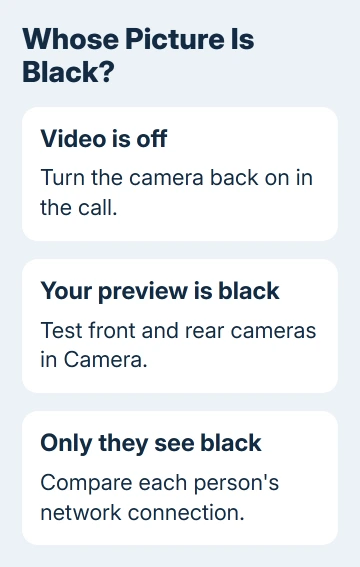
If only the other person's picture is black, ask them to check their camera control and their own preview. They'll need to turn their camera on using their device.
If your preview works but they can't see it, keep that result for the network check in section 3. If your own preview is black, test Camera next. That comparison tells you whether to check the call or the camera.
I'd make this distinction before signing out of anything. A working camera preview gives you useful information, and changing the account first can add activation work without addressing the missing video.
2. Test front and rear cameras outside the call
End FaceTime and open Camera. Try taking a photo, then tap Camera's rotate button and test the other camera. Check whether both previews move normally and whether the saved photos contain a usable image.
Apple says to remove blocking accessories, restart, update, and test each camera in its camera troubleshooting steps. If the preview fails in Camera too, the problem affects more than FaceTime.
Remove film, a case, or an attachment that covers either lens or places a magnet near it. Clean a blurry lens with a microfiber cloth. Then repeat the same camera check so you can tell whether removing the accessory changed the result.
A front camera that works while the rear camera stays black is a different problem to report than both cameras failing. Write down which side is affected rather than reporting only that video doesn't work.
If Camera works but FaceTime won't change lenses, check its rear-camera control. That guide also separates switching cameras from reversing a mirrored preview.
3. Compare the network when the camera itself works
Make another FaceTime video call using a reliable Wi-Fi connection. If the picture remains black despite a working Camera preview, try a cellular connection if your signal and data plan allow it.
Check Settings > Cellular and make sure FaceTime can use cellular data before that comparison. On versions that group the app list under Show All, open that list to find FaceTime.
A call that works on cellular but fails on one Wi-Fi network points toward that network's connection or restrictions. Switch back to the reliable connection for the call and report the Wi-Fi-specific result to its administrator or provider.
Slow connections can produce black screens, choppy video, and dropped FaceTime calls. Both participants need a usable connection. Ask the other person to compare theirs too when they can't see your picture or you can't see theirs.
If several devices are sending or streaming large amounts of data, reduce that traffic and retry. Keep the comparison simple: use the same contact and the same camera so a changed result is easier to explain.
For a complete failure to connect, use the FaceTime connection and activation guide. That guide addresses failed calls rather than missing video during a conversation.
4. Restore Camera and FaceTime when Screen Time blocks them
If FaceTime settings or the Camera app are unavailable, open Settings > Screen Time > Content & Privacy Restrictions > Allowed Apps & Features. Make sure Camera and FaceTime are allowed.
On older software, the menu may say Allowed Apps instead. If someone else manages the Screen Time passcode or the child's settings, ask that person to change the restriction. Guessing the code doesn't restore the permission.
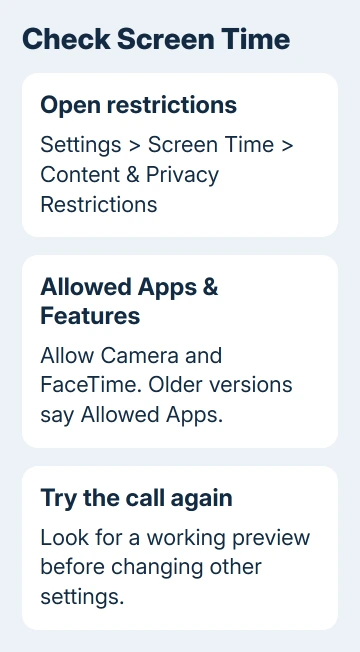
After changing the restriction, reopen FaceTime and place a video call. A restored camera preview confirms that the apps are available again. If both were already allowed, leave the controls unchanged and continue with the restart.
Don't look for a missing FaceTime switch in other apps' camera permissions. For these built-in apps, check the restriction under Screen Time separately from another app's camera access.
5. Restart the phone and install an available update
Hang up before restarting. On a Face ID iPhone, hold Side and either Volume button together until the shutdown slider appears. Drag it to shut down; after 30 seconds, hold Side and release at the logo.
On iPhone 6 through 8 and SE generations 2/3, Side held alone brings up the slider. On older models, use Top instead: the first SE and the iPhone 5 family or earlier. Start up with that same button after shutdown.
For a frozen display, follow the iPhone force-restart steps before resuming the camera check. Don't keep forcing restarts on a responsive phone.
Open Settings > General > Software Update and install an available update. Then test both Camera and FaceTime again. Record whether the update changes one app, both apps, or neither.
If the picture is restored in Camera but FaceTime still fails, keep the report focused on FaceTime. If the same lens remains black everywhere, move to camera service rather than resetting the network again.
6. Request the right kind of support
For a camera that stays black in Camera after these checks, use Get service on the camera support page. Ask for a camera assessment and specify whether the front camera, rear camera, or both fail.
For FaceTime-only trouble, open the support option on the FaceTime help page. Give your iPhone model, iOS version, working Camera result, and the Wi-Fi-versus-cellular comparison.
Also say whether every contact is affected and who sees the black image. With those details, support can tell whether to check your camera, the other person's picture, or the video connection.
The Short Version
Turn video on, identify whose image is missing, and test both cameras in Camera. Compare networks for a FaceTime-only black screen and check Screen Time when apps are restricted. A camera that fails across apps needs a service assessment.
Checked November 15, 2026.
 If you have any business, I can build it online






