

When a FaceTime call appears on your iPhone without a sound, check the ringer, Silent mode and Focus first. Calls from unsaved people can also be silenced by FaceTime's own filtering.
If no incoming call appears at all, check the receiving phone number or email address instead.
Ask someone in your contacts to call while you're watching the screen. Watch whether the call appears, shows up only as a missed call, or never reaches this iPhone. That tells you which settings can actually explain the silence.
In this guide
1. Restore the ringtone when the incoming call is visible
Turn Silent mode off. On an iPhone with a Ring/Silent switch, move the switch so orange isn't visible. On a model with an Action button, check Silent mode in Control Center; the Action button might have been assigned to something else.
Open Settings > Sounds & Haptics and raise the ringtone volume. On iOS 27, the slider is in the Ringtone section. Earlier versions label the shared slider Ringtone and Alerts.
Playing a loud video doesn't tell you whether this ringer level is high enough.
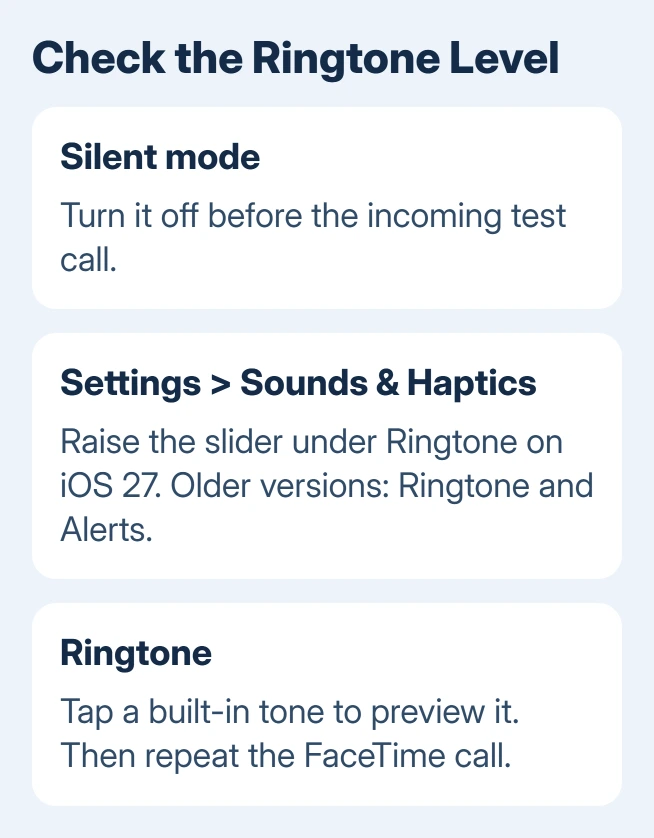
Tap Ringtone and select a built-in tone to preview it. If you can't hear that preview either, the sound problem affects more than incoming FaceTime calls.
If the preview plays but FaceTime remains silent, check Focus and the caller's filtering status next.
The iPhone sound controls distinguish ringtone volume from other sounds. On iOS 27, alarms and alerts can have separate levels, so raising one of those sliders isn't the same as raising the ringtone.
I'd use the ringtone preview before changing the FaceTime account. It gives you a quick sound check without interrupting activation or asking every caller to try a different address.
If Change with Buttons is enabled, the volume buttons can adjust the ringer, depending on how you're using the phone. Use the slider for this check so you know you're changing the ringtone volume.
Ask for another call after adjusting the volume so you can hear whether the incoming call now rings.
2. Test with Focus off, then adjust the right profile
Open Control Center and check Focus. If Do Not Disturb, Sleep, Work or another Focus is active, turn that Focus off for a test call. If the call rings now, check who that Focus allows through. The speaker is working.
With Face ID, start the downward swipe in the screen's upper-right corner. With a Home button, bring Control Center up by sliding a finger from the display's bottom edge toward the center. Tap the active Focus control to turn it off.
If the call rings with Focus off, open Settings > Focus and choose the profile that was active. Under People, check whether it allows selected people or silences selected people.
One list lets people through and the other silences them, so read the heading before changing it.
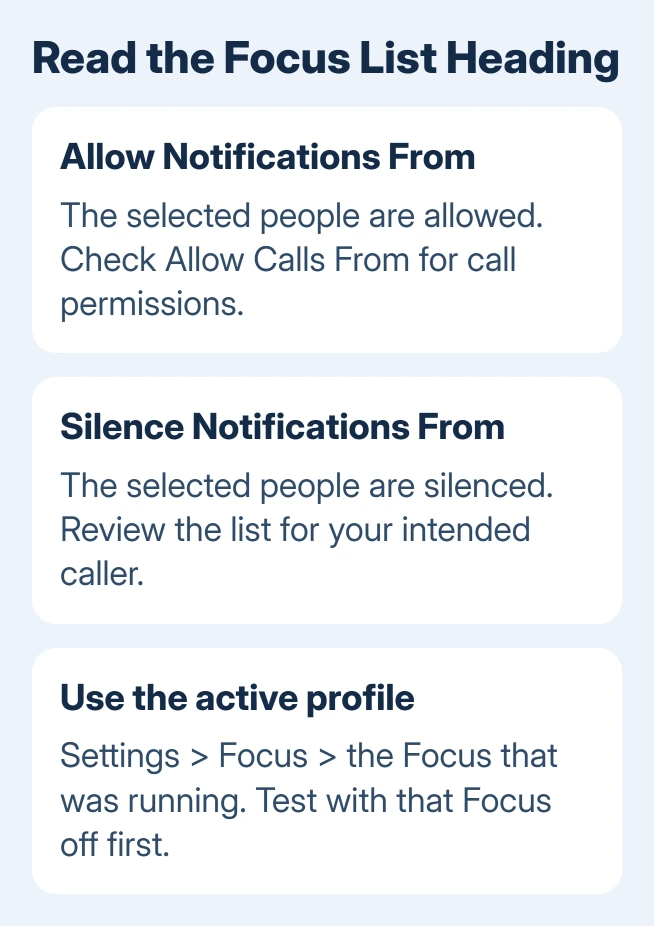
Adjust Allow Calls From for the callers you want to hear, using the options your profile presents. Also review Apps if FaceTime is in a silenced-app list. Make the change in the profile that actually switches on, not an unused custom Focus.
The Focus call and notification settings also include repeated-call options. Choose these to suit your needs rather than relying on someone calling twice as the everyday solution.
If Focus returns unexpectedly, check its schedule and Share Across Devices in the Focus settings. A schedule or another device sharing your Focus can turn it back on without a tap on this iPhone.
The iPhone calls and Focus guide covers that wider pattern.
3. Let the intended caller through FaceTime's filters
When saved contacts ring but new callers don't, open Settings > Apps > FaceTime. For iOS 17 or an older release, select FaceTime on the main Settings page. Look for Silence Unknown Callers and turn it off if those calls should ring.
Apple's FaceTime filtering guide says silenced unknown calls go to voicemail and appear in the call history. Contacts, Siri Suggestions and people you've recently called can still ring, so two callers can get different results.
On versions that show Unknown Callers, that option puts unknown callers' missed calls and voicemail in their own list. The separate Silence Unknown Callers switch controls silencing.
Check the FaceTime history filters when a missed call seems to have disappeared.
Also check the Spam list if your version offers FaceTime Spam filtering. Calls identified as spam are silenced and moved there. If only calls in that list are silent, check the spam filter rather than the ringtone volume.
For someone you expect to hear from regularly, save the actual phone number or email address they use for FaceTime in Contacts. Then repeat the call from that same address.
Saving their mobile number doesn't automatically make every email address they use a known contact too.
4. Check the receiving address when no call reaches the phone
Open Settings > Apps > FaceTime and confirm FaceTime is on. Under the addresses available for incoming calls, select the phone number or email that callers should use.
Ask the caller which one they dialed, especially after changing a number or replacing the iPhone.
If calls reach a Mac or iPad but never this phone, compare the selected receiving addresses. The caller can hear a ringing tone without the call reaching this iPhone.
Test the address selected on the phone directly.
On a newly configured iPhone, open Settings > Cellular and make sure the intended line is on. With multiple SIMs, confirm the correct phone number. Then return to FaceTime and select that number if it's available.
For that post-setup problem, the receiving-call troubleshooting steps include updating iOS and switching FaceTime off and on again.
If Waiting for Activation appears, follow the activation guidance instead of continuing to adjust ringtone volume.
The general FaceTime connection guide covers a call that never connects. Once you know the incoming call isn't reaching your phone, follow those connection checks instead of changing the ringer.
5. Escalate persistent silence with a useful comparison
If the settings look right but calls still fail, restart your phone, then check Settings > General > Software Update for an iOS update. Have a saved contact call again while both Focus and Silent mode remain off.
If the ringtone preview is silent too, ask Apple Support to check why your iPhone isn't playing sound.
If previews play but FaceTime calls appear without ringing, tell support that. Include your iOS version and whether it happens with both audio and video calls.
For calls that never appear, report the receiving address, whether another Apple device rings and whether Wi-Fi and cellular behave differently. Use the FaceTime support page's outage and activation links when those match the screen.
Support can then focus on the right problem: calls arriving silently, or calls failing to arrive at all.
The Short Version
For visible but silent calls, check Silent mode, ringtone volume and Focus. For unsaved callers only, check FaceTime's call filters.
For calls that never arrive, compare the receiving address and active phone line, then follow the connection or activation route.
Checked November 15, 2026.
 If you have any business, I can build it online






