
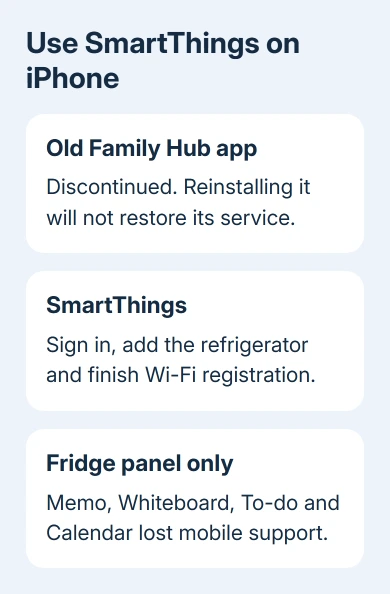
The Family Hub iOS app no longer works because Samsung discontinued it. Install SmartThings and connect the refrigerator there; reinstalling the old app won't restore the retired mobile service.
Some features have also lost phone support. Memo, Whiteboard, To-do and Calendar remain on the refrigerator's panel, but moving to SmartThings doesn't bring those controls back to your iPhone.
In this guide
1. Replace the retired phone app
Samsung's Family Hub software-change notice confirms that the old mobile app has been discontinued. The service has changed; changing iPhone permissions won't bring it back.
Open the App Store, search for SmartThings, and verify Samsung Electronics is listed as its developer. Install or update that app before spending time on the old Family Hub app.
SmartThings is available for iOS as well as Android. An iPhone isn't excluded simply because the refrigerator is a Samsung product. You'll need to connect the refrigerator through the supported app with the right Samsung account.
Check the App Store's current compatibility requirements on your phone. If it won't install, read the minimum iOS requirement there and compare it with Settings > General > About > iOS Version.
Don't reset the refrigerator to solve an app that has been retired. Start with the replacement phone app; resetting the appliance would add setup work without restoring the discontinued service.
2. Sign in before adding the refrigerator
Open SmartThings and sign in with your Samsung account. This isn't the Apple Account used for App Store downloads. The refrigerator is registered to a Samsung account inside SmartThings.
If your household already uses SmartThings, check that you're in the intended account and location before adding anything. A device in another household location can look missing when you're viewing the wrong one.
Keep the refrigerator powered on and have its home Wi-Fi password ready. Allow the permissions SmartThings requests for setup. Read the app's explanation of what each permission is needed for during setup.
Use the app's account recovery option if you can't sign in. Repeatedly changing refrigerator Wi-Fi settings won't repair a Samsung account sign-in failure, and creating another account can leave you looking at an empty device list.
When sign-in works, open Devices. If the refrigerator is already present, select it and check its status before attempting a new registration. Check the existing fridge entry first; only add it if it's missing.
3. Add Family Hub from the iPhone
In SmartThings, tap Devices > Add, then choose Scan QR code. Scan the refrigerator's QR code and follow the app's instructions. The Add control is the plus sign in the device list.
Other available methods include Add under Samsung devices, Scan for nearby devices, or the search control. Use the method offered for your refrigerator rather than searching for the retired Family Hub phone app.
The pairing process may ask you to press and hold a button on the refrigerator. Follow the instruction for your model. There isn't one button position or panel layout that fits every Family Hub refrigerator.
When prompted, leave SmartThings briefly and open Settings > Wi-Fi on the iPhone. Select the network name that matches the one shown on the refrigerator. The iOS setup instructions give 1111155555 as its setup password.
That is the temporary appliance connection, not a replacement password for your home router. Enter it only for the matching refrigerator network when the setup process asks for that connection.
Return to SmartThings and choose your home Wi-Fi network when prompted. Enter the home network's actual password. Keep going until registration finishes, rather than stopping as soon as your phone joins the refrigerator's network.
Finally, select a name, location and room, then tap Done. The refrigerator should now appear in SmartThings. Open that entry to check that its supported controls and status load.
4. Treat missing features differently from failed setup
SmartThings can show refrigerator status, interior views and software information on supported models. Available controls depend on the refrigerator; don't expect every screen in an old Family Hub app tutorial to appear.
Memo, Whiteboard, To-do and Calendar no longer have mobile support under the software-change notice. Those features remain available on the refrigerator's own panel. A successful phone connection won't add them to SmartThings.
That explains why some controls can be missing even after the phone connects successfully. If the device appears and its supported controls load, pairing worked. A missing retired mobile feature isn't a reason to repeat registration.
I'd confirm the feature you need before rebuilding the connection. If the goal is editing the refrigerator's Calendar from the old phone app, the service change is the answer, even when the iPhone and Wi-Fi work perfectly.
For a separate iPhone network problem, use the iPhone Wi-Fi checks. That helps when the phone can't join networks generally, rather than when a discontinued app won't connect.
5. Repair SmartThings only if the replacement app fails
If SmartThings itself freezes or closes, close and reopen it, restart the iPhone and install any SmartThings update offered in the App Store. Then check Settings > General > Software Update for an iOS update your phone supports.
These are the standard steps for an iPhone app that stops responding. They apply to the supported replacement app. They don't reverse the old Family Hub app's retirement.
If several apps close immediately, the iPhone apps opening then closing guide covers that broader phone fault. That's a different problem from SmartThings staying open but failing to add one refrigerator.
If registration fails again, tell SmartThings support which step fails, along with your fridge model, iPhone model and iOS version. Say whether the temporary appliance network appears and whether registration reaches Done.
The Short Version
Connect through SmartThings with a Samsung account. The old Family Hub app is discontinued. Memo, Whiteboard, To-do and Calendar still work on the refrigerator panel, but their mobile support has ended.
Checked November 12, 2026.






