

Disc Soft Bus Service belongs to DAEMON Tools, and it can keep a disc-image file open even when the program's window is closed.
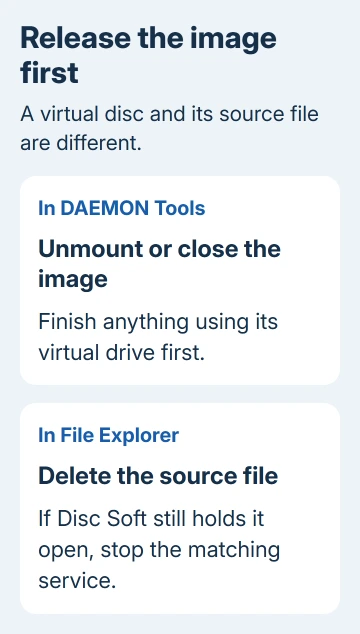
Unmount or close the image in DAEMON Tools first, then delete it in File Explorer. If the lock stays, stop the matching Disc Soft service or uninstall DAEMON Tools if you no longer use it.
In this guide
1. Close the image in DAEMON Tools
Open DAEMON Tools and look for the file named in the Windows deletion error. It is often a disc image such as an ISO, rather than an ordinary document. A mounted image acts like a disc inserted into a virtual drive.
Close any installer, game or File Explorer window using that virtual drive. In DAEMON Tools, select the matching mounted image or virtual device and use Unmount. The controls vary between Lite, Pro and Ultra releases.
The Devices panel in DAEMON Tools Lite shows mounted images. Check the device's image name before unmounting it so you release the file you actually want to remove, rather than another disc you still need.
After unmounting, find the source image again in File Explorer and try Delete. If it moves to the Recycle Bin, the virtual drive was keeping it open. Unmounting alone doesn't delete the source image.
If the image isn't mounted, check whether it is still open in DAEMON Tools itself. Closing the image in DAEMON Tools Lite released the file for one owner on Microsoft's forum, even though they didn't think it was mounted.
Their older version had a close control on the image. Use your release's close or unmount action rather than deleting the whole collection. The collection lists images; the image file itself stays on your desktop.
2. Stop the Disc Soft service if it still holds the file
Save anything using a DAEMON Tools virtual drive first. Stopping its service can interrupt those virtual devices, so finish an installation or close a running program that depends on them before continuing.
Press Windows + R, enter services.msc and press Enter. Find Disc Soft Bus Service, Disc Soft Lite Bus Service or a closely matching DAEMON Tools service. Open its properties and check that it belongs to the installed program.
Right-click the matching service and choose Stop. Wait until its status no longer shows Running, then return to File Explorer and delete the file. This stops the background component that can remain active after the app window closes.
Leave its startup type alone for this check. A temporary stop is enough to test the lock, and it avoids changing how DAEMON Tools starts every time Windows boots. When you next need it, start the service again or launch DAEMON Tools.
The same thread recommends stopping the service through Task Manager > Services. On Windows 11, open Task Manager with Ctrl + Shift + Esc and select Services from the navigation. Windows 10 uses a Services tab.
Use the Services window if Task Manager shortens the name and you can't tell which entry to stop. Seeing the full name, status and properties together helps you pick the correct service.
If stopping it works, the error was a live file lock rather than a need to change file permissions. If Windows still names Disc Soft after the service stops, close DAEMON Tools completely and retry before moving to removal.
3. Handle an access-denied stop without changing permissions
Another person in the discussion got an access-denied message when trying to stop it. Windows isn't letting that account stop the service in its current state. Taking ownership of system folders isn't the answer.
Close Services. Search Start for Services, right-click the result and choose Run as administrator. Approve the administrator prompt, then try stopping only the identified DAEMON Tools service again.
An administrator at your workplace or school can release the image or remove DAEMON Tools when your account can't approve the prompt. Changing service security settings makes a simple file cleanup harder to undo.
If the service can't be stopped even with administrator access, use DAEMON Tools' own unmount controls or its normal uninstaller. Don't force-delete its executable from Program Files while Windows is still using it.
For an ISO that won't mount afterward, the Windows ISO mounting guide covers that separate problem. Getting rid of a lock doesn't repair a damaged image or change which app opens it.
4. Uninstall DAEMON Tools when you don't need it
Choose this route if the program was installed for a game or disc image you no longer use. Using the normal uninstaller also removes the parts that support the app; deleting the desktop image alone leaves the app installed.
On Windows 11, open Settings > Apps > Installed apps, find the DAEMON Tools edition, open its three-dot menu and select Uninstall. Windows 10 uses Settings > Apps > Apps & features and an Uninstall button.
For the older Windows versions in the thread, open Control Panel > Programs > Programs and Features, select DAEMON Tools and choose Uninstall. That Control Panel route also helps with desktop programs on newer Windows releases.
Complete the uninstaller and restart when it asks you to. Then delete the original image in File Explorer. Microsoft's app removal instructions cover both Settings and Control Panel.
I'd use the listed uninstaller instead of copying the old thread's installation-folder path. That answer referred to DAEMON Tools Ultra, while your PC may have Lite, Pro or a different installation location.
The Windows app-uninstall guide explains those controls if the program is difficult to find. Remove the application you identified rather than another entry that just contains the word disc.
5. Check the new error if deletion still fails
Read the whole message after the restart. If it now names another app, close that app and retry. If it says access is denied, you're dealing with a different restriction from the original Disc Soft file lock.
If DAEMON Tools is gone but the same service returns, give Disc Soft support its service name, installation path, Windows version and the uninstaller result. Ask for their steps to remove the service left behind.
Give the same information to IT when the PC is managed. Keep the image until you know it isn't required by another installation. The goal is to delete the file normally while keeping the software you still use working.
The Short Version
Unmount or close the image in DAEMON Tools, then retry deletion. Stop its matching Disc Soft service if the lock remains.
Use the normal uninstaller when the software isn't needed, and follow a different error separately if the message changes.
Checked November 16, 2026.
 If you have any business, I can build it online






