

A laptop's serial number is usually on its underside label. Windows can read it from the firmware, too. On a Mac, the Apple menu's About This Mac window contains it. Support needs that serial, not the model or Windows product ID.
When the label is worn or the laptop won't start, the original packaging and manufacturer records give you other places to check. Start with the label or settings you can reach.
In this guide
Read the underside label first
Save your work, disconnect the charger after shutdown, then turn the machine over. Look for a field marked Serial, Serial Number or S/N. A Dell laptop uses Service Tag as its main support identifier.
The label may also show a model, product number and regulatory details. Several laptops can share a model name. For a support request, you need the serial that identifies your individual machine.
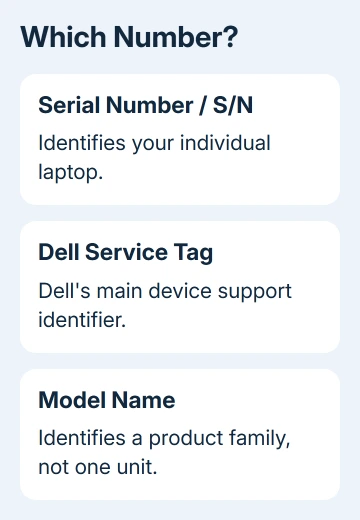
Read the characters carefully, especially a zero beside the letter O or a one beside the letter I. If the print is small, take a private photo and enlarge it. Don't remove the bottom cover just to search for a number.
I'd start with the label when the laptop won't power on. You don't need to start it just to get a number for repair, and you can compare the label with the software result later.
Copy the serial into your support notes. If the manufacturer asks for a label photo, share it directly with them. A public photo can reveal other device identifiers that aren't needed to answer your question.
Read the firmware serial in Windows PowerShell
In Windows 10 and 11, open Start, type Windows PowerShell, and open it. Use a normal local PowerShell window. This reads the information stored on your laptop without changing its settings.
Type Get-CimInstance -ClassName Win32_BIOS | Select-Object -Property SerialNumber and press Enter. You should see a SerialNumber heading with the number Windows read from the firmware underneath it.
The command reads BIOS information, the hardware details your laptop's built-in software provides, and shows just the serial-number field. It doesn't search your Microsoft account, the retailer's invoice or a sticker database.
Compare the result with the underside label when both are available. On a Dell, the manufacturer stores the Service Tag in this serial field. Keep the label's exact spelling rather than adding spaces to make the number easier to read.
A blank field or placeholder isn't a usable serial number. If that happens, move to the label, the manufacturer's support app or the original packaging. Running the command again won't fill in a number that's missing from the firmware.
The retired command is wmic bios get serialnumber. Windows is retiring that tool, so it can be missing from current installations. Use PowerShell instead of installing an old utility just to run a serial-number lookup.
Use the manufacturer's own device information
On a Dell, you can also check SupportAssist if it's already installed. Its device-identification guidance also lists the bottom label and BIOS or UEFI as lookup routes.
BIOS and UEFI are built-in setup screens you open before Windows starts. The key and menu vary by model, so follow your model's startup instructions. Don't change boot or security settings just to read the serial.
On a Microsoft Surface, open Start, search for Surface, and open the Surface app. Expand Device information and read Serial number. Select the computer's details rather than copying an attached accessory's serial.
Other manufacturers have their own information apps and label positions. Use your model's help if the Windows command returns nothing. A driver download for a similarly named laptop won't reliably identify yours.
Don't confuse the Windows device name with the serial, either. A name chosen during setup, such as your name or an office asset name, isn't the manufacturer's serial. Neither is the Windows activation product key.
When you only need the computer's general hardware details, the Windows driver guide explains why matching the device matters before downloading software. Keep the serial and model together in your notes.
Find a MacBook serial in About This Mac
On a running MacBook, choose the Apple menu > About This Mac. Read the serial number in the information window. The same lookup works on Intel and Apple silicon models; you don't need a processor-specific command.
Another option is to hold Option while opening the Apple menu and choose System Information. Select Hardware in the sidebar, then look for Serial Number (system). The hardware overview also contains identifiers that aren't the serial.
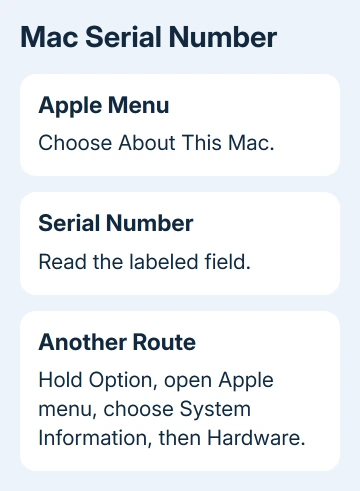
Apple says its Mac identification page helps you tell the serial number apart from the model name, model identifier and part number. Copy the field labeled as the serial, rather than a nearby code.
With a MacBook Pro serial in hand, look up its model and understand the tracking limits before choosing a service or recovery route.
For a desktop iMac, find the serial on its stand or in its software and check repair records when those values disagree.
When the Mac won't start, check the printing on its underside and the original packaging. A MacBook model identifier describes a family of machines. It isn't a substitute when a service form asks for your individual serial number.
For a Chromebook rather than a Windows laptop or MacBook, use the Chromebook serial-number steps. That system has its own sign-in-screen lookup, so PowerShell instructions don't apply.
Use records when the number is missing or doesn't match
Check the original box for its serial-number label. Keep it beside the laptop while comparing the value. A box from another machine in the household can look identical, especially when the same model was bought more than once.
An invoice or repair record may list the serial too. If it only lists a model or order number, ask the seller whether they can look up the device serial from the sale. The manufacturer may need more than your order reference.
If the firmware number differs from the physical label, give support both values and mention any motherboard repair. Ask which identifier belongs on the service request before ordering parts.
For a used laptop with neither a readable label nor a usable software result, ask the seller for the original records. Have the make, model, purchase date and photos ready when contacting support. Don't invent a number to get past a form.
The Short Version
Read the underside serial or Service Tag. Windows can display the firmware serial through PowerShell; a Mac shows it in About This Mac. Compare it with the label or box, and ask the maker about mismatches.
Checked November 10, 2026.
 If you have any business, I can build it online






