Chrome pages can look blurry because of zoom, images that lack detail, or Mac display settings. Check page zoom when only web content looks wrong. If menus and other apps look unclear too, check the selected display's resolution.
Making text larger isn't the same as adding detail to a blurry picture. Use the checks that match the part of the screen that's unclear, so a browser setting doesn't send you into unrelated display changes.
In this guide
1. Compare the page with Chrome's own menus
Open Chrome's More menu at the top right and look at the Zoom value. Set it to 100% to see how the page looks at its usual size. Then inspect the same text and picture again before changing anything else.
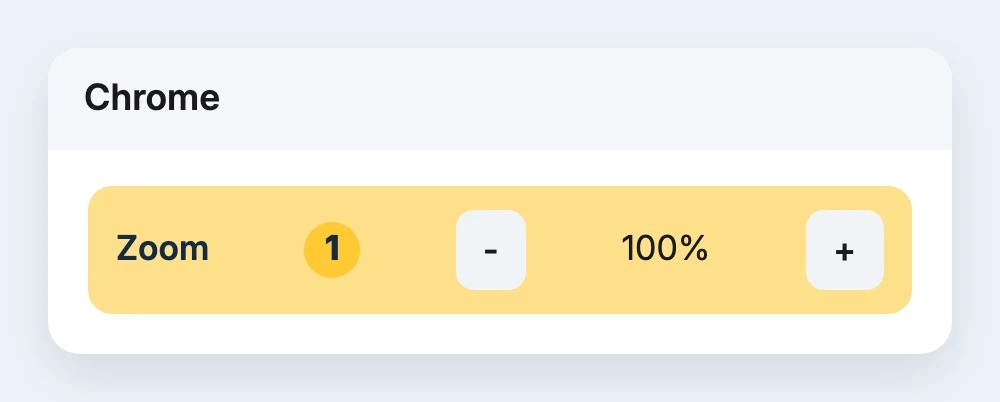
At 100%, a page uses its ordinary browser scale. If a small picture looked rough only after enlarging it, the original file may simply lack enough detail for that larger size. Zoom can't create the missing detail.
On Mac, Command+Plus increases page zoom and Command+Minus decreases it. The menu shows the percentage, which is easier to check than counting earlier shortcut presses.
Compare another website, then look at Chrome's toolbar and a different Mac app. One fuzzy image on one page points toward that image. Unclear text across several apps points toward a display or system setting.
If the text is sharp but too small, increase zoom until you can read it comfortably. The 100% check is a comparison, not a requirement to keep every page at a size that's uncomfortable for your eyes.
2. Review Chrome's default and saved site zoom
Open More > Settings > Appearance. Page zoom resizes web text, pictures, and videos together. Font size changes text where the website permits it. Choose the control that matches what you want enlarged.
Google's Chrome zoom instructions explain that some websites don't let Chrome change only the font size. On those pages, use Page zoom rather than assuming the font-size control is broken.
A site can also keep its own saved zoom level. To remove an unwanted site-specific setting, open Settings > Privacy and security > Site Settings > Additional content settings > Zoom levels and remove that site's entry.
Return to the affected site afterward and compare it again. This is useful when one site keeps returning at the wrong size even though the default Page zoom looks right. It doesn't change the quality of the site's original pictures.
For text that's simply hard to read, try a modest enlargement first. Change font size and page zoom separately, keeping the choice that gives you readable text.
3. Choose the correct Mac display and resolution
Open Apple menu > System Settings > Displays. If several displays are connected, select the display where Chrome looks wrong. A change to the MacBook's built-in screen won't necessarily change an external monitor's resolution.
Use the recommended or Default resolution as the first comparison. Current macOS can show size thumbnails; other layouts show a list. The available choices depend on your display; there isn't one resolution that suits every Mac.
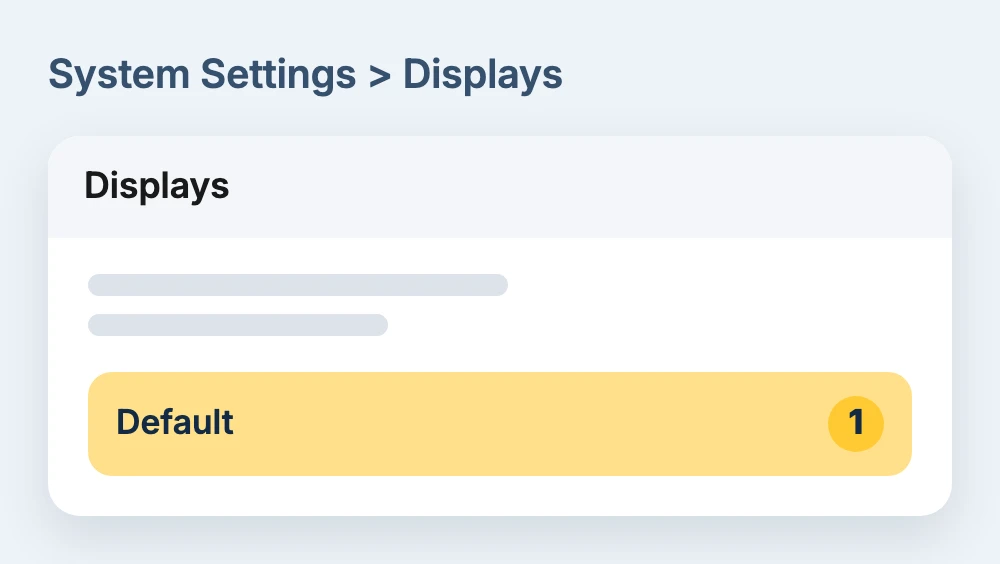
Resolution controls the space available for text and objects. A larger-text setting changes how big they appear. The largest numerical choice isn't automatically the clearest or most comfortable one for your work.
On macOS Monterey and earlier, open Apple menu > System Preferences > Displays instead. The older panel uses different controls, but the same starting point applies: select the correct display and compare its default setting.
If changing resolution leaves the screen black, wait 15 seconds for it to revert. If it doesn't, press Escape to return to the previous resolution. This gives you a way back when the selected mode isn't supported.
For an external monitor that isn't detected at all, use the Mac external-display checks first. Get a picture on that screen first, then judge its text.
4. Compare blurry media with nearby text
Look at text next to the blurry picture or video. If page text and Chrome's toolbar stay sharp while a picture looks soft, changing the whole display's resolution is unlikely to recover details that aren't present in that picture.
Open the site's original image or full-size view when one is available. A thumbnail enlarged to fill a window will often look worse than the larger source. Check whether you're viewing a preview rather than the original file.
For streamed video, use that service's playback-quality control and inspect its selected resolution. A small, compressed stream enlarged to full screen won't look like a high-resolution source, even on a good display.
Don't confuse that with every page becoming too large. Return to the browser zoom checks when text, controls, and media all change size together. A video-only issue belongs with that player's quality and connection controls.
If only one site has blurry pictures or videos, report the page address and the affected picture or video to that site. Include whether the original or a larger view looks better. The site may need to provide a better source file.
5. Update Chrome if several pages still render badly
Open More > Help > About Google Chrome. Wait for the update result and use Relaunch when it appears. Save any work in web apps before restarting the browser.
After Chrome relaunches, open the same page at the same zoom level. Keeping those the same helps you see whether the update improved it. If another browser shows the same poor image, consider the original media before blaming Chrome.
If Chrome is also freezing or taking a long time to draw pages, use the Chrome performance checks for that extra symptom. Slow rendering and permanently low-detail pictures aren't the same failure.
Report the remaining blur to browser or display support
For Chrome-only text trouble across several websites, use the Chrome Help Community. Give your Chrome and macOS versions, zoom percentage, display model, and whether another browser looks normal on that same screen.
For soft text across Mac apps after returning to the display's default, contact Apple Support or the monitor maker. Explain whether the built-in display looks normal and which cable or adapter connects the affected external screen.
The Short Version
Start with 100% page zoom, clear unwanted site zoom settings, and compare the display's default. Check whether media or menus look blurry. Update Chrome or contact display support, depending on which part still looks unclear.
Checked November 29, 2026.
 If you have any business, I can build it online