Chrome slows down when tabs and extensions compete for memory, or power-saving settings reduce background work. Close tabs you aren't using first, then check Performance settings before clearing data or reinstalling Chrome.
A slow page, a sluggish tab switch and a video that stutters only on battery need different adjustments. These steps apply to desktop Chrome on Windows and macOS, which have the Performance controls used here.
In this guide
1. Reduce the open workload and finish Chrome's update
Keep the page you need and close spare tabs with Ctrl+W on Windows or Command+W on Mac. Close other apps you aren't using, especially another browser playing video or running a call.
Revisit that page, then switch between the tabs you kept. If Chrome responds faster, the tabs and apps you had open were asking more of your computer than it could comfortably handle. That doesn't mean every tab you closed had a problem.
Open Help > About Google Chrome from the three-dot menu and wait for the update result. Save anything you're typing before accepting Relaunch. On Mac, Chrome > About Google Chrome also opens the version page.
The page reports whether Chrome is up to date. After relaunching, reopen the tabs you were using and repeat the task. An empty new window has less work to do than your earlier session, so it isn't a useful comparison.
2. Let Memory Saver release unused tabs
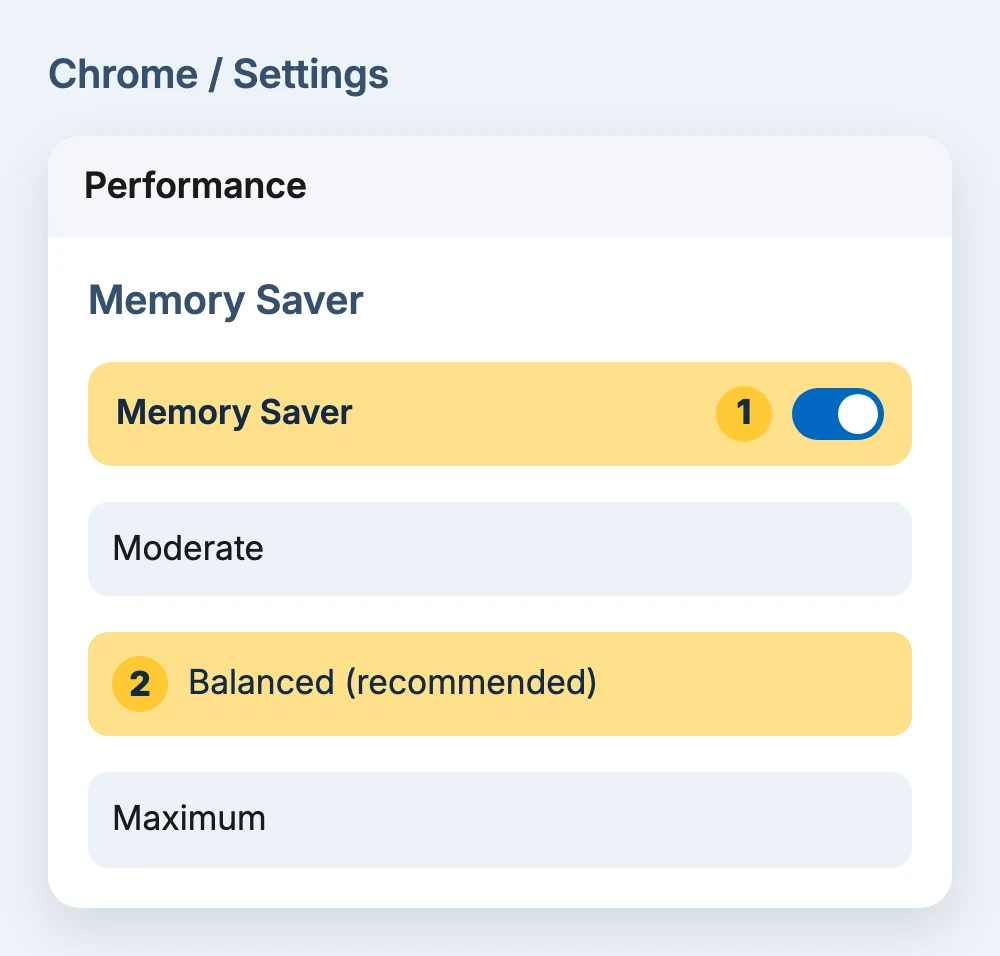
Open Settings > Performance from Chrome's menu. Turn on Memory Saver and start with Balanced (recommended). It makes inactive tabs give up memory so the tabs you're using have more room.
An inactive tab reloads when you return to it. That reload is expected, so check whether the page you're using responds better. Older tabs won't all stay instantly available.
Google says its Memory Saver controls offer Moderate, Balanced and Maximum. Moderate leaves tabs active longer; Maximum makes them inactive sooner.
I'd start with Balanced. Maximum can help a busy session, but constantly reloading pages you return to may slow you down.
Audio, video calls, screen sharing, active downloads and partially filled forms can keep a tab active. Memory Saver being on doesn't mean every background tab will immediately stop working.
For one site that must remain ready, use Always keep these sites active > Add. Choose it from the current sites or enter its address. Only add sites you need to keep ready, or you'll lose the memory savings across your session.
3. Find a busy page or extension
Open the three-dot menu and choose More tools > Task Manager. Click Memory to sort the entries. Look for a page or background task you recognize that you no longer need.
Chrome uses several processes for separate jobs. The Chrome task-count explanation helps when the number of entries looks alarming, even though the browser has only a few visible tabs.
Save work in a task before selecting it and clicking End Process. Ending it discards that task's unsaved changes. The affected tab can stop displaying its page until you reload it.
Read each high-usage task's name before deciding to close it. A document editor or video call can need more memory than a simple article without anything being wrong.
Open Extensions > Manage Extensions from the main menu. Disable unneeded extensions and retry the page. If it improves, reactivate each extension separately, repeating the activity until the slowdown returns.
Deal with that extension next: update it, remove it or send its developer a report. Removing all your browsing history wouldn't tell you which extension caused the extra work.
4. Check Energy Saver when battery use changes playback
A laptop that feels fine on its charger but stutters on battery needs this comparison. Open Settings > Performance and find Energy Saver, if your computer offers it.
Energy Saver reduces how often images are captured and limits other work in the background. It can change gaming and video performance, and it doesn't activate while the computer is plugged in.
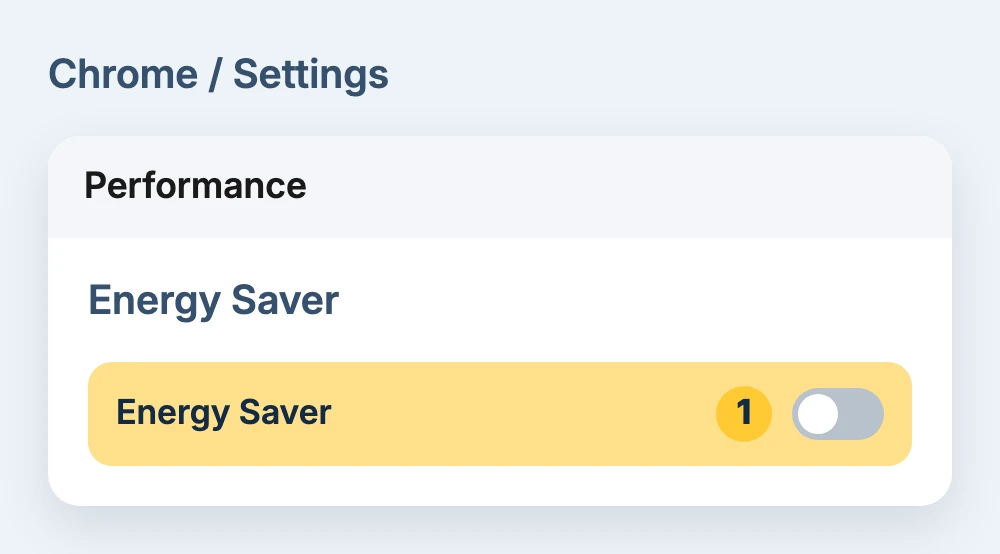
Temporarily switch Energy Saver off and replay the same material while unplugged. If playback improves, choose whether that smoother result matters more than extending battery life for this session.
Windows laptops, MacBooks and battery-equipped Chromebooks can offer this control. A desktop computer without a battery doesn't need to show it.
For a temporary change, the Energy Saver control beside the address bar can offer Turn off now. That lets background activity resume for the session without permanently changing your battery settings for one test.
5. Turn on preloading for slow page navigation
When typing and tab switching feel normal but moving to the next page takes time, try Settings > Performance > Preload pages. Enable it, then read the available choices and select the one you prefer.
Preloading prepares pages Chrome thinks you might visit. It can make browsing and searches faster; it won't repair a website whose own server is struggling to respond.
The feature may use cookies when you allow them. Chrome may also encrypt and send pages through Google to hide your identity from sites, so review the description beside the choice before enabling it.
Compare several familiar sites. If one remains slow while the others respond normally, report that site's address and the failing action to its support team. If every browser struggles, move to the computer or connection checks instead.
6. Get help for a slowdown that survives these changes
If Chrome actually stops responding, follow the Chrome freezing checks for graphics acceleration and a separate profile comparison. Recovering a stuck window takes a different route from adjusting a responsive browser's performance.
For continuing desktop slowness, open Help > Report an issue in Chrome. Include the version from About Google Chrome, Windows or macOS version, affected sites and whether closing tabs or disabling extensions changed anything.
Mention a battery-only pattern too. These details give support a way to recreate the slowdown, rather than guessing which part of Chrome feels slow.
The Short Version
Close spare tabs, finish any pending update and start Memory Saver on Balanced. Check extensions for extra work, Energy Saver for battery-only stuttering and Preload pages for slow navigation between sites.
Checked November 27, 2026.
 If you have any business, I can build it online