

Your Health app says you climbed 95 flights of stairs on a flat run, or 200 in a normal day. You know you did not, and you want the number to mean something again.
That is annoying if you track your fitness closely. I read Apple's Health data page and a long MacRumors thread in which owners have chased false flights since 2023. One of them found the same fault on a new Ultra 4 on 27 September.
The two ways it goes wrong
The thread counts about 23,000 views, and most posts blame an Apple Watch. An Ultra 4 owner logged 95 flights on one run, and another saw 200 on a single day in September.
Owners report it during runs and yard work, even vacuuming. One logged "49 flights climbed in a 16 minute period" while carrying cushions across a flat lawn.
The newest report points at a phone instead. In their words: "my iPhone se3 is the culprit too. it is writing large increases in flights climbed to health. like 200 flights per day." Their watch was counting correctly.
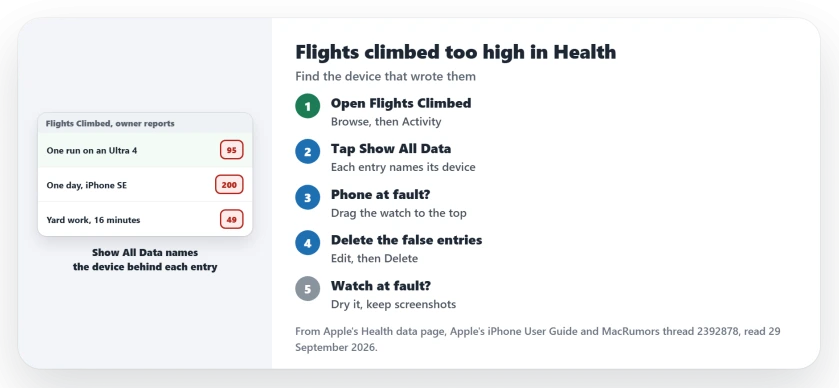
Status: checked 29 September 2026. Apple lets you choose which device Health trusts first for each data type. Owners report false flights on watches from the first Ultra to the Ultra 4, and on one iPhone SE.
1. Find which device wrote the flights
Open the Health app, tap Browse, then Activity, then Flights Climbed. Apple's Health data page gives the next step: "Scroll down to Options, then tap Show All Data."
Open a day with a silly total. Each entry names the device that recorded it, which is how the SE owner caught their phone. Your fix depends on which device it is.
2. If it is your iPhone, put the watch first
Health ranks its sources. When several record the same data type, Apple says Health favors whichever one sits first in the list.
On the Flights Climbed screen, tap Data Sources & Access, then Edit. Apple's instruction is to "Touch and hold the Change Order button next to a data source, then drag it up or down in the list."
Drag your Apple Watch to the top, ahead of the iPhone, then tap Done.
This matters for your rings too. Apple's iPhone guide says that when you carry your iPhone, its motion sensors "track your steps, distance, and flights climbed to estimate active calories burned."
3. Delete the entries that are wrong
In Show All Data, tap Edit and remove each bad record with its Delete button. Apple documents these steps for data you typed in, and owners have deleted false flights too.
Do not expect your rings to shrink. On a watch, one owner deleted the false stairs and saw that "the rings don't change." The SE owner found the same for Move and Exercise.
4. If it is your watch, dry it after a sweaty workout
One owner tracked it to sweat over several years and several watches. When it starts, they dry the watch in moving air. As they put it: "hold my watch up to a fan (usually car A/C vent), it will usually stop."
Drying it with a cloth did not have the same effect for them. That is one person's pattern, so try it as an experiment.
5. Keep proof before you book service
If false flights keep coming, contact Apple Support with screenshots of the entries and their times. Owners report that a repair does not always end it.
One Ultra owner sent their watch in three times before Apple replaced it. The replacement "logged about 100 flights of stairs" on a half marathon.
What did not help
- Resetting all iPhone settings, for the SE owner.
- Turning Motion and Fitness tracking off and on again.
- Many rounds of reset and recalibration on the first Ultra.
- A replacement Ultra, and later a new Ultra 4.
Steps or distance wrong too?
When the watch gets distance wrong rather than stairs, our distance page covers the calibration steps. And if you wear two watches, the two watches page shows how Health picks between them.
Why does my Apple Watch count stairs I never climbed?
Owners in a long MacRumors thread tie it to runs, yard work and sweat. I found no Apple page that explains it.
Do false flights climbed change my Move ring?
Deleting them did not change the rings for owners who tried. Apple says an iPhone you carry uses flights climbed to estimate active calories.
How do I keep iPhone flights out of Health?
In Health, open Flights Climbed, tap Data Sources & Access, then Edit, and drag your Apple Watch into first place.
The Short Version
- Open Flights Climbed and tap Show All Data.
- Each entry names the device that wrote it.
- Phone at fault? Drag the watch to the top.
- Delete the false entries in Edit.
- Rings do not shrink when you delete them.
- Dry a sweaty watch with moving air.
- Keep screenshots before you call Apple.
Where to Next
Open Flights Climbed now and check the source of your worst day. If it is the iPhone, move the watch to the top today.
If your Ultra 4 counts false flights too, leave a comment with the activity. I will add new patterns to this page.

Isaac Smith is the founder and editor of PC Glance, a website that covers computers, laptops, and technology. He is a tech enthusiast and a computer geek who loves to share his insights and help his readers make smart choices when buying tech gadgets or laptops. He is always curious and updated about the latest tech trends.