A formula parse error in Google Sheets usually needs a punctuation fix: check separators, quotes, and parentheses first. After copying a formula between files, try semicolons if the new sheet's locale doesn't accept commas.
Select the cell to read the full error before changing anything. #ERROR! with Formula parse error needs a syntax fix. #REF!, #DIV/0!, and a formula displayed as plain text are different problems and need different checks.
In this guide
1. Read the formula instead of replacing the data
Click the affected cell and read what appears in the formula bar. Click into it to edit, keeping a copy of the original formula in a text note if it's long. That gives you a way back while you correct one part at a time.
Look for something unfinished: a comma with no argument after it, a plus sign at the end, or an opening parenthesis without its closing partner. Changing the source numbers won't repair punctuation that Sheets can't read.
For example, =SUM(A1:A5 is missing its closing parenthesis. The complete version is =SUM(A1:A5). A range joins its starting and ending cells with a colon; A1:A5 isn't the same expression as two separate cell references.
Enter a small formula such as =1+1 in an unused cell. If that returns 2, the sheet can calculate a basic formula. Return to the failing formula and check how it's written instead of making random changes to the spreadsheet's settings.
Check comparison signs too: greater than or equal to is >=, not =>. Swapping those two characters can leave the whole formula unreadable.
If the cell shows =1+1 itself, it might be stored as text or shown in formula display mode. That's different from a cell showing a parse error. Keep the exact message in view as you work.
2. Match commas or semicolons to the file's locale
An argument separator divides the inputs inside a function. A US-style IF formula uses commas:
=IF(A1>10,"High","Low")Sheets in some other locales expect semicolons:
=IF(A1>10;"High";"Low")Changing commas to semicolons fixed this error for one owner, who confirmed it again in a later reply.
Try both versions in an unused cell with a simple numeric condition. If only one works, correct the copied formula's separators. That can explain why it works in someone else's file.
On a computer, open File > Settings > General and check Locale. Google's spreadsheet settings instructions explain that this setting applies to the whole file and affects date, currency, and number formatting.
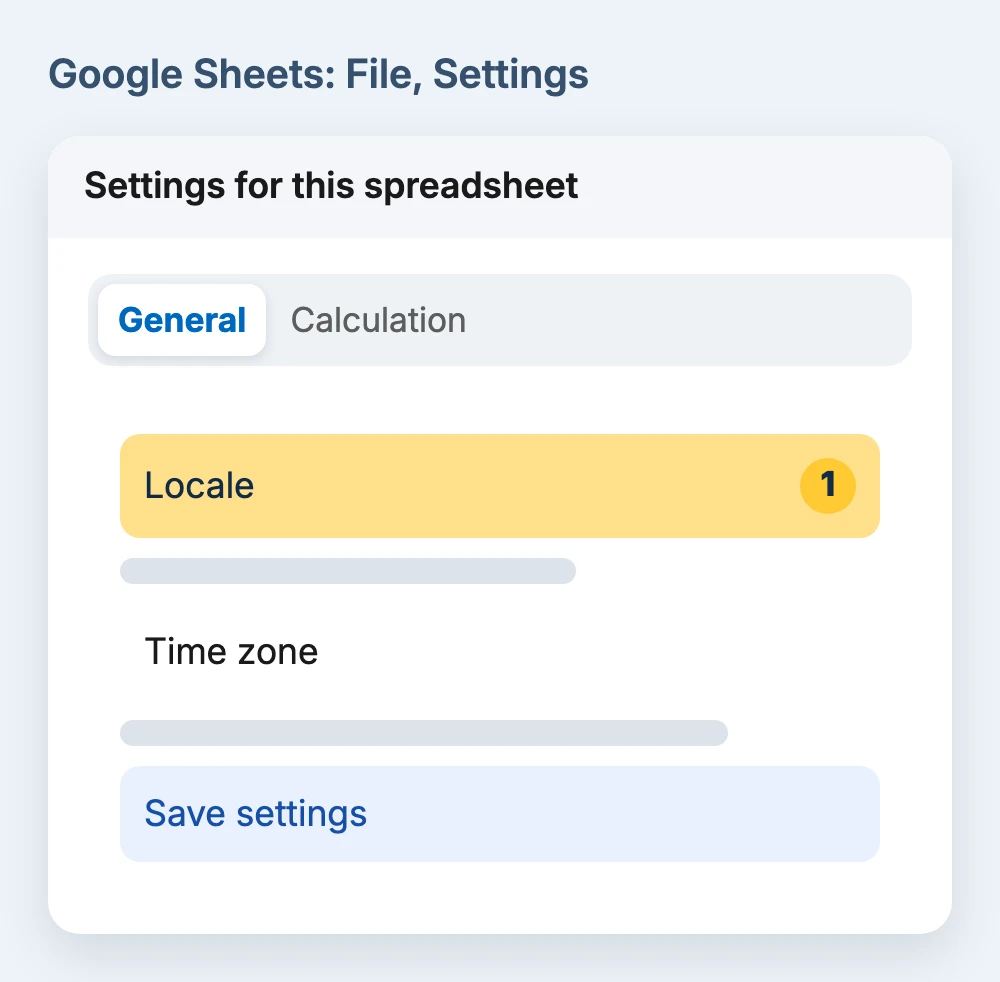
I'd adapt a single pasted formula to the existing file before changing its locale. A shared spreadsheet can already depend on its current date and number conventions, so changing the file to suit one formula can create more work.
Don't replace every comma blindly. Commas inside quoted text are part of that text, and decimal notation also depends on locale. Change the separators between arguments, then test the result before moving to a longer formula.
On Android, iPhone, or iPad, open the file on a computer to change locale and calculation settings. You can edit formulas in the mobile Sheets app, but you need a computer to change those settings.
3. Repair quotes and text arguments
Text inside a formula needs straight double quotes. In =IF(A1>10,"High","Low"), the words High and Low are text results, while A1 is a cell reference. Keep each opening quote paired with its closing quote.
A formula copied through a word processor or message can acquire curved quotation marks. Retype the quotation marks directly in the formula bar. They can look similar on screen, but Sheets reads them as different characters.
Use double quotes for text strings, and single quotes around a sheet name containing spaces. For example, ='Sales Data'!A1 refers to cell A1 on the Sales Data tab. The exclamation point separates the tab name from the cell reference.
A tab reference is easier to build by selecting the source cell while editing the formula. That avoids mistyping spaces or punctuation in the tab name. Check the resulting reference before adding the rest of the calculation.
If the formula was brought over from Excel, convert the workbook to Google Sheets only when you need a native Sheets copy. Conversion and a syntax repair are separate tasks; keep the original file available.
4. Rebuild a long formula in working pieces
When one function sits inside another, start with the innermost calculation in an unused cell. Once it works, put it inside the next function. Build outward gradually and check each addition for the error.
Use the function help that appears while typing to check argument order. Even optional inputs need to go in the right position, and an extra separator can leave an unexpected empty argument. Check the help for that particular function.
An IF function takes a condition and the results for true and false. SUM accepts numbers or ranges. Copying punctuation from a different function won't fix an argument entered in the wrong position.
With QUERY, check the formula around the query and the text inside its quotes separately. Read whether the message says Formula parse error or describes a query-string problem for a particular parameter.
If the message points to the query text, fix how that text is written. Replacing separators outside the quotes won't fix a misspelled column or an incorrectly written instruction inside them. Use the full message to tell these errors apart.
5. Check the error that remains after the edit
Once Sheets can read the formula, the parse message changes to a result or sometimes a different error. A new #DIV/0! message means the calculation is now reaching a division by zero; it needs a data or logic change next.
Use the same approach with #REF! or #N/A. Read the new message and check the referenced cells or lookup inputs. Don't undo a correct punctuation repair just because it reveals another problem in the calculation.
Putting a broken formula inside IFERROR doesn't fix how it's written. Get the formula working first, then decide whether a valid calculation needs a fallback result for missing data.
For a workbook opened in Excel instead, the Excel #NAME? fixes cover unrecognized names, missing quotes, and function spelling in that app. Match the repair to the app showing the error.
If a short formula still fails, ask in Google's spreadsheet help forum. Include a small example, the file's locale, the exact formula, and the complete error message. Replace private data with sample values that produce the same error.
The Short Version
Balance parentheses and quotes, and match argument separators to the file's locale. Build long expressions from working pieces. If the message changes after editing, follow that new error.
Checked November 29, 2026.
 If you have any business, I can build it online