Share Google Calendar from Settings and sharing on a computer or Shared with in the phone app. Add their email, choose their access, and send the invitation. They must open its email link to add the calendar.
Choose free/busy access when the person just needs your availability. Sharing an entire calendar gives ongoing access, so use an event invitation instead when you only want them at one appointment.
In this guide
Choose the calendar and the access you intend to give
Open Google Calendar in a computer browser and use the profile picture to confirm the account. Work, personal, and shared-project calendars can all appear together, so don't assume the first calendar is the one you mean to share.
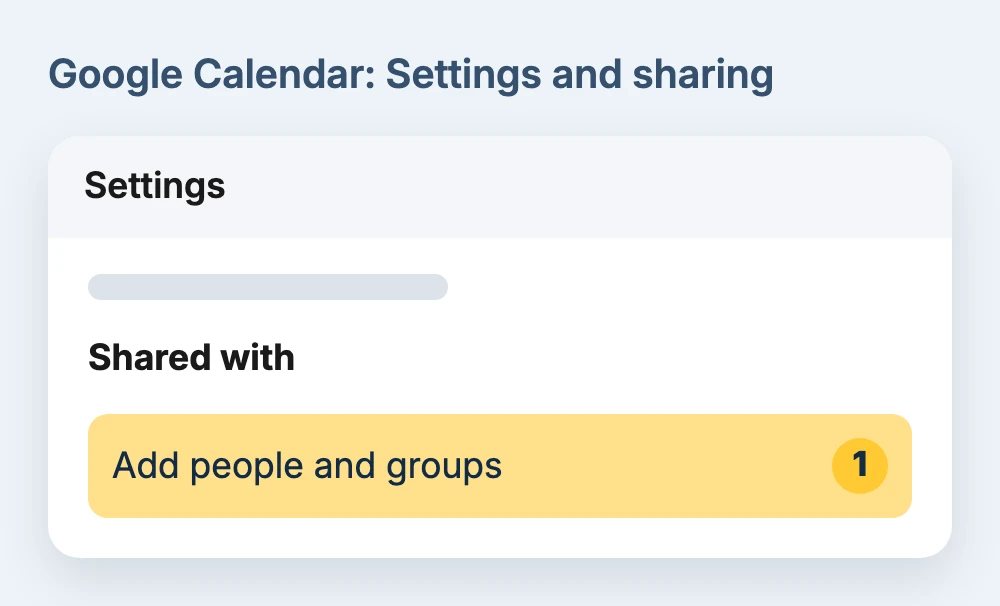
Expand My calendars on the left. Find the calendar containing the events you want to share. Point to that calendar, open More, and choose Settings and sharing.
You can share a calendar you own. To share one owned by someone else, you need Make changes and manage sharing permission. Being able to add appointments alone doesn't grant the right to invite more people to the calendar.
I'd choose the least access that lets the person do their job. A colleague planning a call usually needs your busy periods, while someone managing a shared work schedule may need to edit events.
Add the person and send the invitation
In the selected calendar's settings, click Shared with on the left. Under that heading, click Add people and groups, then enter the person's email address or the Google group's email address.
Check the full address rather than just the contact's displayed name. A contact might have separate personal and work addresses; only the selected account receives this access.
Choose the permission in the invitation dialog, then click Send. The person receives an email containing the link they need to add the calendar to their own view.
Google explains the Shared with controls in its current calendar-sharing instructions. Some older interfaces and instructions call it Share with specific people or groups; both refer to the people or groups you invite.
Have the recipient sign into the invited account before opening the email link. After you send the invitation, check that they've added the shared calendar and selected it in their calendar list.
The procedure shares this calendar, rather than every calendar in your account. For a separate work or family schedule, check that the entries really belong to the calendar you selected before sharing it.
Pick the permission that matches what they need
The current permission list separates viewing, editing private events, and managing sharing. Work or school policies can remove choices, so choose from the options your account shows.
- See only free/busy (hide details) shows when you're busy without names or event details. Use it for scheduling availability.
- See event details reveals details such as event names, times, places, and descriptions. Choose it when the person needs to read the schedule.
- Make changes (see private events as free/busy) allows edits to non-private events. A private event marked Busy appears as a busy block; a private event marked Free doesn't appear.
- Make changes and see event details allows event editing and lets the person see who else has access to the calendar.
- Make changes and manage sharing gives full control of events or tasks with start and end times, plus the ability to share the calendar with others.
Read the private-event wording carefully when giving editing access. Someone who needs to update a project appointment doesn't automatically need the highest permission to decide who else can access the calendar.
The permission comparison also explains that wider access takes priority. A free/busy invitation won't hide details that you've already made publicly available.
For an Outlook-owned schedule, use the separate Outlook calendar-sharing controls. Adding a Google account to a device doesn't transfer ownership of its other calendars.
Keep named sharing separate from public access
Access permissions for events controls wider availability, including Make available to public and organization-wide access where available. Those settings aren't required for a private invitation to one person.
Leave public access off when you only want to share with specific people. Public calendars can be found on the internet or in search results, which is a much wider audience than the email address you just invited.
An organization's calendar policy can block outside sharing or remove permission choices. If an outside person can't be added, ask the administrator whether that calendar can be shared with their domain and with which permissions.
An administrator can also have special access to work calendars. Don't treat a hidden event title in a colleague's view as a promise that your organization's administrators can't see the event.
For a personal appointment that doesn't belong on the shared project schedule, choose your personal calendar when creating it. The calendar containing the event determines which sharing arrangement applies.
Confirm access on computers and phones
After the recipient follows the invitation link, have them select the calendar in their calendar list and check a date containing an event. Ask what they see: busy blocks, readable details, or editing controls.
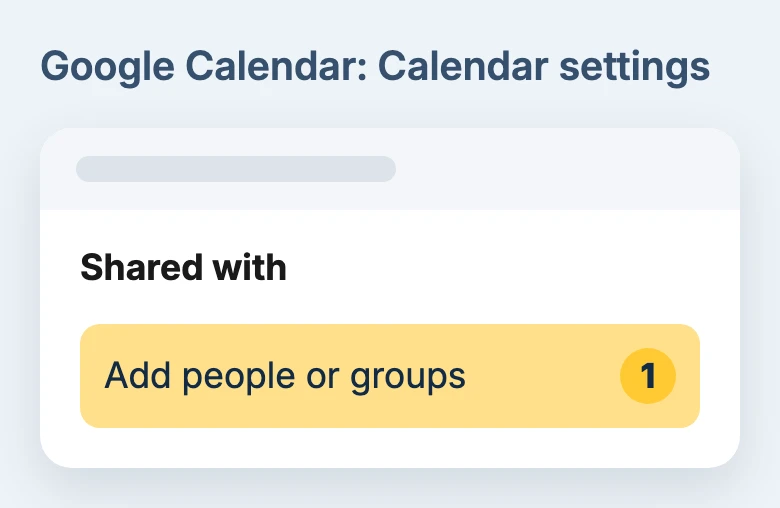
In Google Calendar for Android, tap Menu > Settings, then choose which calendar to share. Under Shared with, tap Add people or groups, choose the recipient, set their permission, and tap Save.
On iPhone or iPad, open Google Calendar's Menu > Settings and select the calendar. Under Shared with, tap Add people or groups, choose who to add, set access, then Save. These controls belong to Google's app.
If those mobile controls aren't available, use the computer route. Once the invitation is accepted, check that the invited account and calendar are selected in the recipient's app.
For a calendar that loads in a browser but stays missing or outdated on your iPhone, follow the Google Calendar iPhone sync checks. Changing the sharing permission won't repair a phone that isn't refreshing its calendars.
If the email never arrives, verify the address, then ask the recipient to check spam and trash and search for your email. If the invitation remains missing despite a correct address, remove that person from sharing and invite them again.
Change or remove access when plans change
Return to Settings and sharing > Shared with for the same calendar. Use the permission menu beside the person or group to change their access, or click Remove to stop sharing with that person or group.
Review any broader public, organization, or group access too. Removing a direct invitation won't stop someone from seeing the calendar if they still have access through one of those settings.
For blocked sharing, give your Workspace administrator the calendar name, recipient domain, missing permission, and exact error. For a personal account, ask the Google Calendar Help Community about that invitation or permission failure.
The Short Version
Open the calendar's sharing settings, add the recipient under Shared with, and choose their permission. Use Send on a computer or Save in the app. Have them follow the email link and check their view without making the calendar public.
Checked November 29, 2026.
 If you have any business, I can build it online