MLA format in Google Docs starts with a paged document, one-inch margins, double spacing, and a readable 12-point font. Set those first, then add your name, paper title, surname with page numbers, and a separate Works Cited page.
Choosing a citation style won't format the rest of your paper. Google Docs currently lists MLA 8th edition in its citation tool, so check generated references against your assignment when MLA 9 is required.
In this guide
Start with Pages and the right paper size
Use Google Docs in a computer browser for this setup. The desktop menus make it easier to control first-line indents, header spacing, and the final page layout together. On a phone, you can keep writing after the structure is ready.
Open your document, then choose File > Page setup > Pages. Select Portrait, choose Letter (8.5 x 11 inches) for a standard US paper, and set the top, bottom, left, and right margins to 1 inch. Click OK.
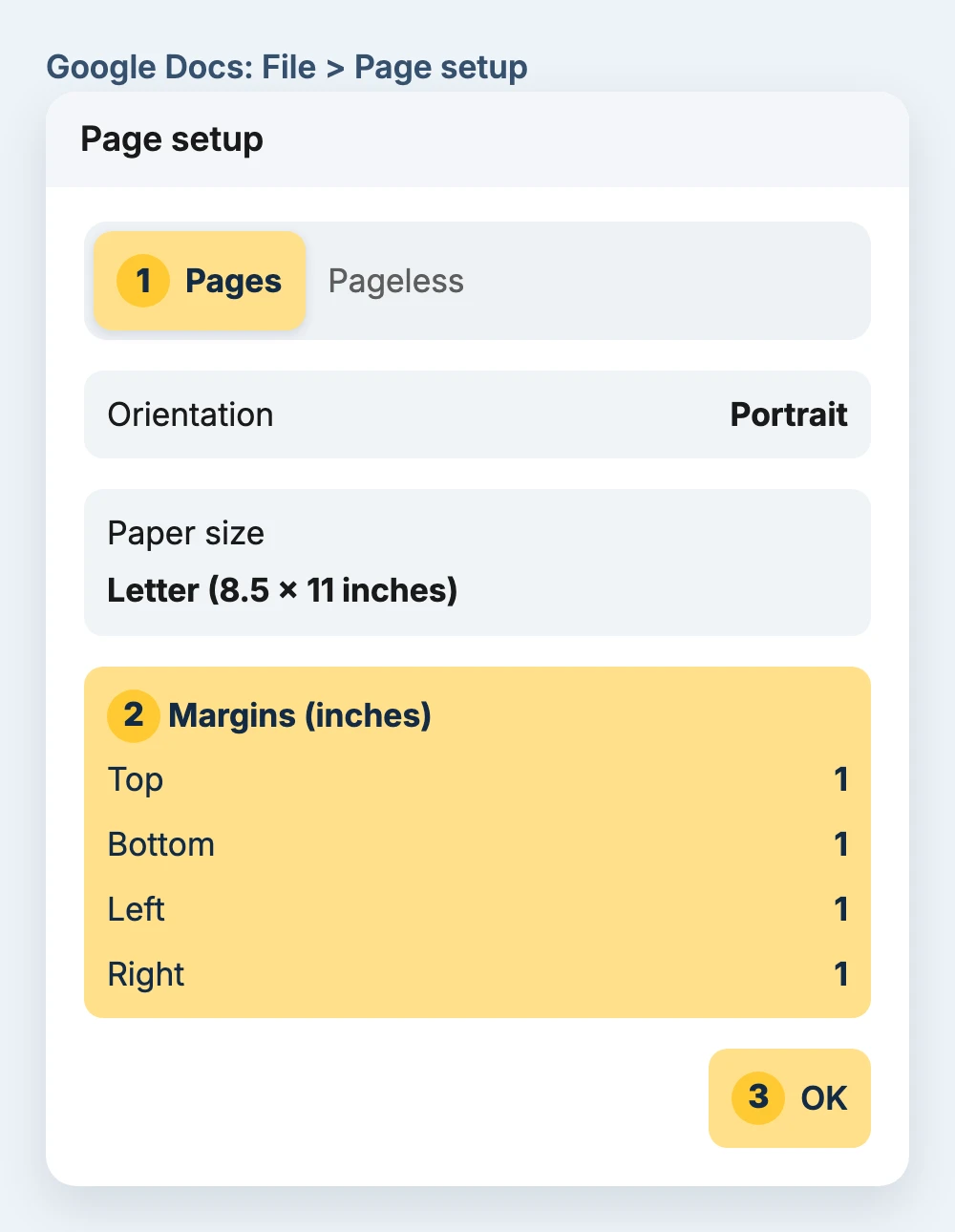
Pageless mode doesn't give the paper the page structure needed for headers and page numbers. Google says the page settings require Pages mode.
Follow your instructor's paper-size directions if they differ. The result should look like separate portrait pages, with equal space around the body text. Don't use repeated spaces to move text away from an edge.
For an existing Word file, open it in Google Docs first and check its layout before changing the formatting. A converted document can carry old paragraph and section settings.
Apply the font and double spacing together
Click inside the paper, then select its text with Ctrl+A on Windows or Command+A on Mac. Choose Times New Roman and 12 from the toolbar if your assignment doesn't specify another readable font.
Times New Roman is a straightforward choice, but MLA calls for a readable font with a clear difference between regular and italic letters. Keep the same font through the paper, including its header.
Choose Format > Line & paragraph spacing > Double. In the same menu, open Custom spacing, set paragraph spacing Before and After to 0, and apply the change with line spacing still set to double.
That removes the extra gap some pasted paragraphs carry. Double spacing should continue through the first-page heading and Works Cited entries. Don't insert an empty paragraph after every paragraph to imitate it.
Paste a short sample into an existing draft and check it against nearby text. If only the sample looks different, select it and set its font and paragraph spacing. You don't need to reformat the rest of the paper.
Build the first page without a separate title page
In the upper-left corner of page one, type your name, instructor's name, course, and date on separate double-spaced lines. These belong in the main document body, not in the repeating header.
Press Enter after the date, center the next paragraph, and type the paper title in title case. Keep its normal font size and weight. Don't add bold or decorative formatting unless your instructor asks for it.
Press Enter again, switch back to left alignment, and start the essay. There should be ordinary double spacing around the title, rather than several blank lines pushing the first paragraph down the page.
An individual MLA paper doesn't normally need a separate title page. Add one if your assignment asks for it. Group papers can also have different instructions for contributor names and the first page.
I'd finish this small first-page block before pasting a long draft. It's much easier to spot a centered body paragraph or a misplaced name while the paper is still short.
Set body indents and the repeating page header
Highlight body paragraphs, excluding the heading and title. Choose Format > Align & indent > Indentation options. Under Special indent, select First line, enter 0.5 inches, and apply it.
Leave the left and right indents for the whole paragraph at zero.
Each body paragraph should now begin half an inch in from the left margin while its remaining lines return to the margin. Keep the heading and centered paper title outside this selection.
To create the running header, choose Insert > Page elements > Header. Right-align the header, type your surname and a space, then use Insert > Page elements > Page number to insert an automatic number.
Choose the top-of-page placement that includes the first page unless the assignment says otherwise. Set the header margin to 0.5 inches using Format > Headers & footers > More options.
Check page two: the surname should repeat and the number should change automatically. Typing a plain 1 into the header repeats that same number on every page, so use the automatic page number instead.
Create Works Cited, then inspect your download
After the essay's final paragraph, insert a page break using Insert > Break > Page break. Center Works Cited on the new page, then left-align the entries. Keep the running header and double spacing.
Arrange entries alphabetically as MLA requires. Select the entries, open Format > Align & indent > Indentation options, and choose Hanging with 0.5 inches. The first line stays at the margin; later lines move inward.
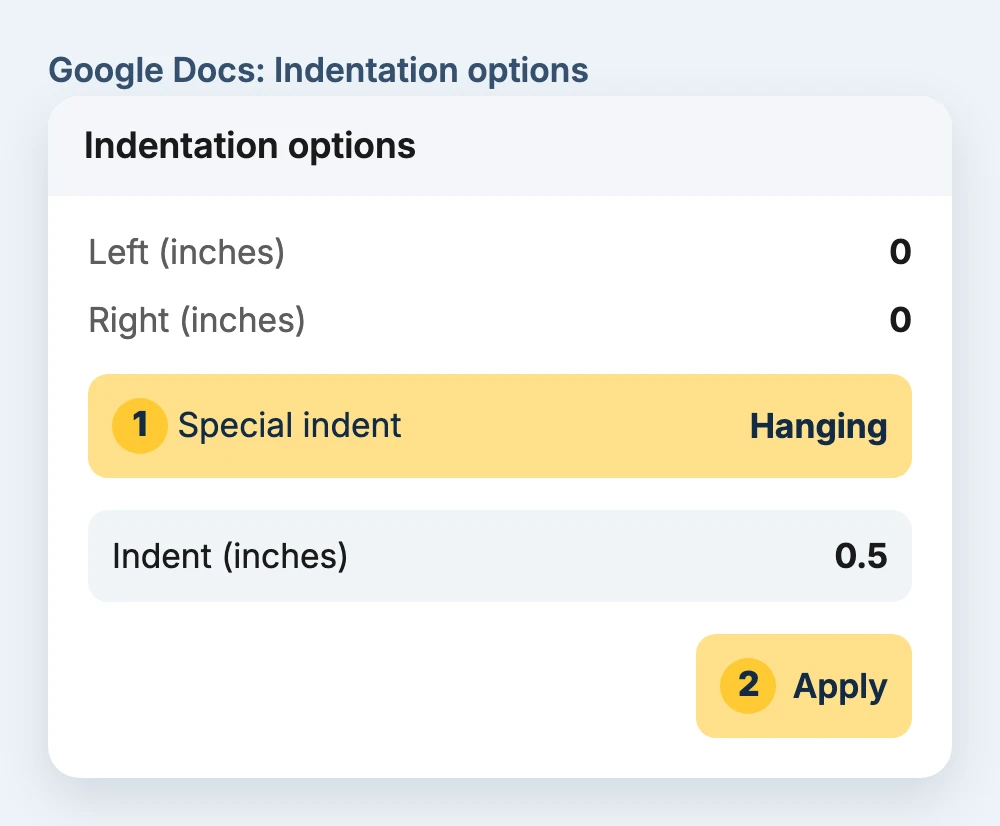
Tools > Citations can help build references, but its listed MLA edition is 8th.
Check authors, titles, dates, containers (such as the journal a source appears in), and any missing details yourself. Don't assume the style selector has checked the source details you entered.
For an assignment submitted as a Word file, compare the download against the MLA setup in Microsoft Word.
For PDF submission, use File > Download > PDF Document (.pdf) and open the downloaded copy.
Inspect the first page, page two, and Works Cited in that final file. Check the header, paragraph indents, and unexpected empty pages.
If you're unsure about a requirement, ask your instructor or the writing center about that detail before you submit the paper.
The Short Version
Use Pages, one-inch margins, double spacing, and a readable 12-point font. Add the first-page heading, automatic surname header, half-inch body indents, and hanging Works Cited entries. Check the final download against the assignment.
Checked November 29, 2026.
 If you have any business, I can build it online