A locked PDF can require an opening password, or it can open while blocking printing and editing. With the owner's permission and the right password, you can remove that lock in Acrobat and save the file.
The password that opens a document can differ from its permissions password. Without the password it asks for, ask the sender for that password or a copy without restrictions. Removing a lock won't recover a forgotten password.
In this guide
Match the lock to the problem on your screen
A password box before any page appears means the file has an opening password. Enter that password to read it. If the pages appear but editing or printing is blocked, check the file's permissions instead.
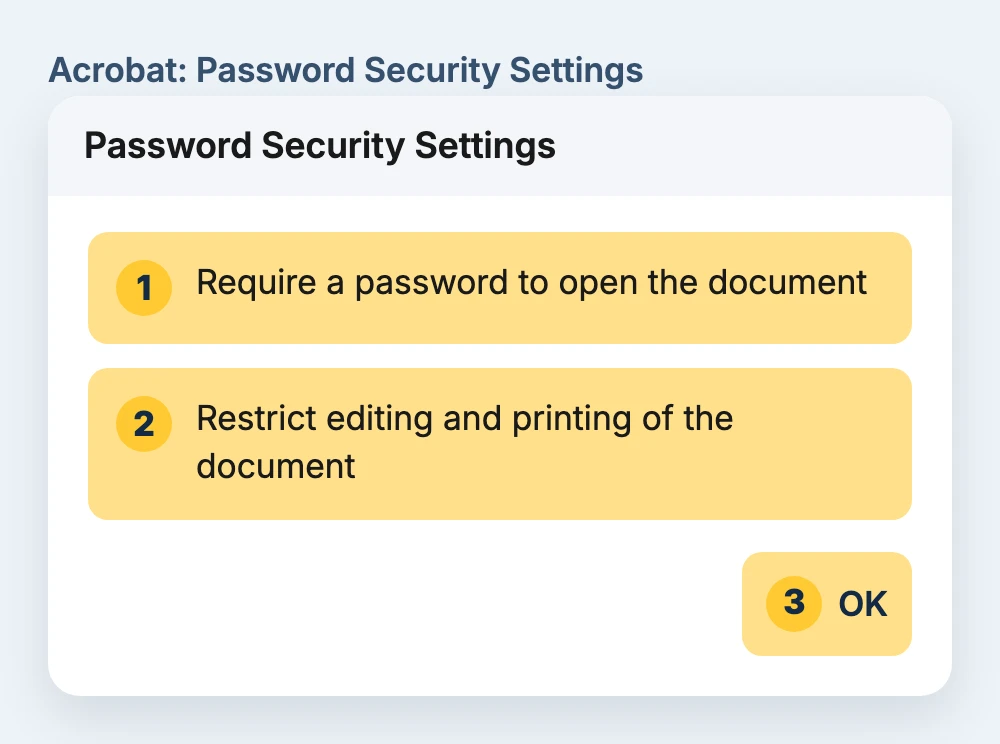
Acrobat's permissions settings control actions such as editing, printing, and copying. Entering the opening password lets you read the file, but its editing and printing restrictions can stay in place.
That explains why an apparently unlocked file can still refuse a change.
A signed or certified PDF is another case. Its author can limit later changes to protect the signed document. Check the signature details before trying to remove password protection from a file you can already read.
Make a working copy if the original must keep its protection. Give your changed file a clear name so you don't accidentally attach the protected original when you meant to share the unlocked copy.
If the PDF isn't actually opening in a desktop editor, download it and open that local file first. A browser's viewing controls aren't the same as Acrobat's security tools.
The Chrome PDF download settings explain that viewing-versus-downloading choice.
Remove password protection in current Acrobat
Open desktop Acrobat on your Mac or Windows PC and open the PDF there. Enter the opening password if asked. Select All tools > Protect a PDF, then choose Set security properties under ADVANCED PROPERTIES in the left pane.
In the window that opens, select Security, then Change Settings. This changes the password settings for the open document, rather than every PDF you open.
Clear Require a password to open the document to remove its opening-password requirement. To remove the permissions password instead, clear Restrict editing and printing of the document.
Enter the permissions password if prompted. Click OK to close the dialog, confirm the change with OK, and save the PDF. Both settings can matter when the file has separate opening and editing restrictions.
Adobe's current removal steps use this security-properties route.
You need to save the file for the change to stick. Closing the window without saving leaves its protection in place.
Find the changed file in its saved folder and reopen it. For an opening-password change, it should display its pages without a password prompt.
For a permissions change, check the action you needed, such as printing, rather than just whether the document opens.
Handle an older layout or a missing security control
Your version of Acrobat might have an older tools layout. If All tools is missing, look for security properties in the document controls, rather than your browser's menus or Acrobat's general preferences.
Use the help for your installed Acrobat version.
The free Reader app can open password-protected PDFs when you supply the password, but reading a file isn't the same as having Acrobat's security editing tools. Check which product is open when the removal controls are missing.
I'd confirm the product and the password type before paying for another tool. A permissions password prompt won't be solved by repeatedly entering a different opening password, even though that password successfully displayed the pages.
If the file comes from a workplace document system, ask its owner whether the protection is managed centrally.
Protection tied to a digital certificate or a company server needs a different way to grant access. A password checkbox doesn't handle every protected PDF.
Change printing and editing permissions in Mac Preview
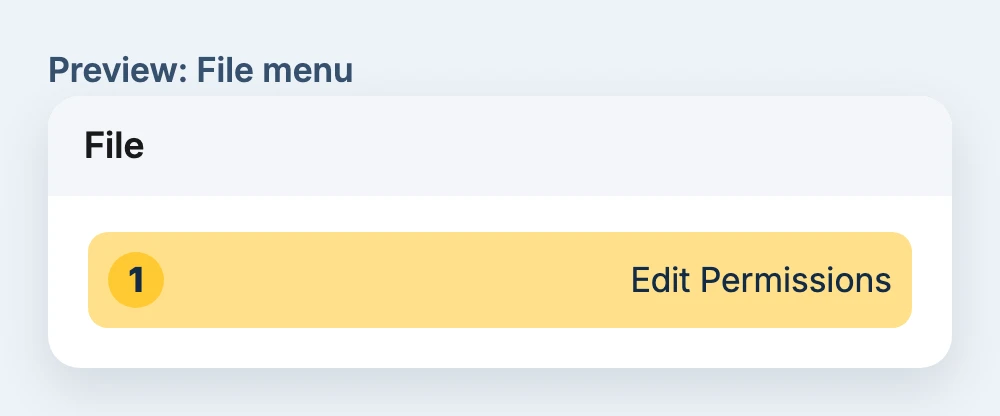
For a PDF whose permissions you control in Preview, open it and choose File > Edit Permissions. The panel separates the requirement to open the document from the permissions for printing and other actions.
Select the checkbox beside an action to allow it without the owner password. Clear that action's checkbox to require the owner password. Enter the owner password when asked and click Apply to save the change.
Apple's Preview permissions guide explains that changes apply the next time the PDF opens.
Close and reopen your saved file before deciding whether printing or another action is still restricted.
Preview also offers permissions while exporting through File > Export > Permissions. Check the file name and destination when you export a copy. Changing that copy won't change the original attachment.
This route is useful for adjusting permitted actions on a Mac. For complete removal using Acrobat, follow its separate opening-password and permissions-password controls rather than assuming one change handles both.
Ask for the right replacement when the password is missing
Without the opening password, you can't open the PDF to remove its protection. Ask the sender for the document password, check the message that accompanied the file, or request a fresh copy.
For a statement or document from an organization, follow the password instructions supplied with that document. Don't guess a password formula from an unrelated bank or company, since the sender sets the rule.
If the PDF opens but requests a permissions password, request an editable or printable version from its owner. Explain which action is blocked so they can change the appropriate permission instead of sending the same restricted file again.
For a digitally signed document that needs major edits, ask for an unsigned source copy. Changing the signed file can affect its signature, so preserve the signed version as the record of what was approved.
If the original is a Word document you control, you can export a fresh PDF from Word using the intended protection settings.
That avoids trying to reconstruct an editable source from the finished PDF.
For a known password that still fails in current Acrobat, send Adobe Support the version and exact prompt, without posting your document or password publicly. The sender remains the right contact for a password they created.
The Short Version
Distinguish opening and permissions passwords. In Acrobat, open Protect a PDF, change Security settings, remove the intended restriction, and save. Close it, then open the changed file to verify its permissions.
Checked November 29, 2026.
 If you have any business, I can build it online