

A frozen Galaxy Z TriFold display can recover after a forced restart. Hold Side and Volume down for over seven seconds when an undamaged screen stops responding. Black patches, colored lines, or a lifting inner screen need service.
A folding warning is another case: the TriFold must close from the left side first. Match the symptom before changing settings or repeatedly opening the phone.
In this guide
1. Separate a freeze from visible screen damage
Check whether the problem affects the cover screen, the large inner display, or both. A working cover display gives you a way to back up data and describe the inner screen failure without repeatedly unfolding the device.
Look for a spreading black area, a persistent colored line, cracks, or a raised part of the screen. If damage is visible, stop using the device and have an authorized service center inspect it.
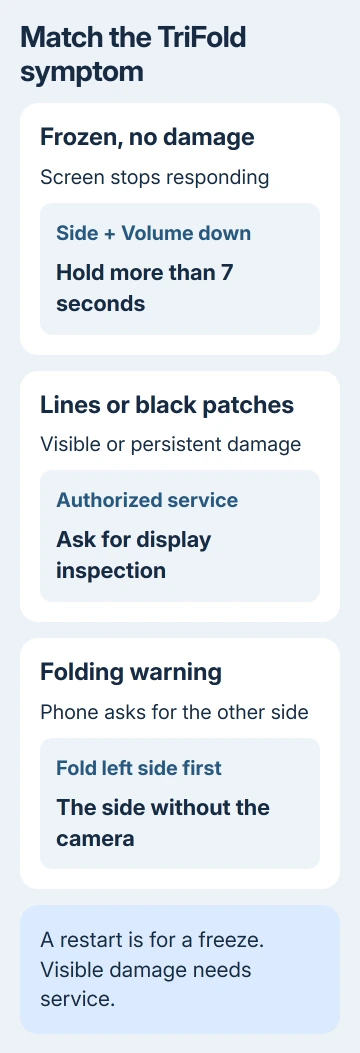
For an undamaged frozen screen, hold Side + Volume down together for over seven seconds, until it restarts. The display troubleshooting steps use this button restart when the power menu won't appear.
If the screen responds enough to show the power menu, hold the same buttons for more than two seconds and tap Restart instead. Unlock with your PIN or password after the reboot.
Check that screen again. If it responds normally, continue with software and app updates. If one display stays blank while the other works, tell the repair technician which one failed.
When neither screen lights up and the device seems completely unresponsive, use the Android power checks. That situation also needs charging and power checks, rather than just display adjustments.
2. Correct a folding-order warning
Start with the phone fully open and the inner display facing you. Fold the left side, which has no camera, first. Then fold the right side, which has the camera. The camera side helps identify the panels correctly.
Closing the right side first can produce a warning telling you to open the phone and fold from the other side, accompanied by vibration. The warning means the panels closed in the wrong order. It isn't telling you to reset Android.
Open it again and use the correct order without force. A slightly raised first panel is part of the design that helps the phone open. Don't press it flat against the screen to make the two sides look identical.
The TriFold folding instructions show this order. If a warning continues with the correct sequence, or the hinge resists normal movement, ask the service center to inspect the mechanism.
3. Leave a lifting inner protector in place
The main display has a fitted protector designed for folding. Have an authorized service center check a bubble or lifting edge, especially when touch or the picture is also failing in that area.
Don't peel the protector, press a bubble down hard, or add another adhesive protector over it. The flexible inner screen needs different care from the flat glass on an ordinary phone.
Samsung's foldable care instructions direct protector replacement to an authorized service center. A replacement may cost money; ask about your exact model and region before agreeing to work.
I'd photograph the problem using another device before handing the phone over. Include the affected display and the phone's condition, so the service request describes what you saw rather than only saying the screen is faulty.
Protector replacement and display replacement are different jobs. Ask which part needs replacing and whether the technician can test the inner screen before quoting for a complete display assembly.
4. Update software when the panel works after restarting
Open Settings > Software update > Check for updates and follow the offered instructions. Some Galaxy software versions label the update action Download and install. Install an available release, then retry the action that froze the display.
Update apps too: open Play Store > profile picture > Manage apps & device, then choose Update all when updates are available. An app that behaves badly on the expanded screen may need its own update.
If only one app fails when you unfold the phone, compare it with Settings or another built-in app. If only that app fails, report the problem to its developer. If the same area stops working in several apps, continue with the phone checks.
For faults that started after an app installation, try Safe mode. Hold Side + Volume down to open the power menu, touch and hold Power off, then select Safe mode. This starts the phone without your downloaded apps running.
Use the built-in screens to check touch and display behavior. If the problem disappears, remove the recently installed or updated app and restart normally. If it remains, tell support it also happens in Safe mode.
Google says an app may be responsible when touch works in Safe mode. That helps you decide what to try next; it doesn't repair visible panel damage.
5. Check tint, brightness, and missed touches separately
A warm yellow appearance can come from Settings > Display > Eye comfort shield. Turn that off to compare the color. For a dim but readable picture, use the Quick panel brightness slider or review Adaptive brightness under Display.
If the phone dims while hot, use the Android overheating steps before increasing brightness again. Letting the device cool deals with a different cause from a permanent black patch.
For missed touches on an otherwise working screen, open Samsung Members > Diagnostics > Phone diagnostics > Touch screen. Start full diagnostics, stop the test, then select the individual touchscreen test.
Touch the empty test areas and check the result. Note whether the same region remains unresponsive, particularly near either fold. Don't press harder to make a failing section register.
6. Ask for a TriFold display inspection
Find a service center through Samsung Support in your country. Ask whether it handles Galaxy Z TriFold inner-display and hinge repairs. Before sending the phone, ask about parts, repair coverage, and cost.
Back up accessible data before service. Supply the model, purchase details, photos, affected screen, and results after restarting or Safe mode. Persistent lines, black areas, or lifting layers need inspection rather than repeated resets.
The Short Version
Restart an undamaged frozen screen once. Correct the folding order for a folding warning. Leave the inner protector in place, and arrange authorized inspection for physical damage or a persistent inner-display failure.
Checked November 12, 2026.
 If you have any business, I can build it online






