

The Google Pixel January 2026 update fixed battery drain under certain conditions and some Pixel 10 display and touch problems. Check which fixes apply to your model, then install what's in Settings rather than an old January package.
The release also repaired Webex ringback noise and a wallpaper failure. Some Pixel 10 owners reported Wi-Fi and Bluetooth failures afterward; those aren't the same problems as January's listed repairs.
In this guide
Check which January repair matches the symptom
The rollout began January 12, 2026, on supported Android 16 devices, with availability varying by carrier and model. Check your model in Settings > About phone, or About tablet for Pixel Tablet, before reading the repair list.
Google lists four models for display and touch repairs in its January release announcement: Pixel 10, 10 Pro, 10 Pro XL, and 10 Pro Fold. The battery fix covers a wider group.
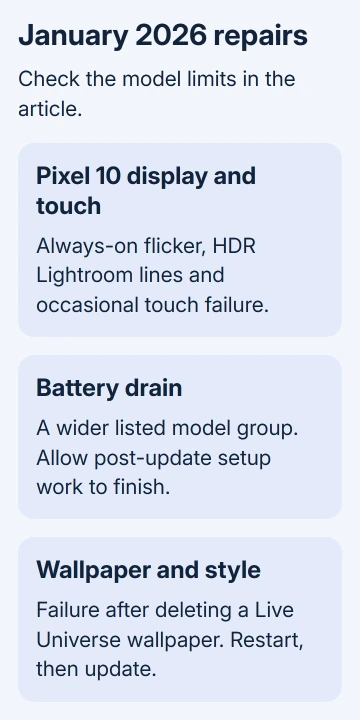
For those Pixel 10 models, the list includes always-on display flickering, flashing noisy lines while editing HDR photos in Adobe Lightroom, GPU performance improvements, and the touchscreen occasionally stopping under certain conditions.
Always-on display is the clock and information left visible while the phone is otherwise idle. The Lightroom fix applies to editing high dynamic range photos, not every line that can appear on a damaged screen.
The battery-drain entry covered the listed Pixel 8, 9, and 10 families, plus Pixel Fold and Pixel Tablet. It included Pixel 8a and 9a, but not Pixel 7a. A Pixel 7a owner needs battery troubleshooting for that model.
Compare the published builds with the installed software
Open Android version inside Settings > About phone, or About tablet for Pixel Tablet. Record Android security update and Build number. Keep a separate note of the Google Play system date to avoid mixing them up.
The January announcement's global list gives BP4A.260105.004.E1 for Pixel 7a, Pixel Tablet, and Pixel Fold. It gives BP4A.260105.004.C2 for Pixel 8 and the four listed Pixel 10 models.
A Verizon entry lists BP4A.260105.004.B2 for Pixel 9a. The build table omits some models mentioned in its repair notes. Match your model in the repair list, then use Settings to check for its software.
For a model missing from the table, read its installed build in Settings and check for an offered update there. Give support your model and full build number, including its suffix, when asking which release is available for it.
For comparison with the preceding month, the December 2025 Pixel release uses a different build list. A different month and build don't mean January's download failed.
1. Update normally, then let the phone restart
Connect to Wi-Fi and start with a battery charge of 75% or more. Open Settings > System > Software updates. On some versions the entry says System update. Follow the update status and prompts.
The Android update instructions also let you start from the update notification. Install what's offered now; there isn't a normal Settings command for choosing January 2026 by date.
Let installation finish, then restart when prompted. Pixel updates load in the background and become active after a restart. Afterward, read Android version again and compare the new build with your earlier note.
If the download can't finish, the phone can retry over the following days. A storage warning needs room cleared through Settings > Storage before another attempt. Keep a note of repeated download errors to share with support.
I'd finish that normal update and restart before changing display preferences. Otherwise, you can spend time adjusting settings while the software repair is still waiting to become active.
2. Recheck battery use after setup work settles
Battery use can rise temporarily after an update while the phone downloads, optimizes, and sets up software. That initial activity is different from a battery that keeps draining quickly during ordinary use.
Open Settings > Battery > Battery usage to review consumption. Check whether the drain happens with a particular app, heavy screen use, or while the phone sits idle. Give the phone a few days after updating to finish its extra work.
If one app stands out, update it through Play Store > profile picture > Manage apps & devices. Compare its battery use during similar activity afterward. An app can still use battery in the background even after a system fix.
If fast drain continues after a few days, send support the model, build, and Battery usage details. January's fix applied under certain conditions; it didn't identify a single cause for all battery complaints.
For a later charging or display issue, the May 2026 Pixel repair list covers a separate release. Match its symptom and model rather than treating all monthly notes as interchangeable.
3. Check touch, idle-screen flicker, and Lightroom separately
On an affected Pixel 10 model, compare the idle display with the fully awake screen. Tell support whether flickering is limited to the always-on display or also appears during normal use. That tells support which display behavior to check.
For Lightroom, reopen the HDR photo and repeat the editing action that showed noisy lines. Update Lightroom as well as Android. If other apps display normally but that editing action still fails, include the app version in your report.
If the touchscreen freezes with the display on, keep Power pressed for about 60 seconds to restart. Test ordinary controls before reopening the previous app. Contact support if the touchscreen still won't respond on current software.
GPU means the graphics processor; January's notes list improvements under certain conditions. If a game still fails, send its name and graphics settings with the report so support can check that particular problem.
4. Restart for the wallpaper failure and describe call audio
Deleting a Live Universe wallpaper could leave Wallpaper and style unusable until a restart. If that matches, restart and reopen Wallpaper and style, then install the available system release.
For Pixel 6 and later, hold Power + Volume Up to open the power menu and tap Restart. On Pixel Tablet, swipe down from the top, tap Power, then Restart.
The audio fix addresses noisy ringback tones during Webex calls. That's the sound you hear while waiting for a call to connect. It doesn't identify the cause of every distorted speaker, microphone failure, or ordinary cellular call problem.
If Webex ringback still sounds wrong, update Webex and report its version, the phone build, and when the noise occurs. Use support.google.com/pixelphone/gethelp for a persistent device fault before resetting.
Before a reset requested by support, save a backup of any accessible data. Give support the installed build and the action that still fails. They can then help with the remaining problem rather than reinstalling an old release.
When Wi-Fi or Bluetooth won't turn on
If either switch turns itself off or stays unavailable, record that behavior separately from battery drain. The January repair list doesn't describe a fix for those post-update wireless failures.
Open support.google.com/pixelphone/gethelp and report both switches, the exact model, and the installed build. Ask whether a newer offered release addresses that combination before erasing the phone.
The Short Version
Match January's repairs to the named model group. Install current software, restart, and check the failing action again. Allow a few days for battery use to settle. Report persistent wireless or touch failures through Pixel support.
Checked November 16, 2026.
 If you have any business, I can build it online






