

The Pixel May 2026 update fixes slow wireless charging between 75% and 80%, plus certain Pixel 10 display faults. Install the latest update offered on your phone; you don't need the old May download to get later fixes.
The display fixes aren't identical across every Pixel. A flickering white dot on a Pixel 10 Pro, a frozen screen on a Pixel 10 and slow wireless charging have separate entries in the release notes, so match your symptom and model first.
In this guide
Read the May fixes against your exact Pixel model
Google's May 2026 release announcement lists build CP1A.260505.005 for the devices it covers. This Android 16 update rolled out at different times depending on the device and carrier.
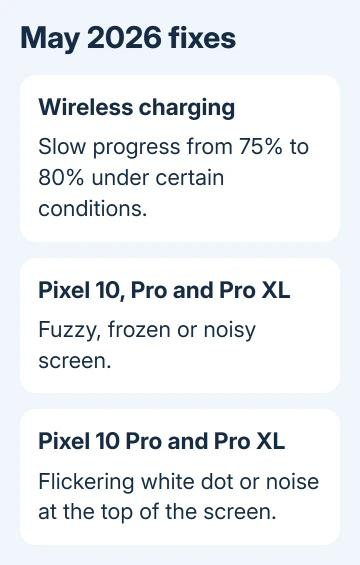
The main differences are:
- Slow wireless charging from 75% to 80%: a fix under certain conditions for the wider group of devices listed in the announcement.
- Fuzzy, frozen or noisy display: a fix listed for Pixel 10, Pixel 10 Pro and Pixel 10 Pro XL.
- Persistent flickering white dot or visual noise near the display's top: a fix for Pixel 10 Pro and Pixel 10 Pro XL.
- Camera freezing while recording and adjusting zoom: a separate fix for Pixel 10.
The charging group lists Pixel 7a, Pixel 8 models, Pixel Fold, Pixel Tablet, Pixel 9 models and Pixel 10 models, including 10a. It doesn't list Pixel 6, 6a, 7 or 7 Pro for that particular May fix.
If your phone and symptom match the list, try the software update first. Charging and screen faults can still have other causes. A damaged panel or a charging-accessory warning needs its own next step.
1. Check the software already installed
Open Settings > About phone > Android version. Note your Android version, security patch date and full build number. Each tells you something different: the main Android number doesn't identify your installed monthly release.
The May build number helps you recognize that older release. Don't downgrade newer software just to match it. Try the activity again to see whether your current software still has the problem.
An Android security update date and a Google Play system update date can differ. Google Play system updates arrive separately, so an old-looking Play date doesn't mean the whole Android update failed.
Note the full model name when asking for help. Pixel 10 Pro Fold isn't in the same display-fix footnotes as Pixel 10 Pro and Pro XL. Despite the similar model names, those display fixes don't cover all three phones.
2. Install the available system update and restart
Join Wi-Fi and bring the battery up to 75% or more. Open Settings > System > Software updates and look for a pending operating-system release. Some Pixel versions label the screen System update instead.
Download and install the newest release offered for your supported Pixel. The May announcement explains an older fix and helps you see whether it matches your problem; it isn't a reason to choose an old download.
Restart when installation requests it. Pixel installs Android updates in the background, and the newly installed software becomes active after a restart. The download alone doesn't put the new software into use.
Return to the Android version screen and check that the installed details have changed as expected. Then try the activity that was causing trouble, such as waking the screen or using the same wireless charger.
If you need the button combination, restart the Pixel using its model's controls. Save open work before restarting, especially when you are checking a fault during a recording or call.
3. Check whether the charging symptom actually matches
The May entry concerns slow wireless charging in the 75% to 80% range under certain conditions. It doesn't describe every case of a phone taking a long time to charge, and a damaged USB connector needs a different remedy.
With the update active, compare charging on the same wireless charger. Check whether the phone is charging at all, whether it pauses near the same percentage and whether the phone displays an accessory or temperature message.
Keep charging protection settings in mind. A limit you've chosen is different from charging that slows unusually as it approaches that limit. Don't turn off a battery feature just to make the percentage move past the level you selected.
If a car pad is the troublesome charger, check the Pixel's car wireless-charging requirements. The phone and pad still need a compatible connection after any software update.
For a wired Check charging accessory notice, swap in a supported charging cable and adapter. That notice points toward the charging accessory, so try the accessory change before another update attempt.
4. Separate a display fault from an app problem
After updating and restarting, look at the lock screen and an ordinary system menu. If the fault only appears in one app, check that app. If the mark stays across different screens, ask support to assess the display problem.
For the May flickering-dot entry, compare the position and behavior with what you actually see. A physical mark that stays in place isn't necessarily the same problem as the intermittent visual noise described in the release notes.
For screen freezing, note whether touch stops responding, the image stops changing, or the panel goes dark. Tell support which of these happens. That's more useful than saying only that the screen is broken.
Don't press on the display or open the phone to try to correct visual noise. If the panel is cracked, lifting or otherwise physically damaged, request a physical inspection instead of relying on software release notes.
When updating doesn't resolve it
Use the contact options in Pixel Phone Help to request help with the installed software. Supply the exact model, build number, charging accessory and the action that reproduces the problem.
Ask for help with the problem that remains on your installed release. Mention the May fix only when your model and behavior match it. Support can then assess the problem you're seeing without assuming that an older fix explains it.
The Short Version
May 2026 addressed slow wireless charging between 75% and 80% and model-specific Pixel 10 display faults. Check the exact model, install current software, restart and retest the original symptom before deciding the phone needs service.
Checked November 16, 2026.
 If you have any business, I can build it online






