

A March Pixel update bug can mean 2025's video dimming or 2026's freezing and app crashes. Check which year's software is involved, then install the newer system release available for your phone.
If video brightness keeps changing, check playback settings. If the lock screen won't respond, restart the phone first. Later releases fixed certain problems, but an update month doesn't explain every fault that starts afterward.
In this guide
1. Identify the year and the part that fails
Open Settings > About phone > Android version. Write down the Android version, Android security update date, and complete Build number. Add your model from About phone, including Pro, XL, a, or Fold where applicable.
The March 2026 global release used CP1A.260305.018 for the models listed in its announcement. The Pixel 6 family had a separate Australian entry. A March 2025 symptom report belongs to an earlier software generation.
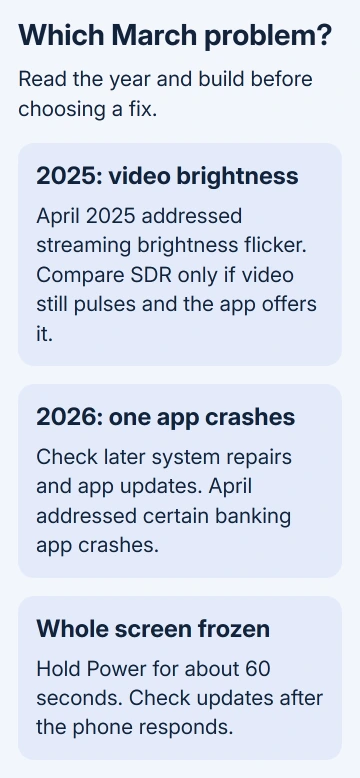
Next, describe the failure in one sentence. Does video brightness pulse while controls still respond? Does one banking app close? Does the whole screen stop accepting input? Use that description to choose which checks to try.
Google's March 2026 release notes list fixes for camera crashes, network instability, interface freezes, and other faults, with different model groups for each.
A problem fixed in March isn't necessarily a problem caused by March's update. Read the release notes with that distinction in mind. If your phone already runs something newer, report its installed build rather than just the month.
2. Finish a newer update before changing settings
Use Wi-Fi, charge to at least 75%, and open Settings > System > Software updates. The name can appear as System update. Follow the available download and installation prompts, then restart when asked.
Recheck the build after that restart. Pixel system updates become active when the device restarts, so the restart prompt can be waiting even after installation has finished. Then repeat the failed task before changing another setting.
The Pixel update steps also cover storage warnings and unfinished downloads. If space is the problem, open Settings > Storage and clear room before returning to the updater.
If you're comparing an older release, the September 2025 Pixel build list helps distinguish that release from March. Don't install an old image to make the date agree with a forum post.
3. For 2025 video flicker, check the April repair
The April 2025 repair list includes brightness flickering in streaming apps under certain conditions. It covers listed Pixel 6 through 9a devices, Pixel Tablet and Pixel Fold / Pixel 9 Pro Fold.
The March 2025 reports described video brightness changing even with Adaptive brightness off. Compare how the video plays before changing Adaptive brightness again. Turning it off hadn't stopped the brightness changes in those reports.
HDR, or high dynamic range, allows bright highlights beyond ordinary video. The temporary playback advice was to watch SDR, standard dynamic range, when the app offers it.
Look in the affected app's video controls for an HDR choice. Select SDR or a non-HDR version when offered, then replay that section. That choice belongs to the app; it isn't a phone-wide HDR switch.
One owner later reported that the suggested change didn't work for them. You can try it as a temporary workaround, though some phones still have the problem. If the app has no such control, move on.
If dimming also happens on static Settings screens, tell support that detail. A video-only workaround doesn't cover a display that flickers everywhere. I'd write down which app and video trigger it before making more changes.
4. For 2026 app crashes, check the later repair list
The April 2026 release addressed certain banking and third-party app crashes. Its model list for that fix included Pixel 6 through Pixel 10 families and Pixel 10a as specified in the announcement, but not Pixel 10 Pro Fold.
That release separately addressed some game crashes on Pixel 10, 10 Pro, 10 Pro XL, and 10a. It also repaired a missing Backup menu on an older model group and a Quick Share crash on the listed Pixel 9 models.
Check whether your model and symptom match those repairs. A banking app closing on an affected model is a reason to install the later available release. A dead touchscreen or a phone that never boots needs a different response.
Update apps too: open Play Store > profile picture > Manage apps & devices, then install the offered updates. If one app still crashes while others work, send its developer your app version, phone build, and the exact action that closes it.
5. Recover a frozen screen, then check downloaded apps
For a Pixel frozen with the screen on, hold its power button for about 60 seconds. Once it restarts, check whether normal controls work before opening the app that was running when it froze.
Open Settings > Storage. A phone can develop problems when less than 10% of its storage is available. Free space if it's running low, then compare the same task again.
Safe mode temporarily turns off your downloaded apps. Save a screenshot of your Home screen first because safe mode can remove widgets.
On Pixel 6 and later, press Power + Volume Up together to display the power controls. Keep Power off or Restart pressed until you see the safe-mode prompt. Tap OK to confirm.
On Pixel 5a and earlier, turn the phone off. Press Power to start it, then hold Volume Down from the startup animation until startup finishes.
Look for Safe mode on screen. Turn Airplane mode off if your check needs a network connection.
If freezing stops, restart normally, uninstall one recent app, then check again before removing another. If freezing continues in safe mode, report that result instead of blaming only downloaded apps.
If the phone is unresponsive before that menu can open, use the Pixel restart instructions for the matching button behavior. A restart keeps your files, unlike the erasure involved in a factory reset.
When a later build still has the problem
Use support.google.com/pixelphone/gethelp for repeated freezing, a startup failure, or persistent display faults. Give support the update year, model, full build, and whether the problem continued in safe mode.
Ask for recovery advice before erasing data, and back up accessible files if a reset is needed. Tell support if you can't open Settings. They need to help with startup first, since ordinary update steps won't be usable.
The Short Version
Separate 2025 video dimming from 2026 crashes or freezing. Update, restart, then choose the check for your remaining symptom. SDR playback is a limited workaround; a frozen phone needs its own recovery route.
Checked November 16, 2026.
 If you have any business, I can build it online






