

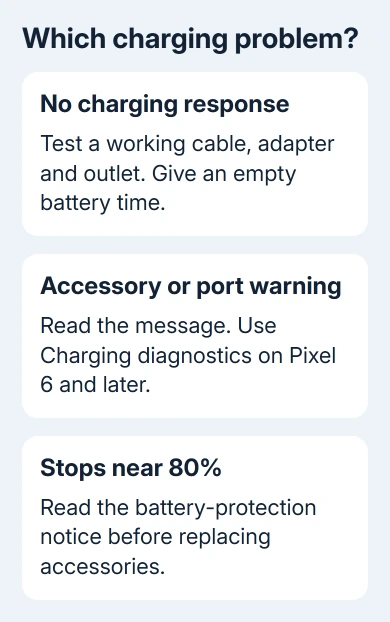
A Google Pixel that isn't charging may have a loose cable, an unsuitable charger, or a deeply drained battery. Connect a known-good USB-C cable and charger to a tested outlet, then give a black screen time to respond.
An accessory warning, a wet-port alert, and charging that stops near 80% need different responses. Read the message first so you don't replace a charger for an intentional battery limit.
In this guide
1. Check the charging connection first
Remove the case if it blocks the USB-C connector. Connect the cable securely at both the phone and the power adapter, then plug the adapter into a wall outlet that works with another device.
Try charging another device with the same adapter and cable. Then try your Pixel with another compatible set. Swap the parts separately so a successful charge points to the component you just changed.
Look for anything blocking the USB-C opening. If the plug won't seat or the port looks damaged, stop forcing it. A cable held at an angle isn't a reliable charging connection.
If your phone starts charging with the replacement cable, the original cable needs attention. Keep the working combination connected and check whether the battery percentage rises before buying a new phone battery.
Google's Pixel charging checks recommend compatible USB Power Delivery adapters rated for at least 15W, or a 30W-or-higher PPS adapter. PPS is a charger feature that adjusts its power output.
Those ratings don't mean every Pixel charges at the same speed. The model, charger, temperature, and battery level affect the actual rate. For this check, getting a steady charging connection matters more than reaching the maximum speed.
2. Give a completely empty battery time
Keep the phone on a working charger for 10 minutes. A deeply discharged battery can need several minutes before the screen can turn on, so repeatedly unplugging it interrupts the check.
Try holding Power for 5 to 7 seconds after those first 10 minutes. If the phone starts, leave it charging and watch whether the percentage increases rather than testing it with a game or camera recording.
A fully depleted Pixel left unused for a long period may stay blank and silent for up to 25 minutes on its charger. That specific case needs the longer wait.
If it remains completely unresponsive after 25 minutes on a working charger, arrange a repair assessment. The longer wait isn't a reason to leave damaged charging equipment connected indefinitely.
A phone that shows a battery icon and starts up needs different help from one that rings while its screen stays black. If yours rings but stays black, use the screen check later in this guide.
3. Follow the warning instead of bypassing it
The Check charging accessory notification means the cable or USB power adapter may be damaged or unsupported. Swap to a compatible cable and charger rather than repeatedly reconnecting the same pair.
If the Pixel can open Settings, look for Charging diagnostics. The current support path is Settings > Battery & charging > Charging diagnostics; use Settings search if your software groups the battery controls differently.
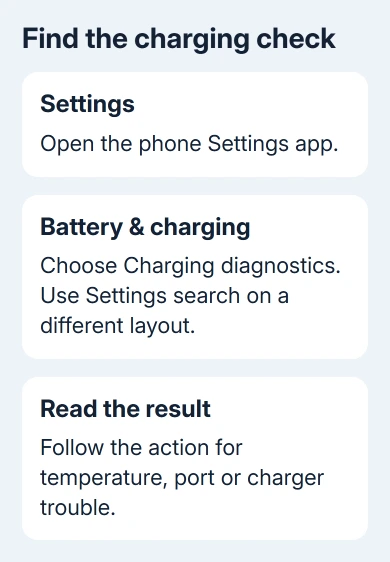
Charging diagnostics are available on Pixel 6 and later, including Pixel Fold devices. They can identify issues such as high temperature, liquid or debris detection, and incompatible charging accessories, with suggested actions.
Follow the action for the problem shown. A temperature warning calls for letting the phone cool; a liquid warning means you need to follow the port-safety instructions before another wired charging attempt.
Don't insert objects into a wet or obstructed USB-C port. If the warning stays after following the phone's instructions, give support the exact wording and the accessories you've already tried.
An older Pixel without Charging diagnostics still needs the cable, outlet, and waiting checks. A missing diagnostics menu doesn't by itself explain why that phone won't charge.
4. Separate wired charging from wireless charging
Use a cable for the main charging test. If wired charging works but a wireless pad doesn't, the battery can accept a charge and check the pad, case, or phone's position next.
Only test wireless charging on a Pixel model that supports it. Use an approved charger for that particular model and remove a case that interferes with contact or alignment.
A phone that charges wirelessly but repeatedly fails with two working wired sets needs attention at the USB-C connection. Give the repair service that comparison instead of reporting only that charging is slow.
For charging trouble that only happens on the car pad, use the Pixel car wireless-charger checks. The charging standard and coil alignment matter there; it differs from a failed wired connection.
I'd get wired charging working first, then sort out the pad. It removes the need to get the phone's position exactly right and gives a clearer result when the battery is nearly empty.
5. Check whether charging stopped on purpose
A phone that reaches about 80% and displays a battery-protection notice is still charging under a limit. That needs different help from a Pixel that never recognizes its charger.
Open the notice or battery settings and read the reason. The Pixel charging-limit guide separates the protective behavior from a broken charging connection.
When the battery gains charge at rest but stalls during demanding tasks, stop that activity for now and watch the percentage again. Tell support which happens: a slow increase needs different checks from no charging response at all.
6. Test a black screen before requesting a battery repair
With a blank screen, restart it by pressing Power continuously for about 35 seconds. Wait about 2 minutes, then call it from another phone or use Find Hub to make it ring.
If it rings while the display remains black, seek screen repair support. The phone is responding even though you can't read the battery level. Replacing accessories won't restore a failed display.
If your Pixel stays silent and unresponsive after these checks, use the repair link on the official charging page. Tell support your model, the warning text, how long you waited, and what happened with the replacement cable and charger.
A factory reset isn't my next choice for a phone that won't accept power. Ask for a charging-port, battery, and power assessment first, particularly when the phone can't stay on long enough to back up.
The Short Version
Try a tested outlet, compatible charger, and replacement USB-C cable. Allow time for a drained battery and follow port or accessory warnings. Use supported Pixels' Charging diagnostics. Ringing without a picture points to display support.
Checked November 16, 2026.
 If you have any business, I can build it online






