

A laptop is easiest to learn by doing one small job: open an app, type something, save it, and find it again. Start with the touchpad and the app menu, then practice those tasks before changing settings or installing more programs.
Windows laptops and MacBooks use different names for the same everyday actions. The steps here cover both, so follow the steps that match what your laptop shows.
In this guide
Get comfortable with the keyboard and touchpad
Choose a stable desk for the laptop, connect its charger, and press the power button once. If it's new, finish the language, network, and account prompts first. The Lenovo first-start setup steps explain that stage separately.
Slide a finger over the touchpad while watching the pointer move. Press the pad to click. A single click selects many items; a double-click opens a desktop file or folder. A button inside an app usually needs only one click.
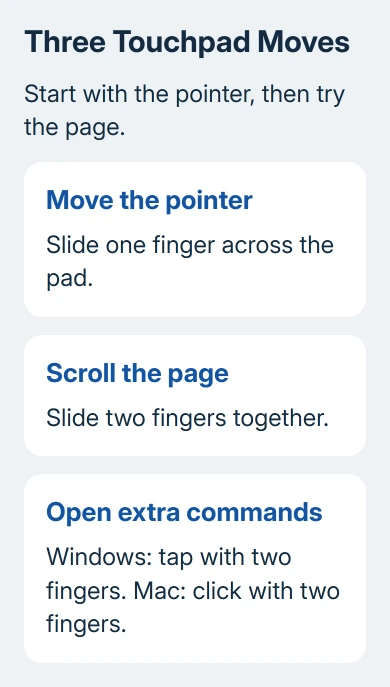
On Windows, a two-finger tap opens the right-click menu. Pressing the touchpad's lower-right area is another option. On a MacBook, click with two fingers. That menu offers actions such as Copy or Rename for the item under your pointer.
Slide two fingers together to scroll a page. Scrolling moves the page through the window; moving one finger moves the pointer. Microsoft's touchpad gesture instructions describe the Windows controls.
Try typing a short sentence. Shift makes a capital while you hold it, Backspace removes the previous character, and Enter starts a new paragraph. On a Mac, the ordinary Delete key also removes the character just before the cursor.
Open an app and return to it
For Windows, whether 10 or 11, press the Windows key, type an app's name, and select the result. Try Notepad for a simple practice document. The taskbar holds buttons for open apps, so click one to return to its window.
On a Mac, press Command + Space, type TextEdit, and press Return. That opens Spotlight search. The Dock, usually at the screen's bottom, also opens apps and brings running ones forward.
I'd learn this search method before trying to remember every icon. It works when an app isn't pinned where you expect, and you can use it to open the same app tomorrow.
Windows uses buttons in the top-right corner to minimize, maximize, or close a window. Minimizing hides the window on the taskbar but keeps your work open. Click the app's taskbar button to bring it back.
Mac window buttons sit at the top left. Closing a Mac window doesn't always quit its app. Use Command + Q when you want to quit the current app, and save your work when asked.
Connect to Wi-Fi and open a website
On Windows 11, click beside the clock where the network, sound, and battery controls appear. Open the network list beside the Wi-Fi control, choose your network, and select Connect. On Windows 10, start with the taskbar's network icon.
On a Mac, open Control Center > Wi-Fi, then choose the network. Enter its Wi-Fi password when asked. This is the router's password, which can be different from your laptop's sign-in password.
Open Edge, Chrome, or Safari using the app search you just practiced. Click the address bar near the top, enter a search phrase or a website address, and press Enter or Return. A search result opens with one click.
The Wi-Fi symbol means the laptop joined a network; loading a fresh page checks internet access. A hotel or library may need a welcome-page sign-in first. The free Wi-Fi connection guide covers that extra step.
Save a document where you can find it
Type a few lines in Notepad or TextEdit, then choose File > Save. Name the new file and choose its folder. Choose Documents, give it a clear name such as Practice note, and select Save.
Some apps save automatically to a cloud account. Look at the location shown in the save window rather than assuming everything goes into Documents. If you save to OneDrive or iCloud Drive, look there for the file.
Close the practice document after saving it, then open the folder where you put it. On Windows, press Windows + E for File Explorer. On a Mac, choose Finder from the Dock. Select Documents and open your saved file.
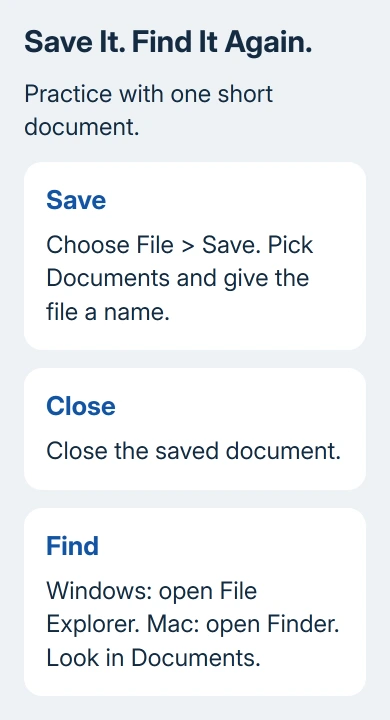
When the document opens with your words still there, you've saved and found it successfully. If it doesn't appear, return to the app's recent-file list and check the file's location before making another copy.
Copy text, download files, and correct mistakes
Drag across a few words to select them. On Windows, press Ctrl + C to copy and Ctrl + V to paste elsewhere. On a Mac, use Command + C and Command + V. The original words stay where they were when you copy them.
Use Ctrl + Z on Windows or Command + Z on Mac to undo an editing mistake. Try it in the practice document. A small practice edit lets you see how Undo works before you need it for a bigger mistake.
Browsers usually put downloaded files in Downloads. Find Downloads using Finder or File Explorer. Don't confuse a downloaded document with a document you've already opened and saved under a different name.
Install programs from their maker or the operating system's app store. If a webpage claims your computer needs an urgent repair, don't install the repair download it offers. Close that tab and return to the task you intended to do.
Finish work and know when to ask for help
Save the documents you're editing before you step away. On Windows, Start > Power > Sleep pauses ordinary use; Shut down turns the computer off. On Mac, use Apple menu > Sleep or Shut Down.
Closing the lid can put a laptop to sleep, depending on its power settings. Use the menu when you need a particular result. Use a long power-button press only if the laptop won't respond; forcing it off can lose unsaved edits.
If a basic action fails, write down which app shows the message and exactly what it says. If setup won't finish, ask the maker's support for your model's instructions. If your school or employer supplied the laptop, ask them for help.
The Short Version
Practice opening an app, typing, saving to Documents, and finding that file again. Learn the touchpad's two-finger scroll and right-click, then add Wi-Fi, copying, and safe shutdown to your routine.
Checked November 12, 2026.






