

An HP printer can be on Wi-Fi while the phone's HP app can't find it. Put the phone on the printer's network, then allow app discovery. Bluetooth pairing in the phone's settings isn't the printing setup.
Check whether your app can't find the printer or finds it but won't print. For a missing printer, check the connection and permissions. If it appears, check which printer is selected and read its on-screen error.
In this guide
1. Check whether the printer or just the app is offline
Read the printer's screen and wireless light. A disconnected printer needs its Wi-Fi connection restored first. A connected printer that prints from another device is a different case: check the phone and app.
HP's DeskJet 2700 manual explains that Bluetooth assists HP Smart setup, while printing over Bluetooth isn't supported. That distinction matters when a phone sees the printer nearby but never offers it as a usable printer.
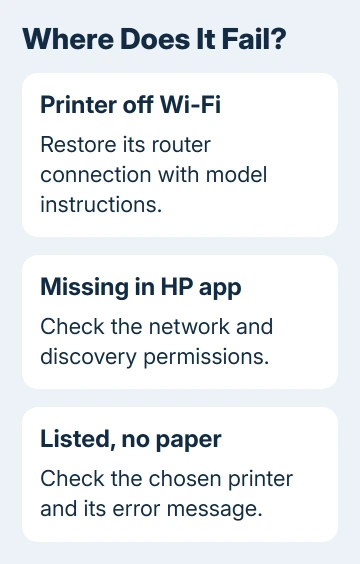
Open the phone's Wi-Fi settings and read the network name. Compare it with the printer's network information or wireless report. Don't rely only on the Wi-Fi symbol; it doesn't identify which network you're using.
A guest Wi-Fi connection can block access to a printer using the main network. Connect the phone to the printer's home network and reopen the HP app.
If the printer itself can't join the router, use the HP Wi-Fi reconnection steps. Keep a working printer connection while checking the phone's app.
2. Allow Local Network access on an iPhone
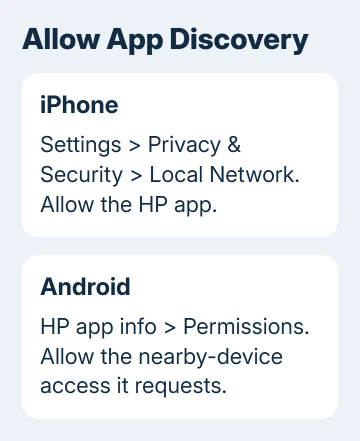
Open Settings > Privacy & Security > Local Network. Turn access on for the HP app, then return to it and try adding the printer. Older installations may still show the app as HP Smart.
If it isn't listed, start adding a printer in the HP app so it can request access. Read the prompt and allow the app to find devices on your network. An app's internet connection can work even when local device access is denied.
Apple's local network permission instructions explain that apps need this permission to browse nearby network devices. This is separate from access to photos or the phone's camera.
AirPrint is a separate system service. A successful AirPrint job doesn't mean the HP app has Local Network access. Check that permission before reinstalling an app that can't find the printer.
For ordinary printing without the app, the iPhone-to-HP AirPrint steps cover selecting a compatible printer. Keep that route available while fixing the app.
3. Check Android permissions and setup Bluetooth
On a Pixel, open Settings > Apps > See all apps > HP > Permissions. On other Android phones, open the HP app's App info, then Permissions. Choose HP Smart instead if that's the installed app's name.
Allow Nearby devices when the app requests it. Some versions also request location for discovery. Read your phone's permission list; Android versions don't all show identical choices.
Turn Bluetooth on during setup, then return to the app's add-printer screen. Use the app to complete setup instead of selecting the printer in Android's Bluetooth pairing list and expecting a print queue to appear.
If Android removed a permission while the app was unused, allow it again and retry. The Android app permission controls show how to change permissions individually.
Look for the printer inside the HP app. If it appears, move to the print check in section 5. Otherwise, restart discovery before considering a printer reset.
4. Restart discovery without clearing every printer setting
Turn the printer off normally and turn it back on. Restart the phone, reconnect to the intended Wi-Fi network, and reopen the HP app. Give the printer time to finish starting before you add it again.
For a Face ID iPhone, keep Side + Volume Up or Side + Volume Down pressed until the power-off slider opens. An iPhone 6/7/8 or SE 2/3 uses Side alone. The first SE and iPhone models up to the 5s use Top.
On Pixel 6 and later, press Power + Volume Up, then choose Restart. Other Android phones have different power-menu shortcuts, so use the one for your model rather than forcing the Pixel combination.
Update the HP app in the iPhone's App Store or Android's Play Store, then retry adding the printer. I'd update before uninstalling; it preserves the current setup while checking for an app fix.
A printer that lost its wireless settings may need setup mode. Follow its model's instructions. Button combinations differ, and a factory reset can clear unrelated settings.
5. Select the right printer and send one simple job
Once the app finds the printer, select it before printing. In older HP Smart layouts, the plus control adds or changes the printer. Choose a print option, select one photo or document, check the settings, and tap Print.
Watch both devices. If the job leaves your phone but the printer shows a paper, cartridge, or cover error, fix that error first. Repeating wireless setup won't load paper or close an open access door.
If the printer's name appears more than once, compare the selected entry with its network information. An entry saved from an earlier connection can send the job through a connection the printer no longer uses.
Avoid sending the same document repeatedly while testing. Clear an unwanted queued job before trying again, so several copies don't arrive after the connection recovers. One printed page tells you the connection is working.
6. Give support the phone-specific failure
If discovery still fails, open support.hp.com, enter your printer's full model, and choose its support contact option. Report the phone model, operating-system version, HP app version, and whether another device prints successfully.
Include whether the app sees the printer, whether AirPrint works on an iPhone, and whether local or nearby-device permission is enabled. Ask for help finding your printer in the phone app rather than requesting a generic factory reset.
The Short Version
Check the shared network and the HP app's discovery permissions. Use Local Network on iPhone or the requested Android permissions. Restart, update, then select the printer and verify one page.
Checked November 15, 2026.
 If you have any business, I can build it online






