

An iCloud backup failed alert often means iCloud storage is short or Wi-Fi isn't working properly. Match the fix to the alert: compare backup size for a storage warning, or check the connection when the last backup couldn't be completed.
A backup still showing progress is different from a failed one. Check the last successful backup time before changing anything, then work through the matching fixes on your iPhone or iPad.
In this guide
1. Read the alert and check the last successful backup
Open Settings > your name > iCloud > iCloud Backup. Under Back Up Now, read when the latest successful copy was made. An older successful copy may still exist even though the latest attempt failed.
Write down the alert's wording and that date. One failed attempt after a recent backup is less urgent than weeks without a successful copy. Keep the device with your current files until a new copy is confirmed.
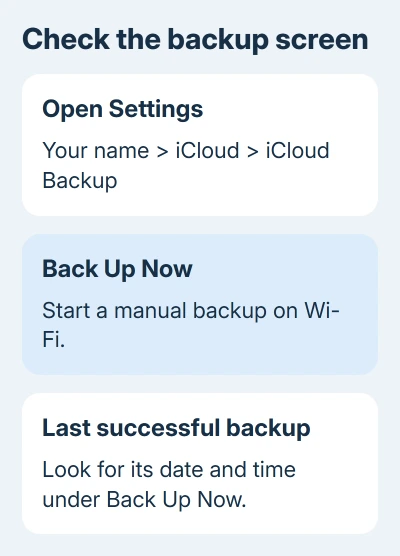
A grayed-out control can mean restoration is still running. The screen may explain that automatic backups resume after restoration. Wait until restoration finishes, then start a fresh backup.
A disabled control or a school or company rule blocking backups needs attention before a backup can start. Continue here when the backup starts but reports failure or insufficient space.
An alert during restoration onto a new phone is also a separate problem. Backing up saves information from the current device; restoring reads an existing copy. Don't erase the current phone to troubleshoot a failed attempt to save it.
2. Compare Next Backup Size with available iCloud space
For a storage warning, open Settings > your name > iCloud. Check the storage total and used amount at the top. Then tap Storage or Manage Account Storage, choose Backups and select the device you're using.
Find Next Backup Size and allow several minutes for the estimate to appear. Compare that amount with the space still available in iCloud. Checking the storage remaining on the iPhone itself won't answer whether the cloud account has room.
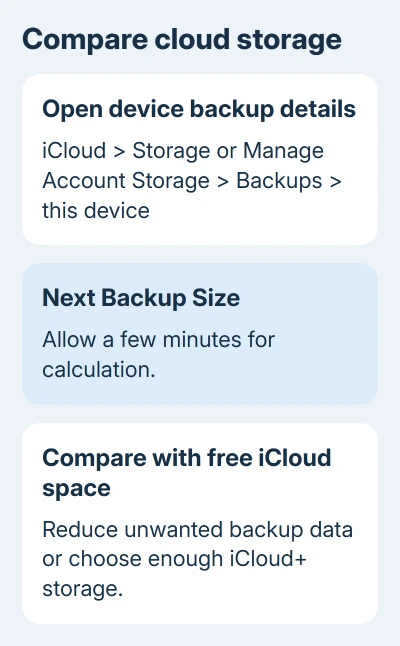
Apple's failed-backup instructions say to reduce the backup's size or upgrade the iCloud+ plan when that next copy needs more space than the account has available. Choose based on the actual shortfall.
When important app data fills the backup, more storage may be simpler than excluding it. Review unwanted account data first. Even with some iCloud space free, there may not be enough for the next backup.
Use the iCloud space cleanup guide to review what can be removed. Keep your only usable backup until you've chosen how to preserve its information, rather than deleting it to clear the alert.
After changing storage, return to iCloud Backup and retry. The useful result is a completed backup and a new timestamp, not simply a storage bar that looks less full. If there is enough room and the attempt still fails, check Wi-Fi next.
3. Retry on Wi-Fi, then try a different network
Open Settings > Wi-Fi and check the selected network. Load a familiar webpage to confirm internet access, then return to iCloud Backup and tap Back Up Now.
Stay on Wi-Fi until the attempt finishes. Keep the phone near the router and avoid changing networks during the upload. An uninterrupted attempt is easier to assess than one made while traveling.
If sufficient space doesn't solve the failure, try a different trusted Wi-Fi network. If the backup works there, the original connection is the one to check.
If another network finishes the backup, ask the original network's administrator or provider for help. Explain that browsing works there but backup fails, while the other connection completed it.
If both networks fail, keep that result for support and continue to the software check. Resetting every network setting immediately would remove saved connections without first showing whether a different Wi-Fi network solves the problem.
4. Install an available update and retry the backup
Open Settings > General > Software Update and check for an available iOS or iPadOS update. Follow the installation prompts, then return to iCloud Backup after the device restarts. Use the same network that gave the most stable connection.
Protect irreplaceable information before updating. Without a usable backup, save a computer copy first. The final section gives that alternative when the iCloud upload won't finish.
After the update, try one manual backup and read the result. If the same alert returns, record that the device is current, storage is sufficient and two networks were tried. That tells support what's failed and what you've tried.
5. Give a slow backup time, then preserve another copy
If the screen still shows an upload in progress rather than a failure, keep Wi-Fi connected and the charger attached. Allow 24 hours for an unusually slow backup. Upload speed and the amount being saved both matter.
For later automatic backups, turn on Back Up This iPhone or Back Up This iPad, connect power and Wi-Fi, and lock the screen. Starting a manual backup doesn't tell you whether those conditions will be met when an automatic one is due.
When the upload still won't finish, I'd preserve a computer copy before spending another day retrying. On macOS Catalina or later, connect the device by cable, open Finder, choose the device and use its General backup controls.
The computer backup procedure covers the choices. Windows users open Apple Devices > General. On Mojave or earlier Macs, or PCs using iTunes, open the device's Summary tab instead.
Unlock your device and accept any Trust This Computer prompt so the computer can read it. Select Encrypt local backup if you need Health and Activity information included. Keep its password safe; restoration requires it.
Choose this computer as the backup destination, then select Back Up Now. Keep the cable attached while it runs. After completion, verify the computer app's latest-backup entry. Keep that computer backup until the iCloud problem is fixed.
Contact Apple Support for iCloud Backup if storage, another network and updates haven't helped. Supply the alert, latest completed backup date, iOS version and computer-backup result.
The Short Version
Compare iCloud capacity with Next Backup Size, retry, then test different Wi-Fi. Check updates and allow an active upload time to finish. Keep a computer copy if needed, and verify success by the latest backup date.
Checked November 15, 2026.
 If you have any business, I can build it online






