iCloud Contacts can stop updating when an app hasn't refreshed, a different account is selected, or Outlook's iCloud connection stalls. Find which device has the latest contact details, then refresh the one showing the old version.
If the latest change appears on the iPhone and Mac but not in Outlook, work on the Windows connection. If every device is behind, check the service and the account holding the original card before rebuilding anything.
In this guide
1. Find where the latest contact actually exists
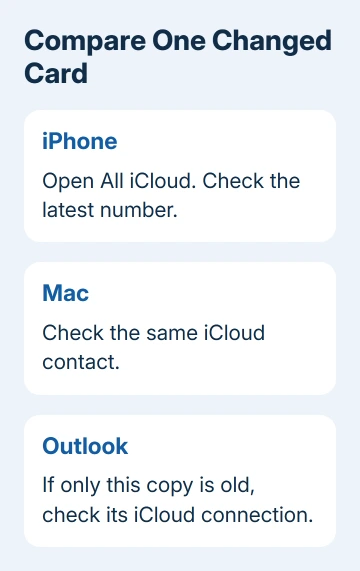
Choose one contact whose phone number or other detail you recently changed. Compare that same card on the devices involved. This is more useful than comparing the total contact counts, which can include different account lists.
On iPhone or iPad, open Contacts > Lists > All iCloud. If the updated card appears only under a Google or work account, iCloud isn't the service carrying that change. Enable that provider's contact syncing on your second device.
For first-time setup, follow the iPhone-to-Mac contact sync steps. Turning syncing on and repairing a connection that previously worked are different jobs, so finish setup before using the repair steps here.
Changing the default account affects where new contacts are saved. It doesn't move the cards already stored with another provider. That's why changing this setting alone won't make an old Google contact appear in All iCloud.
I'd keep a copy of the correct number before changing any account settings. It gives you a definite result to check afterward and protects the detail you're trying to bring back.
2. Check for a service interruption
Open the system status page and check iCloud Contacts. If it reports an interruption, let the service recover before signing devices out or changing their account setup.
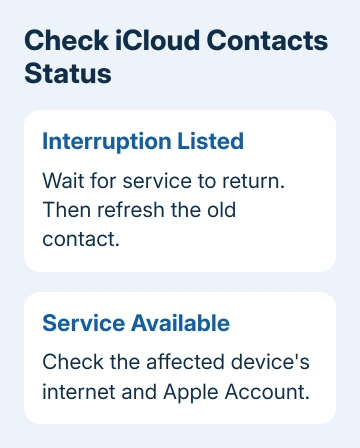
During an outage, changing your account settings won't bring the service back. Once the status returns to normal, refresh the device showing the old card and compare it again.
When the service is available, check that the affected device has working internet access and the correct date and time. Compare the Apple Account on each device too; the account should match the one holding the current card.
If only the Windows app reports a connection error, use the iCloud connection checks before removing contact data. An app that can't sign in needs its connection repaired first.
3. Refresh Contacts on iPhone or iPad
Open Contacts and swipe down on the contact list. To refresh the account lists themselves, tap Lists in the top corner and swipe down there. Return to All iCloud and check the selected card.
If refreshing doesn't help, close Contacts and return to the Home Screen. Apple says to allow about a minute before reopening the app when troubleshooting stalled contact syncing.
To open previews on a Face ID iPhone, drag upward from its bottom edge, pausing with your finger still touching the screen. Swipe the Contacts preview away. A double-press of Home opens previews on iPhones and iPads with that button.
On an iPad that lacks Home, start a swipe at the screen's lower edge. Pause to display the app previews. Dismiss Contacts by swiping its card upward, then reopen the app after the wait.
Restart if the card still shows the old details. A Face ID iPhone displays its shutdown slider when you hold either volume control together with the side button. For an iPhone with Home and a side button, hold the side button alone.
On an iPad without Home, keep the top button held together with Volume Up. Release at the power-off slider and drag it. Wait 30 seconds. An iPad with Home needs only the top button for that slider.
Start either iPad with its top button; release at the Apple logo. Restart side-button iPhones with the side button. On first-generation SE and older iPhones with a top button, use that button for both the shutdown slider and restarting.
After restarting, check the same card rather than immediately creating another copy. If the new number appears, stop there. If only one device remains wrong, keep working on that device's connection.
4. Check the Mac's account and reopen Contacts
Open Contacts on the Mac and choose Contacts > Accounts. Check that the expected iCloud account is present and Contacts is enabled for it. A card stored under On My Mac isn't an iCloud card.
On current macOS, you can also check app syncing in System Settings > your name > iCloud > See All, under Saved to iCloud. On macOS Sonoma or earlier, the group is called Apps Using iCloud, with Show More Apps when needed.
Quit and reopen Contacts after the account check. If the Mac remains behind while the iPhone has the current iCloud card, restart the Mac and compare again. Check System Settings > General > Software Update for available macOS updates.
These checks help when the Mac is showing an old copy or isn't syncing. If the card was edited in a local address book, use the setup guide linked earlier to choose the right account rather than expecting repeated restarts to move it.
5. Repair classic Outlook's iCloud connection
For classic Outlook for Windows, first try Refresh in Outlook. Then open iCloud for Windows and check its contact sync settings. These controls connect iCloud to the desktop app; they aren't on Outlook's website.
Close Outlook first. In the interface with Calendars and Contacts, clear that selection and click Apply. Wait a few seconds, select it again, and click Apply. Reopen Outlook to compare the chosen card.
In the current layout, open the controls beside Calendars and Contacts. Enable Automatically sync your iCloud calendars and contacts to Microsoft Outlook, then click Done and finish the Outlook setup prompts.
If syncing stays stuck, open Outlook > File > Options > Add-Ins. Look for iCloud Outlook Add-in among the active application add-ins. Check an inactive entry before making more refresh attempts.
For an inactive or disabled entry, set Manage to COM Add-ins, then click Go. Select the iCloud Outlook add-in's checkbox and confirm with OK. Restart Outlook and compare the contact again.
New Outlook has a different interface and doesn't use these classic COM add-in controls. If there is no File > Options menu, stop following the classic path and ask support about your Outlook version and iCloud account connection.
6. Reconnect only the Windows app if it stays stuck
If only Windows still won't sync, install available Windows and iCloud updates. Save a copy of any contact changes that exist only in Outlook before reconnecting its account.
Close Outlook, open iCloud for Windows, and sign out. Sign back in with the expected Apple Account, then turn on contact syncing using that app version's controls. Restart Windows, open Outlook, and check the contact you chose at the start.
If Windows still won't sync, ask Apple Support about iCloud for Windows contact synchronization. Include both app versions, the add-in status, and the device holding the current card. For an iPhone or Mac fault, name that device.
The Short Version
Compare one changed card, confirm its account, and check service availability. Refresh the device that's behind. For Windows, check the iCloud contact integration and classic Outlook add-in before reconnecting the app.
Checked November 12, 2026.