

Yes, iOS 26.4 can save a Music Recognition request offline and return the song after reconnection. The song's name can arrive later, so a delayed result doesn't mean the search failed.
The Shazam app also supports offline requests. Choose the app or the Control Center button before the song ends, then reconnect later and check the history for the method you used.
In this guide
Start the request while the music is playing
Offline recognition helps on flights, in basement venues and anywhere service drops. Start listening while the song is audible. Reconnecting later can't capture a request you never started.
Apple's offline Shazam instructions explain that the request is remembered and matched when a connection returns. Shazam can only return a match if the song is in its catalog.
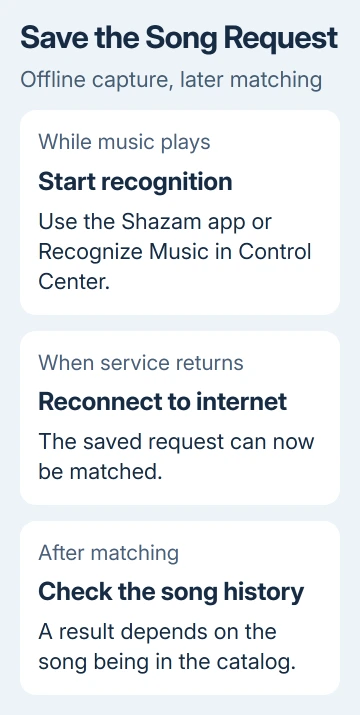
Keep your iPhone where it can hear the music clearly. A noisy fragment is harder to recognize than a clear part of the song. Try another request while the song plays instead of repeatedly checking history without a connection.
If the music is playing inside another app on the same phone, Music Recognition can also identify songs playing on the device, including while headphones are in use. Start recognition while keeping the music app open.
Use Recognize Music in Control Center
For Face ID iPhones, start at the screen's top-right corner and swipe downward to reach Control Center. On Home-button models, swipe up, beginning at the display's lower edge. Both gestures open the same controls.
If the control isn't there, add it before you need it:
- Open Control Center.
- Tap the Add Controls button at the top.
- Choose Add a Control.
- Find and select Recognize Music.
- Leave edit mode and tap the new control while the song plays.
The Shazam app doesn't need to be installed just to use the built-in recognition control. The app lets you manage identified songs in its library, while the Control Center button is built into iOS.
On iOS 26.4, the release notes specifically include offline Music Recognition in Control Center. Check Settings > General > About > iOS Version if you're unsure whether the phone has that version or a later one.
Once you're online again, give Shazam time to find a match. On a Wi-Fi network with a sign-in page, load a normal webpage too. Check that the sign-in completed rather than relying on the connection icon.
Use the Shazam app for an offline request
Open the installed Shazam app and tap its large recognition button while the song is playing. Let it listen without cellular service or Wi-Fi. The app keeps the request to try when the phone is online again.
If a microphone-permission prompt appears, allow Shazam to use the microphone. Without that permission, it can't listen to music around you. If permission is blocked, fix that first. Waiting for internet won't let Shazam hear the song.
When service returns, reopen Shazam and check its library. The song-identification instructions cover both recognition methods and explain how identifying a track differs from playing the complete song.
I'd keep the app installed until you get a result for an important pending request. Deleting stored information won't help a search that's simply waiting for connectivity.
Identifying the title doesn't require an Apple Music subscription. Playing a complete track through a streaming service is a separate step, and depends on that service and the account you use there.
Find the result in the right history
For a Control Center request, open Control Center again and touch and hold Recognize Music, then select History. If Shazam is installed, that action can open the Shazam app's Library instead.
For a request made inside Shazam, open the app's library. Check the title and artist instead of depending on an alert that might have disappeared from the Lock Screen.
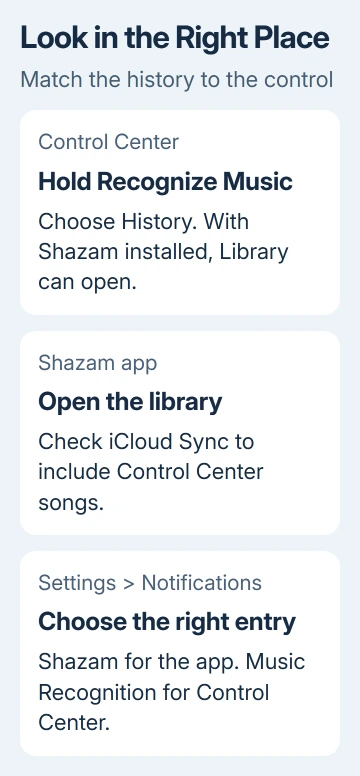
If songs identified through Control Center aren't appearing in your Shazam library, open Shazam's settings and check iCloud Sync. The offline guide calls for that setting when you want Control Center results added to the app library.
Library syncing and song matching are separate. A song can have been identified in the Control Center history without appearing where you expected in the app. Look in both histories before treating an offline request as lost.
For a Control Center button that never starts listening, use the Music Recognition troubleshooting page. A dead button needs attention before it can save an offline request.
Turn on the notification for the method you use
An offline result can arrive after you've stopped looking at the screen. Enable notifications for Shazam when you make requests in the app, or Music Recognition when you use the built-in Control Center feature.
Open Settings > Notifications, choose the relevant entry, and enable Allow Notifications. Check its alert options if you want the result visible on the Lock Screen or in Notification Center.
Notifications let you know when a result arrives. They can't give Shazam an internet connection or help it match a song missing from its catalog. If an alert never appeared, look for the result in your history.
If the phone connects to Wi-Fi but nothing loads, finish the network's sign-in first. The iPhone Wi-Fi guide covers cases where a connection icon appears without working internet access.
When an offline request never produces a match
Reconnect and check the relevant histories. If possible, try the song again online. One track might lack a catalog match; if several clearly audible songs fail, check recognition or microphone access.
For disappearing or unfinished requests, contact Apple Support under Shazam or Music Recognition. Give the iOS version, the recognition method used, and whether an online attempt identifies that same song.
The Short Version
Start listening while the song plays. Reconnect later, then check Control Center History or the app library. Enable the matching alert and use iCloud Sync to include Control Center songs in Shazam.
Checked November 13, 2026.
 If you have any business, I can build it online






