Sidecar is built into macOS and iPadOS and lets a compatible Mac extend its desktop onto an iPad. A Windows PC needs separate display software on both devices, so choose the instructions for the computer you're connecting.
Use an extended desktop for extra workspace. Mirroring repeats the computer's screen, while Universal Control lets you control the iPad's own apps. Choose an extended desktop when you want extra space for your Mac windows.
In this guide
Check that the Mac and iPad support Sidecar
Sidecar requires macOS Catalina 10.15 or later and iPadOS 13 or later on supported hardware. Check the Mac in Apple menu > About This Mac and the iPad in Settings > General > About.
The supported Macs include MacBook Air models introduced in 2018 or later, the late-2015 27-inch Retina 5K iMac, and other Mac models introduced in 2016 or later. Check the model year rather than the date you bought it.
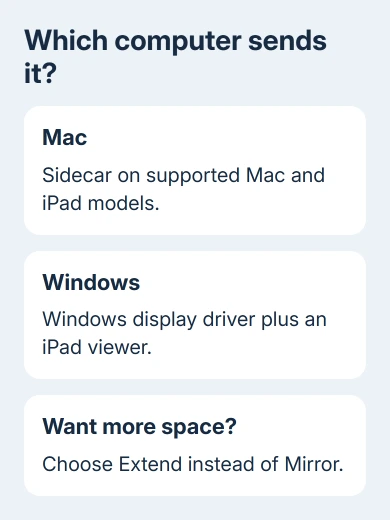
Supported iPads are every iPad Pro, iPad sixth generation or later, iPad mini fifth generation or later, and iPad Air third generation or later. An older iPad can work normally and still be too old for Sidecar.
Both devices need two-factor authentication and must use one shared Apple Account. Apple's Sidecar requirements and controls list these account and device limits. Updating software won't add Sidecar support to an unsupported model.
For wireless use, keep the devices within 10 meters, with Bluetooth, Wi-Fi, and Handoff enabled. Don't share the iPad's cellular connection or the Mac's internet connection during the session.
I'd connect a cable for a long desk session. It keeps the iPad charging and gives you a straightforward starting point before arranging your windows. Unlock the iPad and accept Trust This Computer if prompted for the Mac.
Connect and choose an extended desktop
On the Mac, open Control Center > Screen Mirroring and choose your iPad. Wait for the Mac desktop to appear on it. On macOS versions without Control Center, use the AirPlay display menu or the Sidecar pane in System Preferences.
For Macs running Ventura 13 or newer, open Apple menu > System Settings > Displays and select the iPad. Use the Use as menu to choose Extended display when you want a second workspace instead of repeating the Mac's image.
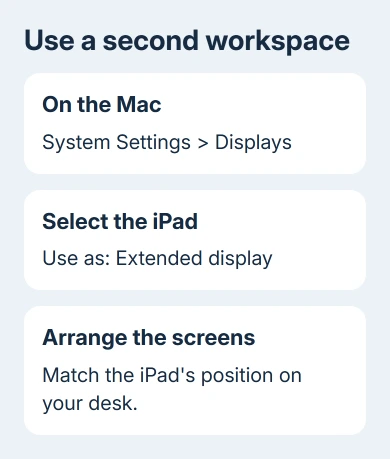
On macOS Monterey 12, open System Preferences > Displays > Display Settings and select the iPad. Earlier compatible releases use System Preferences > Sidecar; arrangement and mirroring also appear in Displays.
If the iPad shows the same windows as the Mac, check the mirroring choice. The connection is working; switch from mirroring to an extended display. An extended display can initially look empty because you haven't moved a window onto it yet.
Open the display arrangement controls and position the iPad to match its place on your desk. If it's physically on the left, arrange its display there. Move your pointer through that screen edge to confirm the layout makes sense.
Move a window onto the iPad and control it
Drag a Mac window through the edge leading to the iPad. Alternatively, hover over the green full-screen control on a Mac window and choose the option to move the window to your iPad. The app still runs on your Mac.
Use your Mac's mouse or trackpad to point and click. A keyboard connected to either device can type during the session. The iPad's Sidecar sidebar also provides modifier keys, Undo, and an onscreen keyboard control.
What you can do by touch depends on the system versions. With iPadOS 27 and macOS 27, Sidecar lets you do more by touch in Mac windows and menus. Earlier versions support a smaller set of gestures, including two-finger scrolling.
Apple Pencil can select and interact with supported Mac content on the iPad, including drawing or marking up a document. It doesn't turn a Mac app into its iPad edition; you're still working in the Mac application.
Switching to an iPad app suspends the Sidecar session until you return to Sidecar. That can be useful for a quick iPad task without disconnecting the setup or closing the Mac app you're using.
To finish, deselect the iPad in the Mac's Screen Mirroring menu or use the disconnect control in the iPad sidebar. Move any window you still need back to the Mac before ending the session.
Use display software when the computer runs Windows
Sidecar doesn't connect an iPad to a Windows desktop. One option is spacedesk. It uses a Windows driver on your PC and a viewer app on your iPad. Check its current requirements and license terms before installing.
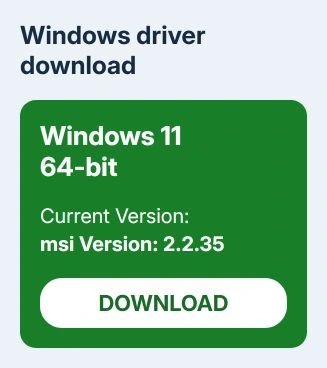
Open the spacedesk download page and choose the Windows driver that matches your PC. Install it on the Windows machine, following its prompts, then install the spacedesk viewer on the iPad from the App Store.
For a network connection, put both devices on one local network. Open the Windows driver console and check that its server, which sends the display to the iPad, is running. In the iPad viewer, select your PC from the list to connect.
If prompted on iPad, allow local-network access for the viewer. Guest Wi-Fi can prevent the devices seeing each other while still allowing internet browsing. Use a trusted network where they can reach each other.
Once connected, open Settings > System > Display on Windows and choose Extend these displays for the new display. Arrange the rectangles to match your desk, then drag a window onto the iPad to check the result.
If you want to connect another way, follow the display app's current manual instead of the Sidecar steps. Windows display apps have their own drivers, permissions, connection options, and support limits.
When the iPad doesn't become a second screen
On a compatible Mac, compare the two Apple Account sign-ins, then try a trusted USB connection. If USB works but wireless doesn't, our wireless Sidecar troubleshooting covers that specific fault.
If the iPad keeps showing its own apps while your Mac pointer moves onto it, check whether you're using Universal Control. Our Universal Control connection guide covers that separate feature.
If neither Sidecar connection works, ask Apple Support to check compatibility and Continuity. Give both models and system versions. For spacedesk support, send driver and viewer versions and say whether the viewer lists the PC.
The Short Version
Use Sidecar for a supported Mac and iPad, then select an extended display and move a Mac window across. Windows needs its own display driver and iPad viewer. Check the connection mode if both screens only show the same picture.
Checked November 12, 2026.