

The latest iOS update is iOS 27.2.1, released November 9, 2026, for iPhone 11 and later. Check Settings > General > Software Update for the version your own iPhone can install; older models can receive a different security release.
The same release list includes iOS 26.7.3 for the older software branch and iOS 18.7.12 for iPhone XS, XS Max and XR. A smaller version number on an older phone doesn't automatically mean its update check is broken.
In this guide
Read the current version for your iPhone model
Apple says iOS 27.2.1 is the latest iPhone software in its security release list, checked for this article on November 15, 2026. Its release entry lists iPhone 11 and later as supported devices.
For iPhone XS, iPhone XS Max and iPhone XR, the November 9 release is iOS 18.7.12. Those phones aren't listed for iOS 27.2.1, so repeatedly checking for that major version won't make it available.
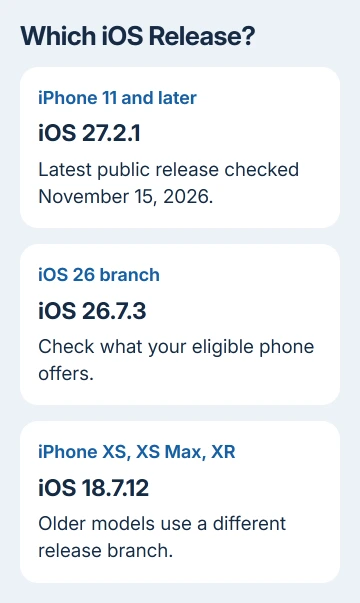
The same day's iOS 26.7.3 entry lists iPhone 11 and later for that software branch. Read the available release in your phone's Software Update screen rather than assuming that every eligible phone will show both branches as choices.
For a model older than those named here, look for its exact name in the release list. An update offered to a newer iPhone doesn't mean an older one can run it. Use your phone's offered release and model-specific support information.
These are public release numbers, separate from a beta preview. A higher number on someone's beta phone isn't a reason to install unfinished software just to make yours match.
Check the installed version before downloading anything
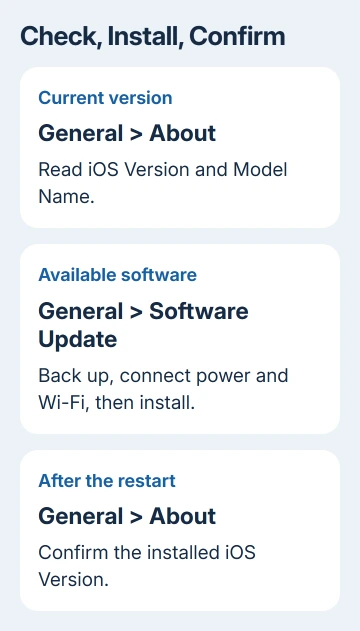
Open Settings > General > About and read iOS Version. Note the full number, including the final part after the second period. For the exact model, read Model Name on that About screen too.
Then open Settings > General > Software Update. That screen checks what's available for the phone. A downloaded or offered update isn't installed until the phone finishes the installation and restarts.
If support asked which version you're using, give them the About number. The iPhone version-checking guide also covers reading it through Finder, Apple Devices or iTunes when a computer is more convenient.
If About already shows 27.2.1 on a supported model, it matches the newest public release listed when this article was checked. If a new update appears later, follow the newer entry and the offer on the phone.
I'd check these two screens before searching for an update file. They answer different questions: what's installed now, and what this particular phone is being offered next.
Install the offered update over Wi-Fi
Create an iCloud or computer backup before starting the update. Connect the charger and join your Wi-Fi network. Keep the phone available until installation finishes instead of starting immediately before a call or journey.
Open Settings > General > Software Update. If an update appears, select Download and Install and follow its prompts. Enter the phone's passcode when requested; it can be needed to authorize the update.
Let the download finish and allow the phone to restart for installation. Once the Lock Screen reappears, unlock it and read Settings > General > About > iOS Version again to confirm the installed number.
If the screen reports that software is up to date, compare that result with the phone model and release branch first. A supported older security release can be current for that device even when the newest major version is unavailable.
For background on the earlier release rather than the current one, the iOS 27.0.1 changes are covered separately. Don't use an older release's fix list as the changelog for 27.2.1.
Handle a missing update or a storage prompt
If a compatible phone can't reach the update server, check its connection before questioning compatibility. VPN and proxy connections might prevent update checks; try a normal trusted Wi-Fi connection with the VPN or proxy turned off.
When the update asks to temporarily remove apps for space, Continue lets it remove those apps and reinstall them after installation. Choose Cancel if you prefer to free space manually before trying again.
If the display says Update Requested, Preparing Update or shows a download, note that exact stage. A server connection failure, a storage alert and a download still in progress need different next steps.
For an update that doesn't appear wirelessly, the official installation instructions explain how to update with a computer. Follow the steps for your computer's system rather than downloading an installation file from an unrelated site.
For macOS Catalina and newer, use Finder after connecting the iPhone. Select the phone, open General and choose Check for Update, then follow the download and update prompts.
On Windows, select your iPhone in Apple Devices and open General. Choose Check for Update if needed, then Update when offered. Follow the prompts to finish.
With iTunes on Windows or macOS Mojave and earlier, select the device and use Summary > Check for Update, then Download and Update.
Keep the iPhone unlocked, and accept a computer-trust request only for a computer you trust. Choose the update controls for this task; restoring the iPhone is a separate operation and isn't required just to install an ordinary update.
Choose how future updates arrive
Open Settings > General > Software Update > Automatic Updates. Automatically Install lets the phone download and install updates overnight while charging and connected to Wi-Fi, with notice before installation.
To download first and decide when to install, turn off Automatically Install and use Automatically Download. That option lets a download wait for your installation choice rather than scheduling the full update overnight.
System file updates can also arrive while the displayed iOS number stays unchanged. You'll find their automatic-install setting in the same area, under System Files. That is separate from an iOS release with a new version number.
Report a persistent installation failure
Use the update page's help option to reach Apple Support if a supported phone repeatedly fails on both Wi-Fi and a computer. Give them the model, installed version, offered version and exact error or stalled stage.
For a work-managed iPhone, ask IT whether device management delays or controls the release. Include the Software Update screen's wording so they can distinguish a planned update delay from a failed download.
The Short Version
iOS 27.2.1 is the latest public release checked here, with separate security updates for older branches and models. Confirm your model, back up, and install through Software Update. Check About afterward for the version actually installed.
Checked November 15, 2026.
 If you have any business, I can build it online






