An Apple Watch with a passcode and Wrist Detection enabled locks automatically when you take it off. To lock it manually, use the side button to reveal Control Center, then choose its padlock when it's available.
For swimming or accidental screen touches, use Water Lock instead. That blocks touch input, while the passcode lock protects access to your information. Turning the display off doesn't do the same job as either lock.
In this guide
Start by setting the watch passcode
Open Settings > Passcode on the watch. If a passcode hasn't been set, choose Turn Passcode On and follow the prompts to enter and confirm a code. Remember this watch code; it doesn't have to match your iPhone code.
On your paired iPhone, open the Watch app and go to My Watch > Passcode to manage your watch passcode. Follow the prompts on the watch when a change requires entering its existing code.
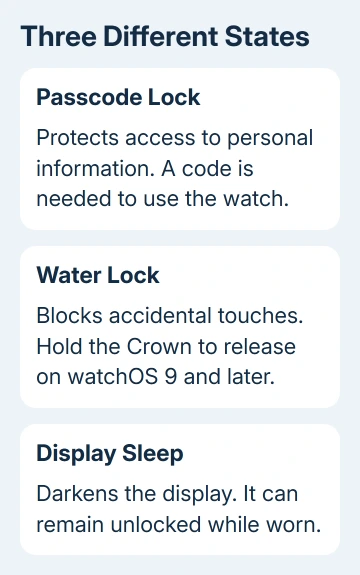
Check that the watch asks for a passcode after it locks. A dark display alone just shows that the screen is asleep. Wake it to check whether normal access requires the watch code.
Don't keep guessing a forgotten code. Use the watch passcode recovery process if you can't remember it; repeated wrong guesses can erase the watch if the erase-after-failed-attempts option is on.
Let Wrist Detection lock it when removed
In Settings > Passcode, keep Wrist Detection on. Apple's watch locking instructions say this makes the watch lock automatically when you aren't wearing it.
- Check that a passcode is active and Wrist Detection is enabled.
- Remove the watch from your wrist.
- Wake the display and try to open its normal controls.
- Confirm that it asks for the passcode before you can use it again.
That check is especially useful before handing the watch to someone or leaving it on a charger. The passcode prompt tells you it's locked; the watch face disappearing doesn't.
I'd keep Wrist Detection enabled for everyday use. Turning it off changes more than automatic locking: it affects heart rate tracking and notifications, some Activity measurements and automatic emergency calling after a detected hard fall.
With Wrist Detection disabled, the watch also no longer locks and unlocks automatically. If you turned it off while looking for a manual lock option, revisit that decision before assuming removal still protects the watch.
Use the manual padlock control
On watchOS 10 and later, press the side button once; Control Center opens. The side button is the button beside the Digital Crown, not the Crown itself. Find and tap the Lock control, shown as a padlock.
The next attempt to use the watch should ask for its passcode. This locks access; it doesn't erase the watch or remove it from your account.
On watchOS 9 and earlier, begin at the watch face and swipe upward to reveal Control Center. While inside an app on those versions, keep your finger on the lower edge, then swipe up. Use the padlock if offered there.
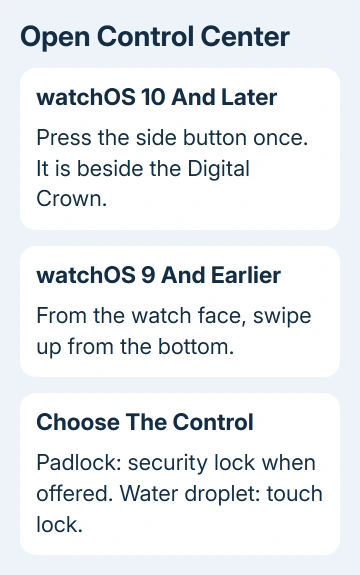
If you don't see the manual lock control, remove the watch so your passcode and Wrist Detection can lock it. Don't mistake the water droplet for a substitute security lock.
Keep automatic locking on unless you need to change it and accept the effects on those health and safety features. If you need the watch locked while worn, ask Apple Support which options are available for your model and watchOS settings.
Turn on Water Lock to block accidental touches
Water Lock is the option for a wet screen or unwanted touch input. It doesn't replace a passcode, and it won't protect your information when you lend the watch or leave it somewhere.
- Open Control Center using the side button on watchOS 10 and later, or the upward gesture on older versions.
- Tap the Water Lock button, shown as a water droplet.
- Check for the droplet indicator on the watch face. The display won't respond to normal touch input while Water Lock is on.
- When finished, hold down the Digital Crown and wait for Unlocked on the display.
Turning off Water Lock plays speaker-clearing tones to help eject water. On watchOS 8 and earlier, rotate the Digital Crown to release Water Lock instead of holding it.
The Water Lock instructions also explain that it turns on automatically for a water-based workout such as swimming. Seeing the droplet after starting that workout is expected.
Water Lock doesn't change how deep your watch can go or which water activities it's suited for. Follow the water-resistance guidance for your model before using it in water; the touch-control setting doesn't change the hardware rating.
Understand why it unlocks or only looks asleep
The Unlock with iPhone setting can unlock the watch when you unlock the nearby paired phone. If that convenience isn't what you want, check Watch > My Watch > Passcode > Unlock with iPhone on the iPhone.
The iPhone-to-watch unlocking controls explain that direction of unlocking. They are separate from settings that use a watch to help unlock a Mac or iPhone.
Lowering your wrist can put the display to sleep while the watch stays unlocked on your wrist. Waking directly into apps in that situation doesn't mean automatic removal locking is broken.
If the watch asks for a code repeatedly while you're wearing it, check that it fits securely and the sensors contact your skin. Tattoos and poor skin contact can interfere with detecting a wrist.
If your watch won't lock when you take it off even with a passcode set and Wrist Detection on, use Apple Support's Apple Watch passcode help. Give the model, watchOS version and whether it locks after removal or only during wear.
A separate pairing problem belongs with the watch connection checks. Unpairing isn't a routine step for choosing a lock mode.
The Short Version
Use a passcode and Wrist Detection to lock the watch when removed. Control Center may offer a padlock for manual locking. Water Lock blocks touches instead; hold the Crown to release it on watchOS 9 and later.
Checked November 10, 2026.