

This LogonUI.exe error tends to appear after a System Restore or Windows update stopped partway, leaving crypt32.dll missing. LogonUI draws the sign-in screen and can't run without that file, so you're left on a black screen.
Start from the recovery screen and undo the last System Restore, which brought one owner's PC straight back. If no undo is offered, an offline SFC scan can copy a good crypt32.dll back into place without reinstalling Windows.
In this guide
Why the sign-in screen needs crypt32.dll
crypt32.dll is the Windows library that handles certificates and encryption, and the sign-in screen loads it before it shows your account. Clicking OK only leaves a black screen, because Windows has nothing else to show you without LogonUI.
In the original report, the error appeared right as System Restore restarted the PC. An overnight update had already left Windows unstable, and the asker had run a registry cleaner before trying the restore.
That pattern matters. A restore swaps system files and finishes the job on the next restart, so stopping halfway can leave files missing or out of step with each other. The fixes run from undoing that change to replacing the one file.
1. Get to the recovery screen
Windows can't reach sign-in, so use its recovery environment instead. Turn the PC on and hold the power button to switch it off as soon as the Windows logo appears. Do that twice.
On the third start, Windows shows Automatic Repair. Choose Advanced options and you're in. Some laptops also have their own recovery key to press at power-on; the maker's manual tells you which.
If the recovery screen never appears, use a second computer to make a Windows USB installer. Our reinstall guide shows how to make the stick.
Boot the failing computer from that stick and pick Repair my PC (Repair your computer on older media) after the language screen.
If your drive is encrypted with BitLocker, some recovery tools ask for the recovery key first. It's often saved in the Microsoft account you set the PC up with.
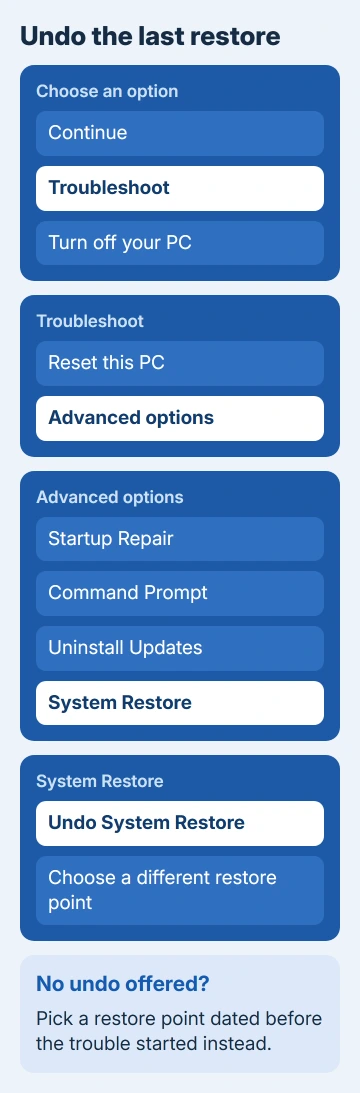
2. Undo the System Restore that broke it
In the recovery screen, choose Troubleshoot > Advanced options > System Restore. Pick your account and type its password if asked. When the wizard offers Undo System Restore, choose it and confirm.
Microsoft's own steps for a restore that fails on restart say to do exactly this, and it worked for one HP owner, who wrote: "Comp will now take some time to undo the last restore and will then start normally".
Expect the PC to come back the way it was before the restore, including whatever problem made you run it. That's fine. You'll have a working sign-in screen and your files, and you can deal with the original fault from Windows.
If no undo option appears, choose a restore point older than the one that failed instead. Pick one dated before the trouble started.
3. Run Startup Repair
Still at the recovery screen, choose Troubleshoot > Advanced options > Startup Repair. It scans for damaged boot files and similar faults that block startup, and repairs the ones it can.
I'd try it before typing any commands, since you only have to start it and wait. If Startup Repair gives up and says your PC couldn't be repaired, our Automatic Repair guide explains the log it leaves behind.
4. Put crypt32.dll back with an offline SFC scan
Choose Troubleshoot > Advanced options > Command Prompt. Drive letters often change in the recovery screen, and one owner found their Windows drive on D: instead of C:, so check first:
dir D:\WindowsIf that shows the Windows folder, D: is your Windows drive. If it finds nothing, try C: or E: the same way. Then repair the missing file, swapping in your own letter:
sfc /scanfile=D:\Windows\System32\crypt32.dll /offbootdir=D:\ /offwindir=D:\Windows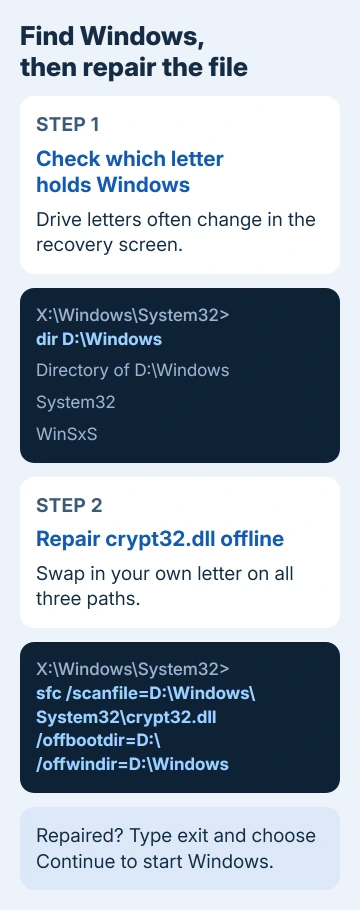
The /offbootdir and /offwindir parts point SFC at the Windows on that drive, not the recovery system you're running from. To check every protected file, swap /scanfile= and its path for /scannow; it takes longer.
When SFC reports that it repaired the file, type exit and choose Continue to start Windows. If SFC reports no problem but the error stays, the file is in place and something else is broken, so move on.
5. Remove the update that came first
The asker's trouble began the morning after Windows updated itself. If yours did too, choose Troubleshoot > Advanced options > Uninstall Updates and pick the latest quality update first.
Quality updates are the monthly fixes. Feature updates are the yearly version changes, so remove those only if your PC jumped to a newer Windows version just before this started.
6. Copy crypt32.dll from a matching PC
On Windows 7, the most popular fix was a straight copy. One owner wrote "My solution, which worked" and described copying crypt32.dll from a working PC to a USB stick, then into System32 from the recovery Command Prompt.
Microsoft's SFC page describes the same move, using a known good copy from a PC on the same Windows version. I'd also match the build as closely as you can; Settings > System > About shows it on the working PC.
Copy crypt32.dll from that PC's C:\Windows\System32 folder to a USB stick. In the recovery Command Prompt, with the stick as E: and Windows on D:, the copy looks like this:
copy E:\crypt32.dll D:\Windows\System32\Never grab crypt32.dll from a site that offers DLL downloads. Those files can be the wrong version for your build, and a fake one is an easy way to get malware into the most trusted folder on your PC.
If none of it brings sign-in back
Choose Troubleshoot > Reset this PC > Keep my files. It reinstalls Windows and keeps your documents, though you'll reinstall your apps afterward. Wiping the drive and installing fresh from the USB stick comes after that.
If the PC is under warranty, the maker's support line can guide you through its own recovery tools. And if the recovery screen itself fails, Microsoft's support team can help you reset it.
The Short Version
Interrupt startup twice to reach the recovery screen and undo the last System Restore. Without an undo, try Startup Repair, an offline SFC scan of crypt32.dll, removing the latest update, or a copy from a matching PC.
Checked November 19, 2026.
 If you have any business, I can build it online






