

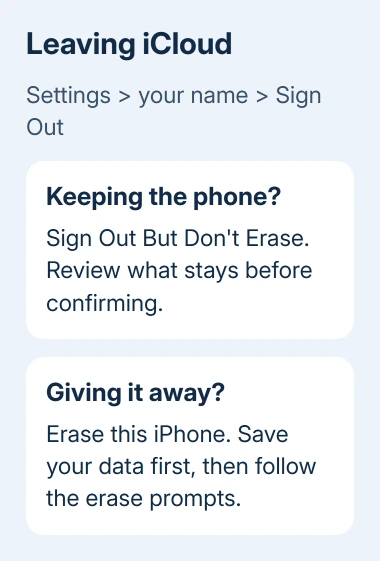
Logging out of iCloud on an iPhone starts in Settings > your name > Sign Out. On iOS 26 or later, choose whether to erase the phone or sign out without erasing it; older versions use a password and keep-a-copy process instead.
Before confirming, decide whether this is a phone you're keeping or one you're giving away. Signing out stops several account services. You'll also need to decide whether your personal information should stay on the phone.
In this guide
Save the information you want to keep
Connect the iPhone to a working network and let recent changes finish syncing. Check important photos, files and contacts on another signed-in device. Anything still waiting to upload needs attention before you disconnect the account.
Make an up-to-date backup and copy important cloud content somewhere you can access afterward. Something saved on the phone isn't necessarily synced or included in a backup. Check the photos, files and other information you actually need.
For example, if you're depending on iCloud Photos, make sure you have the originals you want to keep. The iCloud Photos turn-off guide explains why cloud storage and downloaded phone copies need different checks.
I'd check that you know the password before leaving the account screen. A signed-in trusted device can help you change a forgotten Apple Account password. Signing out first can remove a useful way back into the account.
The iPhone doesn't need a Home button or a particular processor for this procedure. The menus depend on your iOS version. Check it in Settings > General > About if the options don't match the steps you're following.
Follow the iOS 26 or later sign-out prompts
Open Settings, tap your name, scroll until you reach the final account controls and tap Sign Out. Choose Sign Out But Don't Erase to keep using the phone with the information described on the next screens.
Choose Erase this iPhone when you intend to remove its contents as part of handing it to someone else. Read what the next screens say will stay or be removed before continuing. The choice changes what happens to the phone's data.
When asked, enter either your iPhone passcode or the Apple Account password. If you're keeping the data, finish with Confirm and Sign Out. If you're erasing it, follow the Sign Out confirmations on the phone.
If a prompt asks which account services to leave, select Sign out of iCloud and Store to leave both services. Apple's sign-out instructions describe the current process and the services it disconnects.
After it finishes, return to Settings and check the account area. A sign-in prompt in place of your name shows the account has been disconnected from this phone. If you chose to erase it, the phone returns to its setup process instead.
Keeping information during sign-out doesn't move it into a new Apple Account automatically. If another person will use the phone, use the erase route rather than leaving them a copy of your contacts, photos and other personal content.
Use the older iPhone sign-out route
On iOS 18 or earlier, open Settings > your name, scroll down and tap Sign Out. Provide your Apple Account password, then choose Turn Off when prompted. Choose which information to keep and confirm sign-out.
Keep only the copies you need on a phone you're continuing to use. Read each prompt carefully instead of assuming every cloud item has already downloaded. Return to Settings afterward to check that the account has been disconnected.
On iOS 10.2 or earlier, the route starts at Settings > iCloud > Sign Out. Tap Sign Out again, then Delete from My iPhone and enter the Apple ID password as prompted.
On those older releases, you'll need to sign out of the store separately. Open Settings > iTunes & App Store, tap the Apple ID and choose Sign Out. The old Apple ID wording refers to the account now called Apple Account.
If the purpose is selling or trading in an older phone, signing out is only part of preparation. After saving your data and disconnecting the account, erase the device using the reset controls appropriate to its iOS version.
On newer software that route is Settings > General > Transfer or Reset iPhone > Erase All Content and Settings. When moving to a replacement phone, complete the iPhone transfer before removing your only working copy.
Deal with a gray Sign Out button
For the message that sign-out isn't available due to restrictions, open Settings > Screen Time > Manage Screen Time > Change Screen Time Passcode. Choose Turn Off Screen Time Passcode and enter that passcode.
Older versions may show Change Screen Time Passcode directly on the Screen Time page. For a child's device, ask the parent or organizer to make the change on their device. The Apple Account password isn't the Screen Time passcode.
If your account name is gray instead, open Screen Time > Content & Privacy Restrictions. With All Restrictions enabled, find Privacy Restrictions > Allow Changes to Settings > Accounts and select Allow.
Earlier menus may list Accounts under Allow Changes To. Enter your Screen Time passcode if asked. For a work-managed iPhone, ask the administrator whether account changes are blocked before removing management settings.
For an unknown password, use account recovery rather than changing restrictions. Recover the account shown on the phone. Signing in with a new account won't release the previous owner's account.
Check the services affected by leaving
Signing out of this iPhone also signs it out of the App Store, iMessage, FaceTime and other account services. The paired Apple Watch also leaves that account. Plan for that if you're keeping both devices in use.
The information already stored in iCloud remains in iCloud. Signing out isn't an instruction to delete the account or a cancellation of iCloud+. Premium iCloud features stop being available on this device while it's signed out.
If you only wanted one app to stop syncing, change that app's iCloud switch instead. Leaving the whole account is a much broader action than stopping Photos or Notes on one phone.
If sign-out still fails, contact Apple Support under Apple Account. Give the exact message and iOS version, and say whether work or school manages the phone. For an ownership lock, ask about the Activation Lock support process.
The Short Version
Save important data, open your account in Settings and choose Sign Out. Follow the prompts for your iOS version and whether you're keeping the phone. Check Screen Time for restrictions. Erase personal content before handing it over.
Checked November 10, 2026.
 If you have any business, I can build it online






