A shared folder can appear as its own drive letter in Windows 11. Open File Explorer > This PC, choose Map network drive from the three-dot menu, and enter the folder's network path, such as \\OFFICE-PC\Projects.
The folder must already be shared and your account must have access. Mapping gives you a shortcut to that folder; it doesn't share the folder or copy its files onto your laptop.
In this guide
Get the shared folder's address first
Get the exact shared-folder path from whoever manages the computer or network storage. It normally begins with two backslashes, followed by the computer or server name, another backslash, and the share name.
For example, \\OFFICE-PC\Projects means the Projects share on OFFICE-PC. Those are example names. Use the computer and share names you've been given when entering the path on your PC.
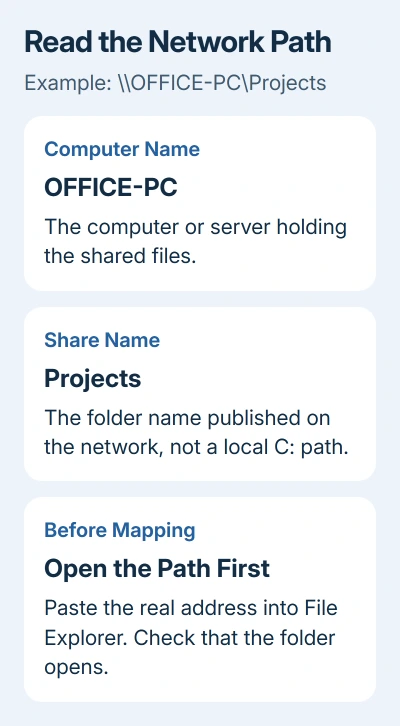
A path such as C:\Users\Alex\Documents describes a folder on one computer. Another computer can't use that as the folder's network address. The owner needs to share the folder and give you its share path first.
Press Windows+E, click File Explorer's address bar, enter the supplied path, and press Enter. If the folder opens, you know the address and permissions work before assigning a drive letter.
I'd do that quick check first. A drive letter won't repair an address that already fails in the address bar, and the error at this stage often tells you exactly what to ask the folder's owner.
Assign the folder an available drive letter
Microsoft says its network drive procedure puts the command under This PC. File Explorer may open to Home instead, so select This PC before looking for the menu.
- Open File Explorer and select This PC in its left pane.
- Select the three-dot menu on the command bar, then Map network drive.
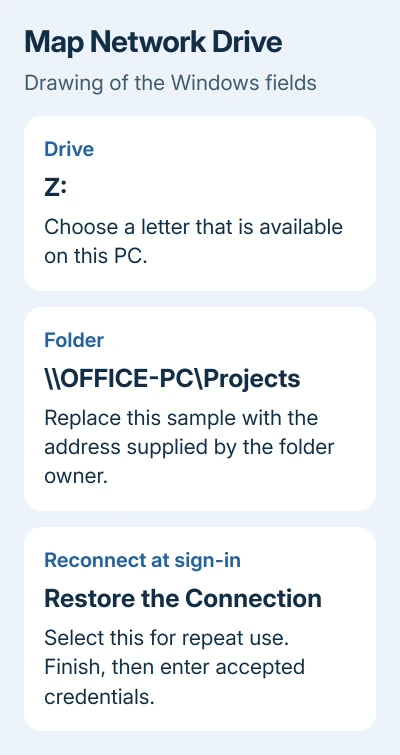
- Choose an unused letter in Drive. The letter is a shortcut on this PC, so it doesn't need to match anything on the server.
- In Folder, enter the complete shared-folder path. Use Browse instead if the computer and share are visible on your network.
- Select Reconnect at sign-in if you want Windows to restore this connection when you sign in again.
- Select Finish, then complete any sign-in prompt for the share.
If the three-dot menu doesn't show the command, right-click This PC in the left pane and select Map network drive there. Right-clicking a file or an ordinary local folder opens a different menu.
When it works, the mapped folder appears under This PC with the letter you selected. Open it and check that you're seeing the expected folders. If you've opened the wrong share, correct the mapping before saving your work there.
Use credentials belonging to the receiving computer
A Windows Security prompt is asking for an account the file server accepts. That may be an account on the other Windows PC, an account created on a NAS, or a work account supplied by IT.
If your current Windows sign-in isn't the right account, select Connect using different credentials in the mapping dialog. Enter the username and password supplied for the share when Windows requests them.
For a local account on another PC, the owner may give you a username in the form OFFICE-PC\alex. A managed server may use a domain and username instead. Copy the supplied account format rather than guessing from your own display name.
Your laptop's Windows Hello PIN isn't a general password for another computer. If the owner needs to create an account for you, the Windows account guide explains the difference between account types.
Opening a folder doesn't mean you can change its files. If opening works but saving gives Access denied, ask the owner to check whether your account has permission to save changes. Remapping to another letter won't add permission.
Make sure the computers can reach each other
For a home or small-office share, put both computers on one local network. A guest Wi-Fi connection may block communication between devices while still allowing internet access.
The computer or NAS holding the folder must also be powered on and reachable. A sleeping desktop can leave its mapped drive unavailable until it wakes. Check the receiving device before changing your own network settings.
If the share isn't shown under Network, try its known address directly. The Network list shows devices Windows has found. An empty list means Windows hasn't found the device there; a shared folder rejecting your login is a separate issue.
On a network you trust, open Settings > Network & internet. Select your connected Wi-Fi network or Ethernet, then set Network profile type to Private network if local sharing requires it.
Search Settings for manage advanced sharing settings. On the computer hosting the share, check these switches under Private networks: Network discovery, then File and printer sharing. Keep a public hotel or cafe network public.
For a previously accessible folder that suddenly refuses access, use the Windows shared-folder checks. That page deals with discovery, credentials and changed sharing behavior in more detail.
Handle older storage and connections from outside home
Some older NAS devices depend on guest access or don't support the signing that newer Windows connections expect. Signing lets the computers check that shared-file traffic hasn't been altered.
Windows 11 24H2 Pro, Enterprise, and Education require SMB signing for incoming and outgoing connections by default. Home doesn't have that same default requirement. Check the edition in Settings > System > About.
If Windows reports a guest-access policy block or an invalid signature, ask the NAS maker about a firmware update, authenticated user accounts, and SMB signing support. Changing the drive letter doesn't address those messages.
A share on your office network also won't become reachable over the internet simply because you mapped it. Connect through the organization's approved VPN first, then open the mapped drive. Ask IT for the exact share and VPN requirements.
If it still fails, send the administrator the full error, Windows edition and version, share path, and whether that path opens directly. They can then check whether your account lacks permission or your PC can't reach the share.
The Short Version
Test the share's address in File Explorer, then map it from This PC using an available letter. Enter credentials accepted by the server and enable Reconnect at sign-in for repeat use. Mapping keeps the files on the other device.
Checked November 10, 2026.