

A Microsoft 365 group can reject external email despite allowing outside senders because another policy blocks it. Check the address and rejection report, then ask IT to trace it. One owner needed an IT policy exception for the address.
A message rejected by the group, a message stopped at a company gateway, and a message that reaches the group but not your personal inbox need different fixes. The sender's delivery report helps tell them apart.
In this guide
1. Confirm the address and read the delivery failure
Have the sender start a blank email, then enter the complete group address by hand. Don't select a saved suggestion for this check. Compare it with the address shown in the group's details, including the part after the @ sign.
Use a simple subject and ask for the sending time and time zone. If delivery fails, keep the complete nondelivery report, including its technical details. A screenshot of only the first sentence often leaves out the useful error code.
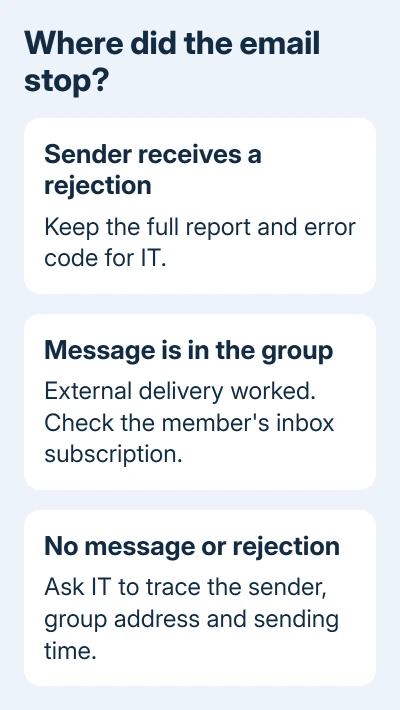
An address-not-found message calls for an address or routing check. 550 5.7.193 points to the group's external-sender or membership restriction. A report naming another server or a company policy sends IT toward that part of the route.
If the email doesn't bounce, open the group's own conversations and look for it there. Finding it in the group means the external message arrived; the remaining issue is whether members receive personal inbox copies.
For a newly created group, check that you're using the group's actual email address rather than a SharePoint page address. The group can include several services, but the sender needs its email address.
2. Check that the group saved its external-sender setting
Sign in as a group owner and open Outlook's Groups hub. Select the group, then choose Edit. In the group settings, select Let people outside the organization email the groups, then choose Save.
Open the settings again to confirm the option stayed selected. A checked box left in an unsaved dialog doesn't change delivery. If the control is unavailable, ask an administrator to review the same group.
Microsoft's external-sender error instructions provide the owner and administrator routes. In the Exchange admin center, the administrator opens Recipients > Groups and selects the group.
Under Settings, select Allow external senders to email this group, then choose Save. Retest with a new external message after the change takes effect.
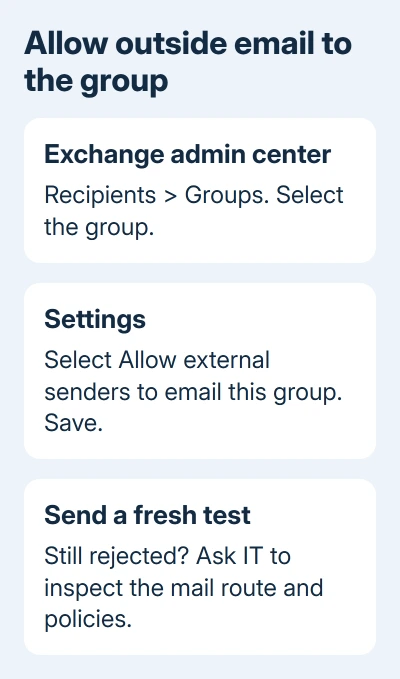
Both controls change whether the group accepts outside email. Toggling them repeatedly won't repair a separate gateway policy. If they're correct, work from the rejection report instead of adjusting unrelated permissions.
Allowing outside email also isn't the same as adding external guests to a group. Guest membership can grant access to group resources, so don't add a sender as a member just to work around an unexplained delivery block.
3. Ask IT to trace the failed external message
Give IT the sender address, group address, sending time, subject and complete rejection report. Ask them to check both Exchange Online and any mail gateway your organization puts in front of it.
In the Exchange admin center, open Mail flow > Message trace, then select Start a trace. Enter the relevant sender, recipient and time range, and select Search. Open the matching result to inspect its delivery events.
The trace shows whether Exchange received, rejected, delayed or delivered the message. A named rule or restriction gives IT a specific correction to make. If delivery succeeded, check where the message went next.
Without a matching entry, first check the addresses and time range. Then ask IT whether an upstream gateway rejected it before Exchange Online received it. No result by itself doesn't identify which server was responsible.
One owner in the original group-mail thread confirmed that their IT policy required the SharePoint email address to be allowed. They didn't publish the policy or its exact settings.
That explains how the external-sender checkbox can be correct while mail fails. Don't turn off broad spam protections to get one address working. Ask IT to identify the blocked address and rule, then make the smallest approved change.
4. Verify the group property when the controls disagree
An Exchange administrator can check the setting directly in Exchange Online PowerShell. This is useful when the owner sees the option enabled but the rejection still says that external senders aren't permitted.
An administrator should run Connect-ExchangeOnline. At the prompt, sign in with their authorized group-management account. Replace the example with your group's actual address:
Get-UnifiedGroup -Identity "group@example.com" |
  Format-List DisplayName,PrimarySmtpAddress,RequireSenderAuthenticationEnabled
True means Exchange requires a signed-in sender. For a group approved to receive ordinary outside email, the documented change is:
Set-UnifiedGroup -Identity "group@example.com" -RequireSenderAuthenticationEnabled $falseCheck the property again and retry external delivery. This changes the group's acceptance rule; it doesn't change a company gateway, fix a wrong address, or subscribe every member to inbox copies.
I'd ask IT for the trace result alongside this check. Otherwise, it's easy to keep editing the group while a different mail system is rejecting the message before it reaches it.
5. Separate inbox copies and hybrid routing problems
If the message is in group conversations, check the member's inbox settings. Classic Outlook offers Group Settings > Follow in Inbox for that group. Without following, a member can miss the personal copy despite successful delivery.
For background on the workspace and its members, creating a Microsoft 365 group explains how it differs from a contact list. Don't troubleshoot a personal contact list as though it were an Exchange group mailbox.
A hybrid organization uses both on-premises Exchange and Exchange Online. Mail passing through its local server can return 550 5.7.133 for authentication even though the cloud group allows outside email.
Ask the Exchange administrator to review hybrid routing and centralized mail transport for Microsoft 365 Groups. The fix depends on how those systems connect. An Outlook reinstall can't change how those servers route mail.
For continued failures, IT should submit the trace, full rejection, address and external-sender property to Microsoft 365 support. List the external domains affected and say whether internal delivery works.
The Short Version
An enabled group checkbox doesn't override your gateway's policies. Verify the address and delivery trace. Look in group conversations before fixing inbox copies, and let the Exchange administrator handle hybrid routing errors.
Checked November 17, 2026.
 If you have any business, I can build it online






