

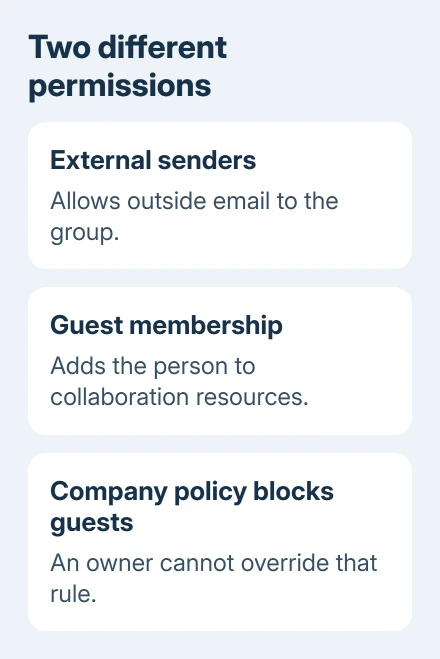
Being a group owner and Microsoft 365 administrator doesn't override a guest-blocking policy. External senders aren't automatically allowed to join. Check guest-membership controls when Outlook says company policy prevents adding guests.
If guest access is already allowed, try managing the group in Outlook on the web. That helped an owner whose desktop route failed, but a browser can't bypass a real organization restriction.
In this guide
1. Confirm that this is a Microsoft 365 Group
The policy message applies to a Microsoft 365 Group provided through your school or employer, which can share conversations, a calendar, and files. A personal contact list in Outlook's People section serves a different purpose.
A personal list simply reuses recipient addresses. If that's all you need, the Outlook contact-list guide covers that task. Adding a recipient to such a list doesn't grant access to group resources.
For a Microsoft 365 Group, confirm its exact name and that you're signed in with its owner account. A different signed-in account or another group with a similar name can lead you to the wrong membership controls.
Also distinguish an administrator role from group ownership. Organization settings govern whether guests are permitted; owners manage membership within those limits. Even with both roles, you can only add guests if those settings allow it.
2. Review the organization's guest-access settings
With an appropriate administrator account, go to the Microsoft 365 admin center. Choose Show all > Settings > Org settings, open the Services tab, and select Microsoft 365 Groups.
Review the controls for letting people outside the organization access group resources and letting group owners add outside people as guests. Enable the access your organization has approved, and save the change.
Microsoft's group guest-access instructions identify this settings page. The organization can control guest access across groups and can block guests in individual groups as well.
Don't change organization-wide access just to clear one error without checking what your group contains. A guest membership can expose conversations and shared resources, rather than only adding an address for announcements.
If you can't open those settings, have the person managing Microsoft 365 Groups review them. Being an administrator in a reseller's portal doesn't always give you the same controls in your organization's Microsoft 365 account.
After saving the approved changes, try adding the guest again and note what happens. If the error changes or Add stays unavailable, check that group's settings next rather than repeatedly changing the organization settings.
3. Keep external senders separate from guest members
A group setting that allows senders outside your organization to email the group controls inbound messages. It doesn't add those senders as guests or give them access to shared files.
For a checked external-sender option that still rejects messages, check the group mail route with IT.
That difference was central to the original report: external email was allowed, yet Outlook still displayed a company-policy message when the owner tried to add a guest. The two controls solve different needs.
Decide which outcome you need. For outside people to send messages to a group address, review its external-sender setting. For ongoing collaboration as members, review guest access and add each intended guest through membership controls.
If the need is only to share a person's schedule, use calendar-sharing permissions instead. Group membership is broader than granting someone a calendar view.
Ask IT to inspect restrictions on the specific group if organization guest access is already enabled. Allowing guests across your organization doesn't override a restriction on that particular group.
4. Retry through the group's web membership page
Open browser Outlook with the group's owner account. Choose Groups and select the group, then click the member count under its name. Select Add members, type the guest's full email address, and choose Add.
Review whether Outlook recognizes the address as an external guest, then confirm the addition if the policy permits it. Check the group's member list afterward rather than assuming typing the address completed the invitation.
One owner fixed this through Outlook's browser People area. A SharePoint link had returned them to Mail instead of People. They reached the owned group's Members tab and added the external person there.
That report is from 2021, so its People > Groups > Owner labels may differ from your current web layout. Use the current Groups and membership controls rather than treating an old deep link as a required route.
I'd try the browser membership page before changing the desktop installation. That helps you check whether the desktop dialog is the problem without changing your organization's access rules.
The guest should receive a welcome message when added successfully. Their access to files still depends on the relevant sharing settings; joining the email group doesn't remove every SharePoint or Teams restriction.
5. Use admin membership for an existing directory guest
If the outside person already exists as a guest in the organization's directory, an administrator can add that guest from the group membership page in Microsoft 365. Open Teams & groups > Active teams & groups.
Select the correct group, choose Membership > Members, then Add members. Search for the existing guest and select them. Check the saved member list once the change completes.
This route needs an existing directory guest. Otherwise, the administrator must invite them through Microsoft Entra first. Groups with rules that add and remove members automatically must have membership managed in Microsoft Entra ID.
If the guest joins but can't open shared files, ask IT to check the SharePoint site's external-sharing settings. For a connected team, Teams guest settings also matter. Check the failing resource rather than adding the person repeatedly.
If existing members lose desktop Outlook Groups access, check the app version and browser result before changing guest policies.
6. Escalate a policy error with the settings already checked
If Outlook and admin membership both fail, have your Microsoft 365 administrator submit a support request. Include the group's identifier, the exact error, the guest's email domain, and which organization and group settings you've checked.
For a reseller-managed subscription, ask the reseller to check guest settings or ask Microsoft 365 support. Explain that guest membership stays blocked despite approved settings, rather than reporting an Outlook contact problem.
The Short Version
External email permission isn't guest membership. Check organization and group guest policies, try the web membership page, or add an existing directory guest in the admin center. Have the administrator escalate a continuing policy block.
Checked November 16, 2026.
 If you have any business, I can build it online






