

Microsoft Word may seem to have disappeared because its shortcut is missing, or because Windows recovery removed Office. Search Start for Word first. If Office was removed, reinstall it with the account or license that already owns it.
A Windows recovery disc doesn't automatically include a separately purchased copy of Office. Missing Word also doesn't mean its documents were deleted, so check the app and your files separately before buying another license.
In this guide
1. Search for the desktop Word application
Open Start, type Word, and select the app result if it appears. Look for the installed application rather than a search result that opens a website. Start a blank document to confirm that desktop Word launches.
With Windows 11, inspect the Start menu's All or All apps list, depending on the Start layout. On Windows 10, open Start and scroll through its app list to Word.
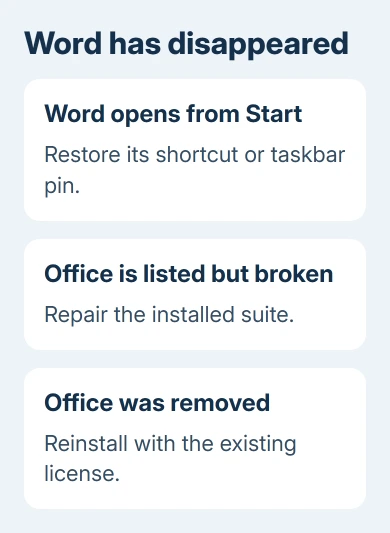
If Word opens, right-click its Start result and choose Pin to Start. You can also right-click Word's icon while it's running and select Pin to taskbar. That restores convenient access without reinstalling the program.
Double-click a .docx document as another check. When desktop Word opens it, the app is still there even when an old shortcut has disappeared. If another editor opens the file, that doesn't tell you whether Word is installed.
Microsoft's find Office apps steps cover searching and pinning. Next, check the installed suite.
2. Check whether Office is still installed
On Windows 11, open Settings > Apps > Installed apps. On Windows 10, use Settings > Apps > Apps & features. Search for Microsoft 365, Microsoft Office, and Word.
Look for the Office suite as well as Word on its own. The suite can contain Word without listing it separately. A Microsoft 365 companion app or web launcher isn't the same as the complete installed desktop suite.
If Excel or PowerPoint still opens, choose File > Account there and read Product Information. Write down the displayed product and account. Those details help you find the installation or purchase you're trying to restore.
If no desktop Office apps remain after a Windows reset, skip the repair step and reinstall the suite. A reset can remove installed programs while leaving personal files, depending on the recovery option used.
For Office 2016 or 2019 missing after an update, check the Office removal update issue. It differs from a lost shortcut or Windows reset.
3. Repair the suite when it exists but Word is missing
Save work and close the Office applications. In the installed-app list, select your Microsoft 365 or Office suite. On Windows 11, open its three-dot menu and choose Modify; on Windows 10, select the suite and choose Modify.
For a Click-to-Run installation, Quick Repair checks and replaces damaged files. Try that first if the suite appears installed but won't work correctly. Then search Start for Word again.
If Word or its shortcuts remain missing, return to Modify and choose Online Repair > Repair. Microsoft recommends this more thorough repair when Office shortcuts can't be found. It requires an internet connection.
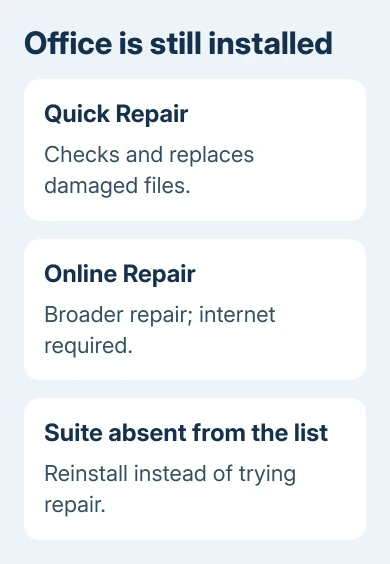
Some older installations use MSI, a different installer type, and offer one Repair command instead of the two Click-to-Run choices. Use the repair option shown. The repair affects the suite, even if only Word was missing.
On a computer managed by your workplace, ask IT to repair the licensed suite if Modify is unavailable or requires administrator access. Give them the suite name you found instead of installing a second Office copy over it.
4. Reinstall using the account that owns Office
Open m365.cloud.microsoft/apps in your browser. Enter the account you used to buy Office. For a workplace or school copy, enter the details of your licensed workplace or school account instead.
For a personal account, select Install apps and follow the installation choices. With a workplace or school login, select Install apps > Microsoft 365 apps when available. Some layouts put Apps in the left navigation first.
Launch the installer you downloaded and follow its setup prompts. Once installation finishes, open Word from Start and sign in when activation asks. Create a blank document to check that both launching and editing work.
If Install apps isn't available, review your account's license before paying again. A different personal account can show no purchase, and a work account may have a plan without desktop apps or no assigned license yet.
I'd check the purchase receipt or ask the workplace administrator at that point. Buying another license won't help you find the Office purchase linked to a different account.
An older copy supplied on disc or through an organization's volume license can need a different installer. Use its original media and valid license, or ask the supplying organization. The account installer doesn't offer every older edition.
5. Find documents separately from the missing application
Check Documents, OneDrive, and your usual work folders. Search them in File Explorer for .docx and .doc files. Check filenames and dates rather than relying on Word's recent-file list.
Reinstalling Word won't recreate files lost during a drive failure or recovery that removed personal data. Check backups and OneDrive's Recycle bin if documents are missing too, before starting new work in the same folders.
If Word returns but opens extra blank documents by itself, use the unwanted blank document checks. Those unwanted windows have their own version-specific repair.
On Mac, check Finder > Applications for Microsoft Word. Windows repair commands don't apply there. If the app is absent, reinstall through the account with your Mac-compatible Office license.
When installation or activation still fails
Use the Office installation help page's Need help? section for account problems, or ask your administrator to confirm a desktop-app license. Provide the product name, account type, and installer or activation error.
Ask the repair shop whether recovery included Office or only Windows. Give them proof of your Office purchase and ask which licensed installer they used. Check that existing license before buying another.
The Short Version
Restore access by finding Word through Start and pinning the working app. Repair an installed Office suite, or reinstall a removed suite with its existing account and license. Locate documents as a separate check.
Checked November 17, 2026.
 If you have any business, I can build it online






