

A Motorola IMEI check starts with the number shown by the phone: open the Phone keypad and enter \*#06#, or look in Settings > About phone.
Use that number with Motorola for a warranty inquiry or with your carrier for network eligibility; those checks answer different questions.
Dual-SIM models can show two IMEIs. Keep each number with its SIM label so you don't check one connection and accidentally activate the other. Without the handset, use its packaging, purchase records, or an account to retrieve the number.
In this guide
Bring up the identifier panel from the dial pad
Open the Phone app and switch to its dialing keypad. Enter \*#06#, including both asterisks and number signs. The phone normally displays its IMEI and other device numbers as soon as you finish entering the code.
This isn't a number to call or a message to send. If the keypad doesn't show an identifier panel, use Settings rather than trying similar-looking codes from an unfamiliar list.
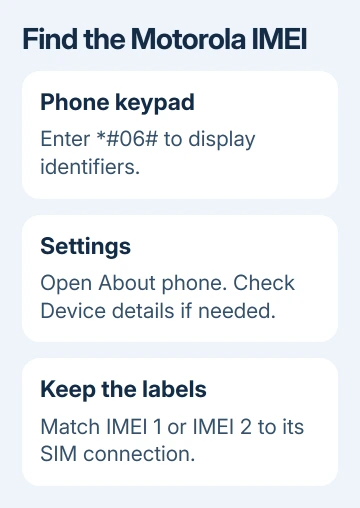
Copy or write down the IMEI entry. With two connections, keep IMEI 1 distinct from IMEI 2. An EID, where present, identifies the embedded SIM hardware and doesn't replace an IMEI when your carrier asks for an IMEI.
Motorola's IMEI instructions list the keypad method and Settings route. They also explain why a dual-SIM phone can have two numbers, one for each SIM connection.
I'd copy the number directly where the interface allows it, then compare it once with the screen. One wrong digit can bring up a different device or cause the lookup to reject the number.
Find the same number in About phone
Open Settings > About phone and look for IMEI. Some Motorola releases put it inside Device details, with separate SIM entries. On older layouts, look for a Status or IMEI information entry.
If the menu looks different, search Settings for IMEI. The exact page depends on the Motorola model and Android version, so don't assume a Moto G, Edge, and Razr all show the same list.
Compare the Settings number with the keypad result. Match the SIM label as well as the digits. Two different entries on a dual-SIM device can both be correct without either being the phone's product model number.
Keep the model name beside the IMEI when contacting support. A product name identifies the type of phone; the IMEI identifies the cellular equipment being checked. Support may ask for both.
If the screen is only temporarily stuck, the Motorola restart steps can help you get back to Settings. A reset that erases your data isn't needed just to read an identifier.
Choose the correct entry on a dual-SIM phone
Read the labels shown on your specific device. A phone may distinguish two physical SIM positions, or a physical SIM and an eSIM. Don't decide which IMEI belongs to which connection from the number's position alone.
When a carrier asks for the IMEI during activation, tell them whether you're activating a physical SIM or an eSIM and use the matching entry. If the form doesn't explain which one it needs, ask before submitting another number.
An eSIM setup can also request the EID. Supply each value in its named field. Pasting the EID into an IMEI field won't help a carrier check the intended device connection.
Save a small private record with the phone model, each IMEI label, and the number beside it. That makes a later support conversation easier than trying to remember which screenshot contained the right connection.
Check Motorola warranty separately from network status
For warranty information, use the official Motorola warranty lookup for your region.
Enter the phone's IMEI or serial number where requested and follow the page's account or verification prompts.
A warranty lookup tells you about service coverage. It doesn't answer whether your carrier will activate the phone, whether a SIM lock has been removed, or whether a previous owner still has an account on it.
If the lookup fails to load or rejects your entry, compare the entry with Settings and check the selected country. Then contact Motorola support with the IMEI, model, purchase date, and receipt.
Ask support to review a coverage date that differs from your purchase paperwork. Keep your receipt handy. Support may need it to resolve a difference between your purchase date and the lookup result.
If you're using Motorola's Software Fix desktop application already, its Support > Warranty function also accepts the device's serial number or IMEI. You don't need to install Software Fix or run a recovery to use the keypad method.
Ask the carrier about activation, blocking, or unlocking
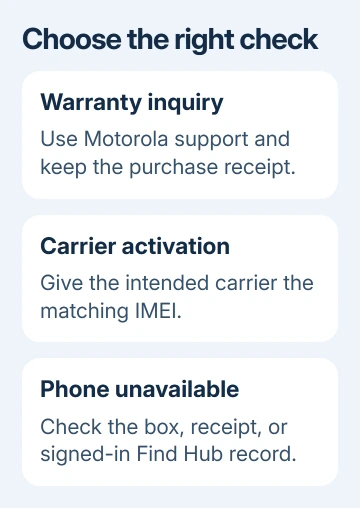
For a network check, use your intended carrier's official device-compatibility checker or contact its support team. Provide the IMEI for the connection you plan to use and name the Motorola model.
Ask the specific question: can this model and IMEI be activated on this plan? A checker recognizing your phone as a Motorola doesn't mean the carrier can activate it.
For a used phone, also ask about any reported block that prevents activation. An IMEI lookup isn't a replacement for having the seller remove their account and complete a normal handover.
If another carrier's SIM is rejected, the Motorola carrier-unlock guide explains why the original carrier handles eligibility. Finding the IMEI doesn't remove a network lock.
A warranty result, a compatibility result, and an unlock decision can therefore differ without the lookup being broken. Keep track of what each result confirms. Passing one check doesn't mean the phone has passed the others.
Recover the identifier without using the handset
Check the original box and purchase receipt for the IMEI. Confirm that the packaging belongs to this handset, especially if several similar Motorola phones were bought together.
The matching box can also help you check where your Motorola was made, keeping an importer address separate from its assembly country.
For a lost phone still associated with your Google Account, open Find Hub, select the device, and tap its Settings control.
The Find Hub IMEI instructions also describe the browser route at android.com/find.
Use that phone's Google Account to sign in. Select its device record before opening the information panel. Finding the IMEI doesn't require choosing the erase action.
Your carrier may also have the identifier in its device records. Ask it to confirm the handset record rather than giving your mobile phone number or SIM-card number in place of the IMEI.
If none of those methods is available, contact Motorola with the purchase details and explain that the screen or handset is inaccessible. Don't factory-reset a phone merely to try to reveal its number.
Keep a missing or rejected IMEI with the right support team
If both the keypad panel and Settings show no usable IMEI, report that exact result to Motorola support. Include the model, software version if readable, and any repair or software update just before the problem began.
If the number exists but one checker rejects it, send the result to that checker's operator or the carrier. Share the complete IMEI privately through official support channels, and hide it in public screenshots.
The Short Version
Use \*#06# or Settings > About phone to find the IMEI. Keep dual-SIM labels straight, use Motorola for warranty questions, and ask the intended carrier about activation or a network lock.
For an unavailable phone, check its box, receipt, or Find Hub record.
Checked November 15, 2026.
 If you have any business, I can build it online






