

A Motorola mobile that isn't charging needs a secure USB plug and a compatible charger first. Reseat the plug, remove a blocking case, and check the outlet. An empty battery can need about 10 minutes connected before it responds.
Slow TurboPower charging or a stop near 80% can be normal charging behavior rather than a dead port. Check whether the battery percentage is rising, stuck at a limit, or showing no response at all before choosing the next fix.
In this guide
1. Reseat the connector and test the power source
Unplug the USB cable and connect it firmly again. The plug should sit securely without needing to be held at an angle. Remove the case temporarily if its opening stops the connector reaching the port properly.
Use a charger supplied for the phone or one compatible with that model. A laptop USB port can behave differently from a wall charger. Begin with a wall outlet so a sleeping computer doesn't complicate the result.
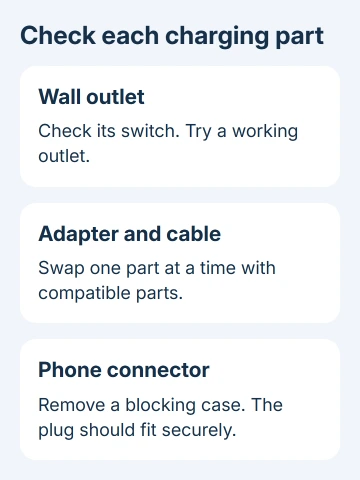
Check whether the wall outlet has a switch and whether it's on. Try another working outlet if necessary. Then swap the cable and adapter separately, using undamaged compatible parts.
A cable that charges only when bent or pressed needs replacing. Don't keep forcing it into a position that works briefly. Damage to the plug or the phone's port needs attention before repeated charging attempts.
Look for a charging indicator and check the percentage after leaving the phone idle. Check that the battery level actually rises. A symbol that appears and disappears when the cable moves points toward an unreliable connection.
Motorola says in its motorola signature charging instructions to check the connector, depleted battery, and power source. That order can save you from resetting a phone that only needs a replacement cable.
2. Give an empty battery time, then restart
For a phone that has completely run out of power, connect the charger and wait about 10 minutes before pressing Power. The battery may need to recover some charge before the phone can respond normally.
Leave it connected while you wait. Repeatedly unplugging it to check the screen interrupts that recovery. A blank display immediately after connection isn't enough to decide the battery has failed.
On the models covered by the linked guide, hold Power for 7 to 10 seconds to reboot. Button behavior varies by model, so use the restart instructions for your exact Moto G, Edge, or Razr if that hold doesn't apply.
A restart keeps your data. Once the screen returns, check the charging state and percentage. With no response from a known-good charger, ask about repair before trying unfamiliar button combinations.
If your phone responds to calls or vibration while the display remains black, the screen may need repair. The Android phone won't turn on guide explains how to separate those cases.
3. Check the USB mode when charging from a computer
When a computer is your charging source, keep it awake and check the phone's USB notification. Swipe down from the status bar, expand that notification if needed, then tap it to open the connection choices.
The Android 17 Motorola guide uses No data transfer for a charging-only connection. The older Android 11 guide uses Charge only. Pick the label your phone offers.
USB file transfer uses a different mode when you want files as well as charging.
If the phone charges from the wall but not the PC, that tells you something useful. The battery can accept power; the remaining problem involves that computer, its USB port, the cable, or the connection state.
Try another computer USB port and avoid an unpowered hub during the check. If wall charging works normally, keep using the compatible wall charger while sorting out the PC connection.
For a phone that charges but also feels unusually slow, keep the symptoms separate. Our slow Android guide deals with performance; it doesn't replace a power-source check.
4. Let a hot phone cool before judging TurboPower
TurboPower can make the phone warm during fast charging. Charging also slows when the battery gets hot, then speeds up again after cooling. Set the phone aside in a shaded, ventilated place and stop heavy use while it charges.
Don't cover the phone with bedding or leave it in direct sunlight. A temperature-related slowdown needs cooler conditions, rather than a stronger adapter. Check whether the charging rate returns once the phone settles.
On models that offer Charge boost, look under Settings > Battery. Turning it off can reduce charging heat. This control isn't present on every Motorola phone, so an absent option isn't itself a fault.
On the model in the linked guide, TurboPower charges faster under 78%, with regular charging at 78% or higher. Those figures aren't a promise for every Motorola generation or adapter.
For that model, if the battery is under 78% and TurboPower isn't starting, disconnect and reconnect the charger. Check Charge boost if the phone offers it. Confirm the model's supported charger before assuming fast charging is broken.
5. Check protection when charging stops at 80%
Some Motorola models limit charging to protect the battery after being plugged in for a long time. The linked model's battery protection can hold the level at 80% after three days connected.
If its protection indicator appears, disconnect and reconnect the charger to charge fully. This is different from a phone that can't charge from 10% or loses power with the cable attached.

Check Settings > Battery for the protection features actually offered by your model. Names and controls differ across Moto G, Edge, and Razr phones. Leave unrelated battery controls alone when your model uses different names.
I'd check the displayed protection message before buying another charger for an 80% stop. If charging always stops at the same level and a protection indicator appears, check that setting rather than treating it like a loose connection.
6. Compare wired charging when a wireless pad fails
For a model with wireless charging, try USB charging. If USB works, check the wireless setup separately. A phone without wireless support can't charge on a pad.
The motorola signature uses a Qi-certified charger. Align its charging area with the pad as its maker directs. Remove a case with metal, magnets, or a stand, then retry while the phone is idle.
If wireless charging still fails but USB works, give support both results.
Arrange repair when the power checks fail
If compatible parts you know work won't charge the phone, ask Motorola support to check its charging port and battery. Give your exact model, the lowest battery level at which it responds, and the results with another cable and outlet.
Stop charging if the phone is swollen, smells unusual, or has visible damage around the battery or port. Those symptoms need service. A factory reset won't repair a loose connector or a damaged battery.
Back up a phone that still turns on before handing it over for repair. Support may recommend a software reset if the phone responds, but check the power supply and back up first.
The Short Version
Check the plug, case, cable, adapter, and outlet. Give an empty battery time, then use the model's restart procedure. Separate heat-related slow charging and an 80% protection limit from a phone that accepts no power.
Checked November 16, 2026.
 If you have any business, I can build it online






