To move an open window to another desktop in Windows 11, press Windows + Tab, right-click the window's preview, and choose Move to. Your work moves to that workspace without closing the app.
A second virtual desktop uses the same computer and screen. It doesn't need another monitor, and moving a browser window doesn't move just one of its tabs. Choose the window you actually want to separate.
In this guide
Create the destination before moving your work
Press Windows + Tab to open Task View. Look for the desktop thumbnails and select New desktop. Windows creates another workspace that you can use for a different task, such as a meeting or a research project.
Open apps there if you're starting fresh. To move a document or browser window that's already open, leave it running and follow the next steps.
Give the desktops names you'll recognize. Select a desktop's name in Task View and rename it Writing or Meetings. The name describes the workspace, not a different Windows account.
Microsoft documents moving windows between desktops. The desktops help you organize open apps; they don't create separate copies of your files.
For example, a report opened on Meetings still belongs to the same folder as before. Changing desktops doesn't give you a second saved version, so keep using the document's normal Save command as you work.
Send the existing window to its new desktop
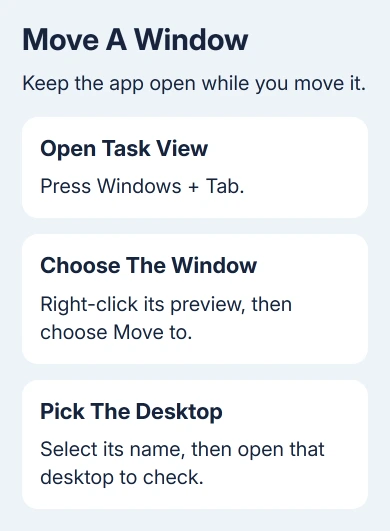
Return to the desktop holding the window, then press Windows + Tab. Find that window's large preview in Task View. Check the document title or what you can see in the preview to tell it apart from other windows of the same app.
- Right-click the window preview, rather than a desktop thumbnail.
- Select Move to in the menu.
- Choose the destination desktop's name.
- Select that desktop's thumbnail to open it.
- Check that the expected document or app window is there.
Dragging is another supported option. In Task View, drag the window preview onto the destination desktop thumbnail and release it. Use the menu if the thumbnails are small or dragging keeps landing on the wrong workspace.
I'd move one window first and check it before reorganizing the rest. That makes it easy to recognize the destination and keeps a similarly named document from ending up somewhere you didn't intend.
Check the original desktop to confirm the window has moved. If you've moved the wrong one, use Task View on the destination desktop and move it back with the same menu.
For a browser, several tabs can belong to one window. Moving that window carries those tabs together. To separate the work, put the relevant tabs into their own browser window first, then move that window.
Switch desktops without moving anything else
Press Windows + Ctrl + Right Arrow to switch to the next desktop, or Windows + Ctrl + Left Arrow to return to the previous one. These shortcuts switch which desktop you're looking at; they don't move the active window.
Task View also lets you select a desktop directly. This is easier when you have several desktops and want a named destination without stepping through each workspace in order.
A window that disappears after switching can still be on another desktop. Check the thumbnails before opening the document again. Another copy can make it harder to recognize the window containing your latest changes.
When Windows + Tab fails, follow the Task View checks. Repair that control before trying to assign windows through it.
Decide which windows the taskbar should show
A window's button can stay on your taskbar even after you've moved the window to another desktop. That depends on your desktop display settings, so a visible taskbar button doesn't automatically mean the move failed.
Open Settings > System > Multitasking, then expand Desktops. Under On the taskbar, show all the open windows, choose Only on the desktop I'm using for a taskbar limited to the current workspace.
Choose On all desktops if you'd rather reach every open window from the taskbar. That changes which buttons are available across desktops. It doesn't move all those windows into your current workspace.
Look for the setting that controls which windows appear in Alt+Tab in the same Desktops section. Choose the current desktop when you want Alt+Tab to stay within that task, or all desktops when you need to switch between all your work.

Test the choice with two ordinary windows on different desktops. If the taskbar now shows only the expected window, the display setting is doing its job. You can change it again without moving the windows back.
Keep virtual desktops separate from physical monitors
An extra monitor extends or duplicates a desktop across physical screens. An extra virtual desktop creates another workspace you switch to. You can use both together, but you choose monitors and virtual desktops through different controls.
For performance monitoring, place Task Manager on the other screen or pin it in front of ordinary windows.
For a picture on each physical screen, use the dual-monitor background steps. A menu listing desktop names lets you choose a workspace, rather than a physical monitor.
A spare tablet offers another route: use an iPad for a second display with Sidecar on Mac or a driver and viewer on Windows.
To remove a workspace, open Task View and use the close control on its desktop thumbnail. Its open apps move to the next available desktop. Closing the desktop isn't the same as closing each app or deleting its documents.
Save important edits before checking your final arrangement. If one app won't move, send its support team the app name and version. If none move, give Windows Support your build from winver and explain which Task View action fails.
The Short Version
Create the destination in Task View, right-click the existing window preview, and choose Move to. Switch desktops to check the result. Taskbar and Alt+Tab visibility are separate settings under Multitasking > Desktops.
Checked November 12, 2026.