

Office 2013's Word error 24 and Excel's not-enough-memory message can appear from Explorer while File > Open works. Open the app first for urgent work, then check Explorer previews and repair Office if the fault continues.
This particular pattern isn't a reason to buy more RAM. If Word or Excel also fails when opened on its own, follow the app-repair checks rather than treating the problem as an Explorer-only failure.
In this guide
1. Open the file from the application first
Start Word 2013 from its shortcut without selecting a document. Choose File > Open > Computer > Browse and select your document. Excel offers the same route for a saved workbook.
If the document opens without the warning, save any urgent work through that route. The app can read the file. The failure happens when Explorer starts the app or sends it the document.
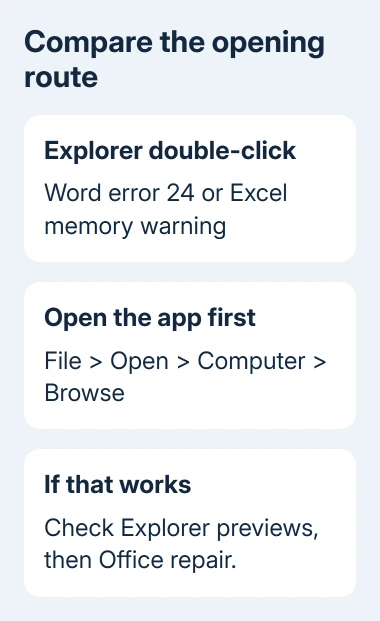
The original asker saw error (24) when double-clicking a Word file, but could open it by choosing Open from the right-click menu. Another owner could open files from inside the apps without either error.
Try right-click > Open once as a comparison if double-click is the only action that fails. It can be a useful temporary route, but check that the warning really has gone.
If just one document fails inside Word too, move to the Word file-repair checks. If every ordinary document fails inside the app, skip Explorer settings and go to Office repair.
For an Excel file that opens normally, don't change formulas or shrink the workbook just because the startup warning mentions memory. The same message can appear before an otherwise readable workbook opens.
2. Turn off the preview pane for the next comparison
Disable File Explorer's Preview pane before retrying the file. In Windows 8 or 8.1, use the View tab and select Preview pane if it is enabled. Alt+P toggles that pane in File Explorer.
On Windows 10, the control is also on Explorer's View tab. Windows 11 places it under View > Show > Preview pane. These are Explorer display controls, not settings inside Word or Excel.
Return to the same folder and double-click the same file. Keep the preview pane off while comparing several affected documents, since selecting a file can otherwise start the Office component that displays previews before you open it.
A later reply identified Explorer preview as a common trigger for this pattern. Test that suggestion against your own failing action. Success means the same document opens without the warning; the reply didn't confirm a lasting repair.
If only the preview itself fails while the app opens files normally, use the Word previewer checks. If the app still reports error 24 with previews off, continue to repair.
I'd make this comparison before uninstalling Office. It's a quick change to one Explorer feature that may let you keep opening files while the installation problem is checked.
3. Repair Office before reinstalling it
Finish saving your documents and quit the Office applications. In Windows 7, 8 or 8.1, open Control Panel > Programs > Programs and Features, select Microsoft Office 2013, and choose Change.
An MSI installation, which uses Windows Installer, offers Repair, followed by Continue. With Click-to-Run, the other Office installation type, use Quick Repair first. If the fault survives, try Online Repair when offered.
The official Office repair instructions distinguish those installation types. Repair applies to the suite, so a Word problem can require closing Excel and Outlook too.
On Windows 10, the modern route is Settings > Apps > Apps & features, select Office, then Modify. On Windows 11, use Settings > Apps > Installed apps, open Office's three-dot menu and choose Modify.
Restart the computer if setup requests it. Test a Word document and an Excel workbook from Explorer afterward. Check for both warnings rather than stopping when only one application improves.
One owner fixed it with repair and reinstallation after registry and compatibility changes caused licensing and corruption messages. Use the repair tools first rather than repeating that entire sequence.
If repair reports a damaged installation or asks for unavailable media, stop and locate the licensed installer through your administrator. Confirm that reinstalling the same Office product is possible before removing it.
4. Keep attachment problems separate from Explorer files
If the error appears when opening an Outlook attachment, save a copy to a normal local folder first. Use Word or Excel to open that local copy instead of launching it from the message again.
One owner reported that copying an Excel attachment to the desktop let it open without the error. That worked for their attachment case; it doesn't mean moving every document to the desktop repairs Office.
Check whether a file already in your Documents folder has the same problem. If local files work and attachments don't, tell IT the difference and include whether Outlook's preview also reports an error.
Keep Protected View enabled. A later reply suggested turning it off, but no successful outcome supported that suggestion in the saved discussion. An attachment's security controls aren't the same as Explorer's preview display.
If every saved Excel workbook still produces the memory message while Word works, check the Excel-only case next. If both applications continue to fail, collect your Office installation details for IT.
5. Try the Excel Recent Workbooks workaround only for Excel
One later owner stopped Excel's memory warning by changing its Recent list settings after switching Office bit versions had failed. This is a narrower workaround for Excel, not a fix for Word's error 24.
In Excel 2013, open File > Options > Advanced. Under Display, set Show this number of Recent Workbooks to 0. Clear Quickly access this number of Recent Workbooks if it is enabled, then choose OK.
Write down the current list settings so an unsuccessful comparison can be reversed. Close and reopen Excel, then test the same workbook through the route that produced the warning.
If the warning stops, use Browse to reach files while the Recent list is disabled. If nothing changes, restore your old values. Keep your Recent list available if turning it off doesn't fix the error.
When Office still reports both errors
Tell IT whether the fault began after changing from 64-bit to 32-bit Office, installing another Office product or removing an older version. Include the version in File > Account > About Word and both error messages word for word.
Ask them to check Office's components and the settings that tell Windows how to open Office files. Don't run a registry cleaner or replace Office paths with guesses. Some reported repairs failed; other improvements later stopped working.
Office 2013 stopped receiving support on April 11, 2023. Ask about moving the files to a supported Office installation if repair can't restore normal opening. Keep the working in-app route available until the migration is ready.
The Short Version
Use File > Open for urgent work. Compare Explorer with its preview pane off, then repair Office. Save attachments locally before opening them. Use the Recent Workbooks workaround only for the remaining Excel memory warning.
Checked November 17, 2026.
 If you have any business, I can build it online






