

Office for iPad can show Cannot Connect to Server even when OneDrive opens your files. Reset the failing Office app's saved sign-in first; owners confirmed that this fixed their connection.
A second case affected large, nested folders: files near the top opened while deeper folders failed.
Start with the app credentials when Word or Excel can't open files across your OneDrive. If just one folder fails, compare its contents with a small folder before changing your account or reorganizing OneDrive.
In this guide
1. Reset the affected Office app's login credentials
Save any unsynced changes before resetting the app. Keep a local copy you can reopen if a document currently has edits that haven't reached OneDrive.
Close Office apps. With a Home button, double-press it and swipe each Office preview upward. Without Home, drag from the display's lower edge toward its center, then pause for the app switcher. Swipe Office previews upward to close them.
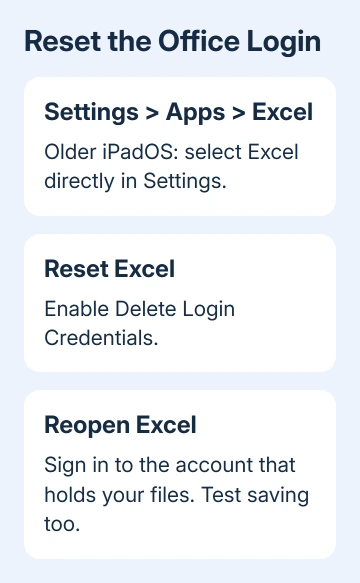
Open Settings > Apps > Excel on recent iPadOS versions. On older versions, select Excel directly in Settings' app list. Choose Reset Excel, then enable Delete Login Credentials.
For Word or PowerPoint, open that app's settings instead and use its corresponding reset entry. Reset the app that reports the error; reinstalling OneDrive alone doesn't clear Word's saved login.
Launch the Office app again so it applies the reset. Log in using the Microsoft account that holds these files or was invited to edit them. Open a small document from the OneDrive account you want to use and try saving a harmless change.
One owner in the original iPad discussion confirmed this reset worked. A later owner said clearing Word's password cache fixed their connection after repeated OneDrive reinstalls hadn't helped.
Check that the saved change appears when you reopen the file from OneDrive. Opening a preview alone isn't enough: some owners could read documents but hit the same error when they tried to edit or save.
If the reset control isn't present in your installed app, don't substitute an unrelated iPad reset. Note the app version and continue with the folder comparison, then report the missing control to support if needed.
2. Compare a small folder with the one that fails
In the OneDrive app, compare its signed-in account with Excel or Word. Personal storage and business storage can show familiar filenames, so compare the account address rather than just the document title.
Try opening a small file near the top of your OneDrive, then a file inside the failing folder. Note whether the error occurs while browsing the folder, opening the document, or starting an edit.
The historical reports described large parent folders with many files and subfolders. The asker confirmed that files in early folders opened, while the larger folder structure failed inside Office even though OneDrive could browse it.
The discussion doesn't give a maximum folder depth or file count. Don't redesign your storage around a limit that wasn't published.
To check whether the folder is the problem, open OneDrive on the web in the same account. Select one affected file, choose Copy to, and select a small folder near the top as the destination. Leave the original where it is.
If you need a clean destination, use the OneDrive folder creation steps. Give the folder a clear temporary name so it won't be confused with the shared working location.
Open that copy from Excel. If the simple folder works while the original fails, focus on folder access rather than file contents. Use the copy for urgent work and tell collaborators which version has your edits.
If both copies fail, return to the account and app rather than moving more folders. Reorganizing your storage won't help explain why the file also fails in a simple folder.
3. Try opening the document through OneDrive itself
Open the OneDrive app, browse to the document and select it. Use the option to open or edit it in Word or Excel when offered. This reaches the file without relying on Office's own folder browser.
The original asker confirmed that approaching the file through OneDrive opened a nested document. Other owners still couldn't edit or save afterward, so treat this as an alternate opening route rather than a complete repair.
Before spending time editing, make one small change and check that it saves where you want it. If Office immediately asks for more action and returns to the server error, stop using that route for unsaved work.
I'd keep an urgent spreadsheet in Excel if possible. Opening it in Numbers and exporting it back can change features or formatting; the old discussion includes conversion warnings even when a reader found the result usable.
If your problem is specifically Save to Files refusing a shared destination, use the iPad shared-folder saving checks. That Files integration fault is separate from Office failing to browse its own cloud folders.
4. Repair OneDrive only when its own app also fails
Try browsing and opening a small file inside OneDrive itself. When that also fails, the problem isn't limited to Word or Excel's saved credentials or folder browser.
Microsoft's OneDrive iOS troubleshooting provides Profile > Settings > Account > Reset for app sync problems. When several accounts are connected, choose the failing one and select Reset.
Reopen OneDrive and retry that small file. A successful OneDrive reset should restore its own access first. After that, retry the Office app with the account used in the first section.
If webpages also fail to load, reconnect the iPad to a working network before changing more app settings. If only your company account fails, ask IT whether access policy or a service problem is affecting mobile Office.
Update the affected Office app and OneDrive through the App Store. Old posts in this discussion span 2014 through 2016, including reports that an early update didn't fix the folder problem. They don't confirm a current service outage.
5. Report whether opening, editing or saving fails
For a personal OneDrive account, open the OneDrive app and gently shake the iPad to reach its support option. For an organizational account, send the details to the help desk that manages your Microsoft 365 access.
Include the full server message, iPadOS version and affected app version. Say whether resetting Office credentials helped, whether the native OneDrive app opens the file and whether a small top-level copy works.
Ask support to check Office's access to that account and folder, instead of describing the problem only as broken internet. That helps support understand why OneDrive can browse your files while Excel fails on the same iPad.
Keep the original and any temporary working copy until your latest edits are saved in the right place. Once access is restored, compare the copies before resuming shared editing.
The Short Version
Reset the failing Office app's login credentials first. If only deep or large folders fail, try a small top-level copy and the OneDrive opening route. Test saving too, and report a wider OneDrive failure separately.
Checked November 17, 2026.






