

OneDrive refusing Save to Files on an iPad can be a Files integration problem even when the OneDrive app still opens the folder. Try saving a local copy and uploading through OneDrive itself.
If only one shared folder refuses changes, check its editing permission and the account you're using.
The iPadOS 14.4 reports involved a temporary restriction in 2021. Those reports describe 2021, so they can't confirm a current OneDrive outage. Compare Files, the OneDrive app and the affected folder to choose the right repair.
In this guide
1. Save through OneDrive instead of the failing Files route
Keep the document open in its editing app until you've saved a copy you can reopen. If its Save to Files sheet won't allow OneDrive as the destination, choose On My iPad when that local location is offered.
Choose a filename that makes the local copy easy to distinguish from the shared original. This is especially useful for exported documents: the app may be saving a new file rather than updating the file your team already uses.
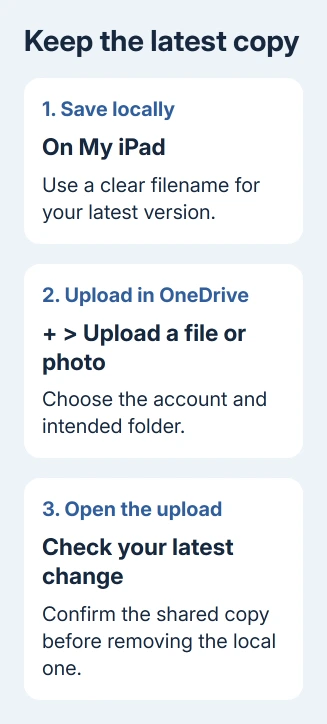
Open the OneDrive app and check the account shown in its profile area. Open the intended destination, tap +, and choose Upload a file or photo. Select the saved local file and let its upload finish.
Microsoft's iOS upload instructions describe the app's own upload command. It gives you a separate route from choosing OneDrive inside another app's Save to Files sheet.
Open the uploaded file from its destination and check a detail you changed, such as its title or final paragraph. The file-selection window can show a filename before the upload finishes. Reopen the copy in OneDrive to check its contents.
If the app lets you upload to your own folder but not the shared destination, go to the permission check in section 3. If the OneDrive app also fails in your own folder, check the account and app in section 4.
2. Recognize the old iPadOS 14.4 restriction
In March 2021, an owner could access files normally in the OneDrive app while Files and native iOS apps treated the same locations as read-only. Later posts still reported a disabled Save button.
The historical support reply described a temporary read-only change to Files integration beginning with OneDrive iOS 12.18+. It also affected Save to Files from the Share sheet.
That reply gave no restoration date. The discussion ends without an owner confirming that an update made saving through Files work again. Don't use those old version numbers as evidence of a current outage or seek an old app download.
For a device still running iPadOS 14.4, check Settings > General > Software Update for the version that model supports. A school or work iPad may require administrator approval for updates.
Look for OneDrive updates in the App Store too. Install the compatible version offered for your iPad, then retry one small file. The owners in that discussion didn't confirm that an app update fixed it.
If an update isn't available for an older iPad, ask IT or the document owner for a supported way to submit the file. Repeatedly reinstalling an app won't make an unsupported operating system current.
3. Check editing permission for a shared folder
Inside OneDrive, open the shared folder using the account that received its invitation. Personal and work accounts can both be connected to the app, and the same folder name can make it easy to choose the wrong location.
Check whether files open for reading but changes or new uploads are refused. Permission to view a folder doesn't automatically include permission to add documents or replace existing ones.
Have the owner open Manage access, find your exact email address and check that editing is allowed. The OneDrive sharing guide explains the owner's permission choices.
For a company or school folder, ask IT whether the library has additional restrictions. Tell them whether existing files open, whether a new upload fails and which other shared folders also fail.
After permission is corrected, return to that exact folder and upload a small document with a distinct filename. A successful upload into your personal OneDrive tells you nothing about editing access to the shared folder.
If opening Shared closes the whole app, use the separate OneDrive Shared tab crash checks. An app that closes needs different checks from a Save button that stays disabled.
4. Check the file and reset the affected app account
If both shared and personal uploads fail, try a small local file with a simple filename. This shows whether uploads fail generally or just for a file that's still open, isn't stored on the iPad or has a name OneDrive won't accept.
An error while browsing files inside Excel instead needs the iPad Office server-connection checks, including its separate saved login.
Save the document's changes and close its editing app before trying to upload it again. Make sure the chosen item is the saved file itself, rather than a cloud placeholder that the source app hasn't finished downloading.
If one file works, compare the failing file's name and whether it opens locally. Describe that difference to its author instead of resetting every shared folder's permission.
For a wider app sync problem, open Profile > Settings > Account in OneDrive. Select the affected account if there are several, then choose Reset. Reopen the app and retry the small file.
Before resetting or removing the app, save any changes you haven't yet uploaded from the iPad. If the reset doesn't help, the iOS troubleshooting page offers reinstalling as the next app repair; managed iPads may require IT to do it.
I'd stop after one reset attempt and compare the results with IT before removing a work app. The useful detail is which save route fails, rather than how many times the iPad has been restarted.
5. Verify the shared copy and report a wider failure
When the upload succeeds, confirm that the file is in the intended shared folder, not just your personal Files list. Ask a colleague with existing access to open it and check the changed content.
A separately uploaded file can leave two versions of the document. Tell the owner which one contains your latest changes before anyone resumes editing. Keep your local copy until the shared version has been checked.
If several people with work accounts have this problem, ask IT to check Health > Service health in the Microsoft 365 administrator portal, then request support if no listed incident matches. Include the OneDrive and iPadOS versions.
For personal accounts, launch OneDrive, then gently shake your iPad to reach support. Report the exact save command, whether your own folder accepts uploads, and whether the OneDrive app works while Files refuses the same destination.
The Short Version
Try a native OneDrive upload after saving locally. A failure limited to one shared folder needs an account and editing-permission check. The 2021 restriction explains the old reports, not every current save failure.
Checked November 17, 2026.






