

A OneDrive sharing link can fail when an email app alters its address. In a confirmed case of Sorry, you cannot access this document, the app converted percent signs into other characters. Sending the intact link solved it.
Check the address first when all recipients get denied, including the link's creator. If a fresh link works for the owner but not one recipient, check that person's account and permission. The same message covers both failures.
In this guide
1. Compare the original link with the emailed destination
Ask the owner to select the document in OneDrive and use Share > Copy link. They should check the intended audience before copying it. Use that sharing link rather than the browser address of the document you have open.
Paste the fresh link into a new browser tab's address field and open it. Then compare that result with opening the link in the sent email. Use one browser and one account for both attempts; change only the address.
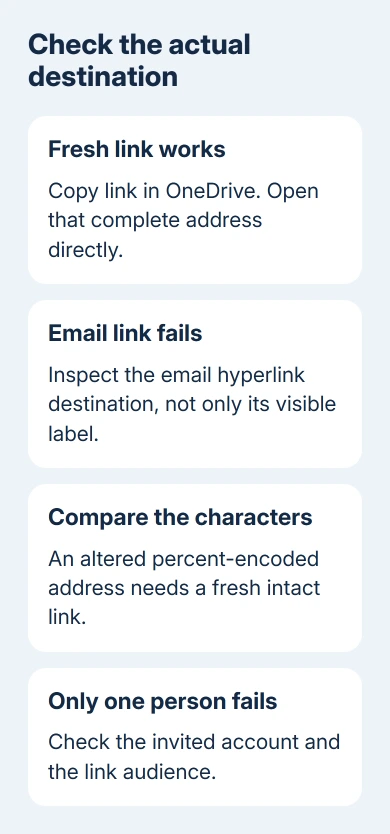
If the fresh address works but the emailed one fails, inspect the email's actual destination. Use Edit Link or its equivalent in the message editor. The words shown in the email can look right while the link points somewhere else.
Look for missing characters, extra spaces, a cut-off ending, or a changed percent-encoded section. Percent encoding represents certain characters using a percent sign and a code. Keep those codes exactly as OneDrive copied them.
Don't replace percent codes by hand or try to reconstruct a sharing token. Copy the whole address again from OneDrive. A sharing token is part of the access link, so guessing at its characters isn't a repair.
One owner confirmed that their email program changed percent signs when inserting the link. The resolved sharing-link report concerned OneDrive for Business links that failed even for the owner and administrator.
An earlier attempt in the same discussion involved a library setting. It didn't help: the owner said it was already correct and couldn't be changed. Check the address before changing library security.
2. Send a fresh link and check what the recipient receives
Create a message with the freshly copied address. If the editor rewrites it, insert it with the hyperlink control and inspect the destination. A plain-text message also lets you compare how that editor handles the address.
Send it to the intended recipient and ask them to open the received copy. Testing your draft alone misses changes made during sending or by the recipient's mail system.
Ask whether the error appears immediately or after signing in. Also ask whether another recipient can use that exact invitation. Those details separate a broken address from an account-specific permission problem.
Some organizations change links to pass through a security check. That change alone doesn't mean the link is broken. If only the protected email link fails, give IT both versions privately for a check of the mail protection system.
I'd compare one fresh link end to end before generating several replacements. With several different links in the conversation, it's easy to lose track of which invitation the recipient tried.
If sharing emails never arrive, use the OneDrive invitation-email checks. A delivery failure needs different work from a delivered link that opens an access error.
3. Match the invitation to the intended account
When only one person is denied, check the invited email address. The recipient needs to sign in with an account the invitation allows. Another Microsoft account already open in the browser won't necessarily have access.
Open the invitation in a private browser window to choose the sign-in account. Use the invited work, school, or personal identity. Complete an email verification code if the organization's sharing setup requests one.
A private window doesn't grant permission. It prevents the browser from automatically choosing a different account. If the right account still gets denied, the owner needs to check who has permission to open the file.
For work or school files, a link limited to the organization won't give an external customer access. A link for people with existing access doesn't create permission for a new recipient either.
The owner should reopen Share and check the audience shown for the copied link. Choose named recipients when the document should stay limited to them. Our OneDrive sharing guide explains the audience and permission choices.
Don't switch confidential material to an unrestricted link just to make an error disappear. If the needed audience isn't available, have your organization's administrator review external-sharing restrictions.
4. Replace a removed, moved, or expired invitation
The document owner should confirm the file still exists in its expected OneDrive location. Then review Manage access for the file and check whether the link being used is still active.
An old message can contain a link that was removed during earlier troubleshooting. In the original discussion, an administrator also found visits to removed guest links before the final address-conversion problem was resolved.
Use the current invitation rather than repeatedly opening an older email. Microsoft's sharing-link guidance recommends creating a new link when an existing OneDrive sharing link no longer works.
A link with an expiration date stops working after that date. If the recipient should still have access, the owner can create a replacement invitation with the right permissions and send the new link.
For a moved file, open it from its present location and share it there. Don't assume a saved bookmark or previous message still points to the right place. Ask the recipient to test the new invitation before discarding the old email trail.
Give IT the two results that matter
Report intact links rejected by external recipients to your Microsoft 365 administrator. Ask them to check the site and organization sharing rules. Provide the document location, recipient type, exact error, and time of the failed attempt.
If only email-delivered links fail, ask the mail administrator to compare the copied destination with the received destination. Share those addresses privately because a working sharing link can provide access to the document.
For personal OneDrive, open Help and request sharing support. Explain whether the fresh link works for its owner and whether the recipient used the invited account. A desktop sync reset won't repair an altered address.
The Short Version
Compare the copied link with the email destination. Resend an intact invitation, then check the recipient and audience. The owner replaces expired or removed links; IT checks sharing restrictions and mail rewriting.
Checked November 16, 2026.
 If you have any business, I can build it online






